How To
Summary
When creating a Notification Policy, you can use Predefined rules or Custom rules. Multiple rules can be selected to match ALL or ANY.
Steps
The following Predefined rules are available in the Notification Policies. One or more predefined rules can be selected.

- Match for any incoming alert: All incoming alerts are matched with any conditions.
- Severity attribute of the alert: The following Severity predefined selections can be made. Only one should be selected.
- Severity of the alert is Fatal: The Alert Severity is Fatal or 6.
- Severity of the alert is Critical or above: The Alert Severity is Fatal, Critical, 6 or 5.
- Severity of the alert is Major or above: The Alert Severity if Fatal, Critical, Major, 6, 5 or 4.
- Severity of the alert is Minor or above: The Alert Severity is Fatal, Critical, Major, Minor, 6, 5, 4, or 3.
- What attribute or summary of the alert contains specific text. The value is case insensitive.
- What happened contains the word failed: The Alert What attribute contains case-insensitive “failed”.
- What happened contains the word error: The Alert What attribute contains case-insensitive “error”.
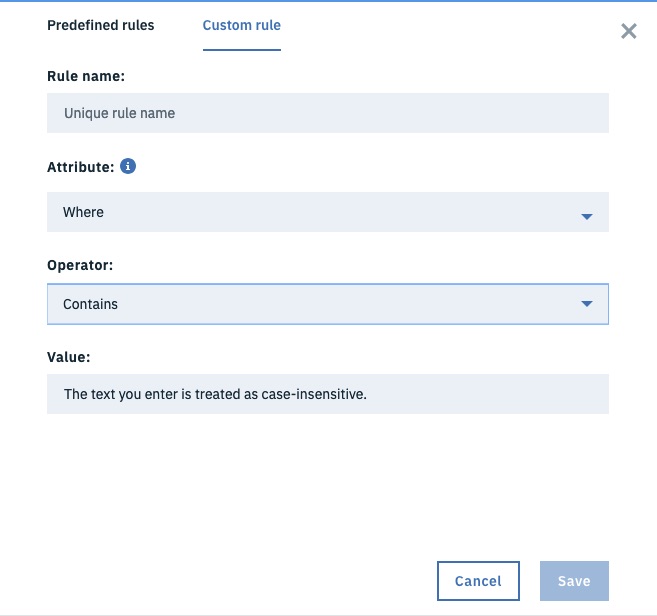
Additional Custom Rules can be configured for the Attributes What, Where, Severity and Application or service name.
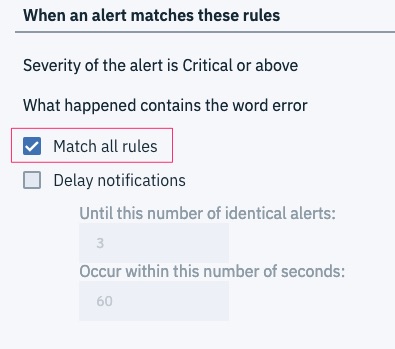
Once rules are added, the box "Match all rules" can be checked to match ALL rules with an AND condition. If this is not checked, ANY rule is matched.
Document Location
Worldwide
[{"Business Unit":{"code":"BU053","label":"Cloud & Data Platform"},"Product":{"code":"SSY487","label":"IBM Alert Notification"},"Component":"","Platform":[{"code":"PF025","label":"Platform Independent"}],"Version":"All Versions","Edition":"","Line of Business":{"code":"LOB45","label":"Automation"}}]
Was this topic helpful?
Document Information
Modified date:
08 March 2019
UID
ibm10875520