Question & Answer
Question
What is the procedure to enable client side logging to troubleshoot IBM Tivoli Widget Library (TWL) to observe HTTP requests and responses in DASH for JazzSM ?
Cause
You can use client side logging to assist in monitoring and diagnosing problems.
Answer
Step 1 : Install Firebug for your Firefox browser
a. Go to https://getfirebug.com/ to download and install Firebug
b. After installing Firebug, you will see a gray icon at the top left of the browser - see snapshot below:

c. To enable/activate Firebug, click on the icon in red above. Alternatively, press "F12" key on keyboard. Once enabled, you will see the following windows at the bottom of your (browser) window:

Step 2: Install NetExport extensions
Why NetExport? NetExport is required to export the Firebug output.
a. Go to https://getfirebug.com/ to download and install NetExport. NetExport is a Firebug extension - therefore, you must select Extensions to install, see below:

b. On the next page, look for NetExport and you will see the following options. Click on Website to download and install - see below:
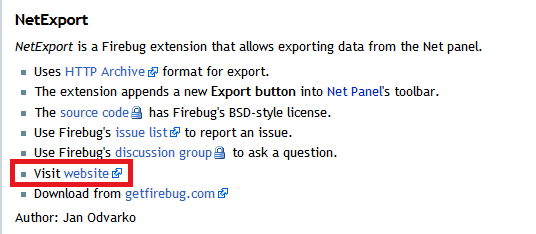
c. You will be redirected to the NetExport website. Download the latest version of the extensions and follow the prompt to install it. Note that Firefox may restart to complete the installation
d. Once NetExport is installed successfully, you will see Export option in Firebug panel as per Step 1 above - see snapshot below:

Step 3: Open the page to reproduce the issue and export logs
a. Clear the Firebug logs to capture fresh set of log. Clear button (same line as Export button) in NetExport panel above can help to clear.
b. Now, open the intended page to reproduce for log collection. New set of logs will be generated in NetExport window. Make sure you've enabled Firebug as noted in Step 1 above.
c. Once you've replicated the issue, you may export the log for investigation. On the NetExport panel, click Export -> Save As (as demonstrated below):

d. Save the logs with ".har" extension. For example, "netexport-log-ddmmyy.har" on your environment. Please exchange this file with IBM Support (if required for investigation). If you open the *.har file which you saved earlier in a text editor, you will see the content as below:

Product Synonym
DASH
Was this topic helpful?
Document Information
Modified date:
17 June 2018
UID
swg21671912