Question & Answer
Question
How do I create a print overlay? How do I store the print overlay on the server? How do I define the print overlay to the OnDemand application?
Answer
OnDemand can send an overlay with the document data to a local printer when a user prints a document from the Windows client. The overlay Identifier and File Name are specified in the OnDemand application, on the Miscellaneous Options -> Advanced Options tab. The overlay Identifier is the name of the bitmap resource (that you create) contained in a DLL file that you build. The DLL file can contain one or more overlays. The overlay File Name is the full path name of the DLL file on the OnDemand server.
This document describes the requirements for the overlay bitmap resource, how to build the DLL and store the DLL file on the OnDemand server, and how to define the overlay to the OnDemand application.
Follow these instructions exactly, however, the formatting tips and hints are trial and error.
1. Requirements for the overlay bitmap resource
For each overlay, create a device independent bitmap in a .BMP file. The bitmap must be monochrome. Although the bitmap will be scaled as required, for best results the bitmap should have the same aspect ratio (ratio of width to height) and be approximately the same size as, or evenly divisible into, a page of the data to be printed with it.
2. How to build the DLL
Build one or more DLLs, each including one or more overlay bitmaps. The name of the bitmap resource in the DLL must be the same as the name specified for the overlay. The name can be a maximum of 50 bytes.
For example, using Microsoft Visual C++, perform the following steps:
1. Create a new project of type "MFC AppWizard (dll)" in a new work space.
2. For each overlay to be created:
- Use the Insert menu to create a new bitmap resource.
- Set the bitmap ID to a double-quoted string such as “Test”. This string must be the same as the name specified for the overlay.
- Set the bitmap Colors to Monochrome.
- Set the bitmap Width and Height to values that can be evenly divided into the width and height of the data to be printed with it. If the bitmap contains only solid letters and numbers, a relatively small size may work well. If a pattern is being used, a larger size will provide better results after scaling. For example, if the data has a standard 8.5 by 11-inch aspect ratio and is printed on a 300-pel printer, a width of 425 and a height of 550 should provide good results for solid letters and numbers. For a shaded pattern, a width of 2,550 and a height of 3,300 would probably be better.
- Draw the bitmap.
- Save the bitmap.
- Build a release version of the project.
3. How to store the DLL on the OnDemand server
Copy the DLL file from the development project to a directory on the OnDemand server machine, such as /opt/overlays. All groups and users should have read permission to the directory. The full path name of the DLL file on the server cannot exceed 255 bytes.
4. How to define the overlay to the OnDemand application
The OnDemand application contains the printing options on the Miscellaneous Options tab. The overlay DLL file is defined on the Miscellaneous Options -> Advanced Options tab. You can use the Windows administrator to define the overlay to each application that will use the overlay when printing documents.
Note: An overlay may be used with any of the following data types: AFP, Line, SCS, SCS Extended, and Global DJDE.
To define an Image Overlay to the OnDemand application using the Windows administrator:
1. Click the Miscellaneous Options tab.

2. Click the Advanced button.

3. Specify the overlay Identifier, which is the name of the bitmap resource (that you created) contained in a DLL file that you built. The Identifier can be a maximum of 50 bytes.
4. Specify the overlay File Name, which is the full path name on the OnDemand server of the DLL file that contains the bitmap resource. The File Name can be a maximum of 255 bytes.
5. Click Add to add the overlay to the application.

6. Click OK to dismiss the Advanced Options tab and return to the Miscellaneous Options tab.
7. Click OK to update the application.
How to select an overlay when printing a document
If the application contains more than one overlay, the user selects the overlay before sending the document to the printer. The user selects the overlay on the Print -> Select an Overlay dialog in the Windows client.
After selecting a document to print, the Windows client displays the Print dialog. When ready to print, click the Print button.
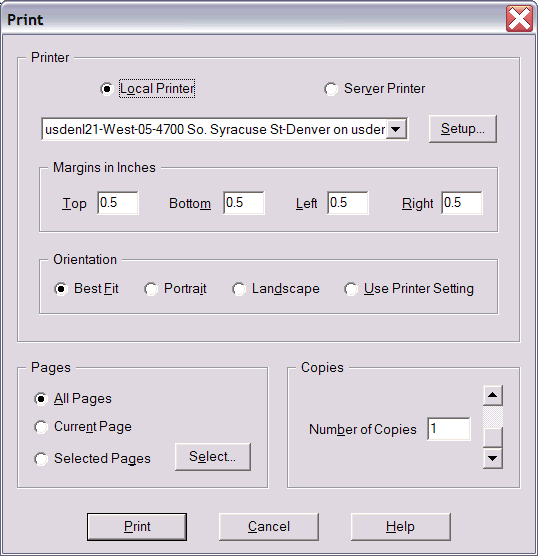
If the application contains more than one overlay, the Windows client displays the Select an Overlay dialog.

The user selects the desired overlay and then clicks OK to print the document.
If the application contains only one overlay, the Windows client does not display the Select an Overlay dialog and the printing is done with the one overlay.
Was this topic helpful?
Document Information
Modified date:
17 June 2018
UID
swg21002837