Technical Blog Post
Abstract
Create SSH User Identity Key in B2B Integrator using API
Body
NOTE: This API service is equivalent to Trading Partner > SSH > User Identity Key > Check In option in the dashboard user interface and not the Create option.
The Rest API covers each required field pretty straight forward except on the field of Private Key Data.
When creating an SSHUserIdentityKey using API, it is askin
Now, you may wonder what that mean and reading my note above, It means that we need to supply a private key string that is in a Base 64-encoded format.
Currently, there is no B2B Integrator script/utility/tool that can generate the self-signed SSH private key.
One would need to use a third party ssh private key tool to accomplish this. (i.e. OpenSSH, PuTTYgen, or others)
And if the generated private key string is not in Base 64-encoded format, then, you may use B2B Integrator's Base64EncodeDecode.sh (UNIX/Linux) or Base64EncodeDecode.cmd (Windows) script/command/tool as found in <B2B Integrator install directory>/bin directory to do the conversion. Afterward,
Here is some more details on the Base64EncodeDecode script:
xxxxxx@xxxxxx:/opt/xxxxx/GIS_INSTALLS/xxxxx/526/install/bin> ./Base64EncodeDecode.sh
Usage java Base64EncodeDecode encode|decode <input-file-name> <output-file-name>
You can use this program to encode binary files also.
Please note that for each new SSH User Identity Key that you want to create in the API, one would need to have different corresponding private key data (Base 64-encoded string) for each SSH User Identity Key.
Below is the illustration of what I tested of the above:
1. Using PuTTYgen to create the needed ssh private key file and convert it to OpenSSH format in order to use it in B2B Integrator:
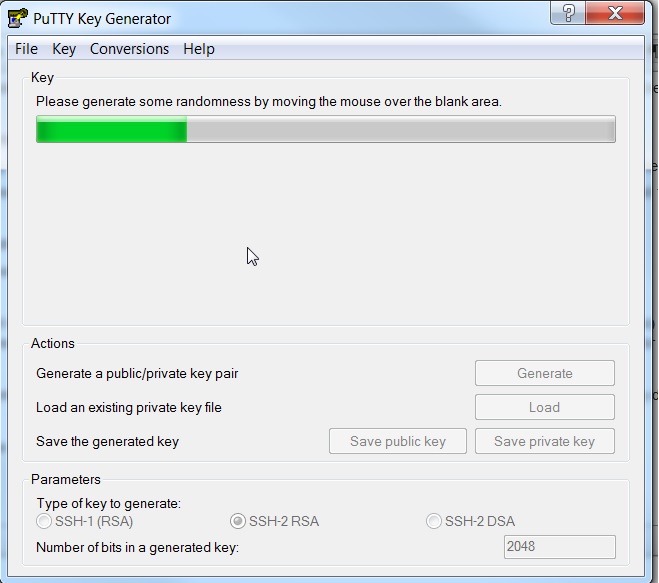
Update Key Comment and Key Passphrase, click Save Private key
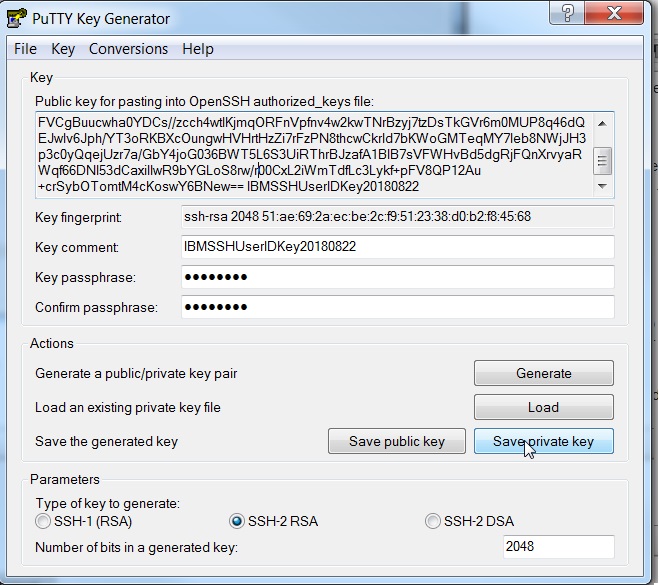

After saving the file, one would need to convert it to OpenSSH format:

Here is my test of the converted ssh private key check-in process in B2B Integrator dashboard user interface:


And the check in process is successful as I didn't get any error message and I can see the key file in the listing below:

Here is the converted file content:
-----BEGIN RSA PRIVATE KEY-----
Proc-Type: 4,ENCRYPTED
DEK-Info: DES-EDE3-CBC,F61F0BB670FA319E
nCKk/mcaJHVlz/lDHhuZjGTXOYilM/eGVLZOY+BL7W5ZrIQJuB6uSaq3u0wy++xF
edqa7CJZpkqpD/Kf7n0ltD/6ycv/FDlH8Q/0TR2j1u93D8jTSloTZuwUOXPPpNgX
15NDJPgFhnA3lWklodxO64P0xO8fi6lpa6Qmol/e4Ts/enxny4XXxst3HzEi6Tep
D0i5oCYLJ6sCJVCWWPkmHYUar5P2kfrRLNiwd8Iw9FCsGs5OlQsDJOL5W9gHtQSs
9gZR+qnpwmTY6NgTymBHFv6kONQ5qLKVk+wb2qOmV7A/F2Wepnm0ISSd1+NwMGAs
jG4wHu/BcZWzjFrdxzou6ZizfLSW9WNOMPWxt4KCH8MRfs8gmeWz28/LoMNjZ/EI
9eTI22rw7N/WSSwy4jE1VQEQ6WQ2u20j5QZxh0g0qQ3SOo2p5EK+DD8g6P4m4yG/
1q+uUKoDA09AaH5VwANaYpIOYRFIES/ecvM08CDRsCH+eh6mSpOhzPzmhbHI1hF0
PJMAK7GkzHB0KINvrWmxZ71vlritV+TQ3YAlEoxmoSl3Au9tL542UuZPqZgBal9R
SeNrz34hj9hYdB4MzEy5lC9WTy9KjoZGEtOOnGAZ/89DZc/NbpzGo4GfWw/VwnmJ
6XJGhHAMNOYIvBm4z2Bg41nhM/t0tUIXqTku7QTX6tPh+kBKkkbg2Qs6VPm2diNg
o/G7KDDi0QCTGd8PIMluZRszAxUkylLJyOK0yBfJCTTjWzJ4deduJ57KZlUt+CpQ
mJaQmNadNVNWFumdScxgjy1T/DkQOGVjXo3Q1cSynlfSiJ+FjSy6m0ffbbBhp9/t
gOrlmta7hoSPTxzMnkHWxWhTzUTOi3eq7Bsc2HjlAbH+V2vKHL/zZ+jb2R/rO0Lw
GhFO4kyFkO5Z49YQWrCIRYzXIDyVNb2PFYHOYKsLIHmmpUy9S3a1z01ALkWZuc8Q
d0VC/CJ0LkA4m35fcYR29u6E+VsIhLNlsqZ0an/0pTvptGvjZU3AKWSHqoF+MTeV
iiB0yUzInjxl2EB9LR611kCM+AHKT8diAtyy+6aqZ5NlRHpYMxbiueHMltNels+J
g2fmovj3ZuOe9neEYKQiQDcfwzfTBjTvRFuhnBpyZjyMU+Eyuu3Weqwjwu9XDSVS
MhG0Le93BwzX3BFW8tZ5Kw2zK/jNo9SYyqul82TnXD/k5CVMWHATUqN2h0qPogdD
xLk96QrIEppt+awQht+ttBkwzMiFoHXjX6nBwOPe9shgyHtu31bwCfZ52ST/q+0D
ZWI0STyH/g6rWDEvPimBQF1w+mz7Im6D8/CeWn6JF/y9cQNmlA2a6YZ2ZwHR6/mL
fWc0RLgM843dOiKuAFLMQntrzoGBxGzjipzONRRNo6NBLfo9IEEZJLfoE10LyXxj
BA4vzFudWvgmczPPm0HsrhqjJUOjhCqWcbDtlo6cbRJu72HXNh3JQCHkhnu6cwNK
A8ibwp8PIbiQeOeHoCcd2jbFCmMplsMESMuTSWovURnY4I/Jd7I7GjkWldkEpB3V
pZzBEdS+BSs6TA5E1lCCo1oWH2eticQmsRbf8XAjGYtbA+acAvVaPg==
-----END RSA PRIVATE KEY-----
In order to use the private key file, in API, one needs to convert the private key file content into Base64 Encoded format.
For this, I copied the ssh private key file (IBMSSHUIKeyConverted.ppk) to my Linux server and issued the following command to Base64-encode the file content:
axxxxx@xxxxxx:/opt/xxxxx/GIS_INSTALLS/xxxxx/526/install/bin> ./Base64EncodeDecode.sh encode /opt/apps/GIS_INSTALLS/achia/526/temp/IBMSSHUIKeyConverted.ppk /opt/apps/GIS_INSTALLS/achia/526/temp/Base64EncodeOutputFile
/opt/apps/GIS_INSTALLS/achia/526/temp/Base64EncodeOutputFile created
For the above, we have the command encode input-file output-file in that sequence.
The output file does not need to exist as the script will create one for you.
Here is the content of the /Base64EncodeOutputFile:

At this time, I am ready to test API Create SSH User Identity Key Service.
Loading the Webservice page:


Next, fill in the Key Name, Pass Phrase, Check the box for Key Status Enabled, and copy the Base64-encoded string from the Base64EncodeOutputFile to the Private Key Data field and click Submit button:

And one ought to expect to see the 201 status per API documentation:

And verifying the end result in B2B Integrator dashboard:

On troubleshooting of the Submit status other then 201 such as 400, etc, please review the error message toward the bottom of the page and also review the liberty logs located on your
<B2B Integrator Server Install Directory>/install/liberty/wlp/usr/servers/SIServer/logs directory.
If further help is needed, please open a case with us.
Thank you!
UID
ibm11120593