Question & Answer
Question
What is the correct procedure to configure the ITCAM for J2EE Data Collector for Tomcat to run as a Windows service?
Cause
There is an option to specify the Tomcat Windows Service during GUI configuration of the ITCAM J2EE 7.1.1 agent/DC. This option does not work and will result in a failed configuration.

This option will be removed from the drop down menu for the Tomcat DC Configuration, according to APAR PI43783.
Answer
Tomcat on Windows platforms must be installed from a base distribution, that is extracting a .zip file named like apache-tomcat-7.0.62.zip, even though one plans to start Tomcat only as a Window Service, and not with a startup script.
If you install Tomcat from the Windows Service Installer (e.g. apache-tomcat-7.0.62.exe), rather than a base distribution, some of the command-line and startup scripts for launching Tomcat will not be included, and you won't be able to complete the following procedure.
1- Configure the DC using the Normal Startup option.

On a supported Windows 64-bits platform with the YJ 7.1.1.0.0 installed in E:\IBM\ITM\, and with a Tomcat 7 running a supported version of Sun HotSpot JRE , this will result in the following stanza being added into the <AppServer_home>\bin\catalina.bat file:
REM -----Configurator of DC Begin----------
set PATH=E:\IBM\ITM\TMAITM6\j2eedc\7.1.1.0.0\toolkit\lib\win64;%PATH%
set JAVA_OPTS=-Xbootclasspath/p:E:\IBM\ITM\TMAITM6\j2eedc\7.1.1.0.0\toolkit\lib\bcm-bootstrap.jar -Xbootclasspath/p:E:\IBM\ITM\TMAITM6\j2eedc\7.1.1.0.0\itcamdc\lib\ppe.probe-bootstrap.jar -Xbootclasspath/p:E:\IBM\ITM\TMAITM6\j2eedc\7.1.1.0.0\itcamdc\lib\ext\tomcat\tomcat.bcm.jar -agentlib:am_sun_16=E:\IBM\ITM\TMAITM6\j2eedc\7.1.1.0.0\runtime\tomcat70.nc114017.romelab.it.ibm.com.Tomcat7\dc.env.properties -Xloggc:E:\IBM\ITM\TMAITM6\j2eedc\7.1.1.0.0\runtime\tomcat70.nc114017.romelab.it.ibm.com.Tomcat7\gc.log -XX:-TraceClassLoading -XX:-TraceClassUnloading -Dcom.sun.management.jmxremote -Dsun.lang.ClassLoader.allowArraySyntax=true %JAVA_OPTS%
REM -----Configurator of DC End----------
You might want to check at this point if the DC is correctly started when you start the Tomcat via the startup.bat script, even though you will start Tomcat as a Windows Service in the future.
2- Right-click the Tomcat Service icon on the Windows taskbar and click Configure.
3- When the Apache Tomcat properties window opens, click the Java™ tab.
4- From the open catalina.bat file, copy the value for JAVA_OPTS, and paste it into the text box labelled Java Options (in the Apache Tomcat Properties window).
-Xbootclasspath/p:E:\IBM\ITM\TMAITM6\j2eedc\7.1.1.0.0\toolkit\lib\bcm-bootstrap.jar
-Xbootclasspath/p:E:\IBM\ITM\TMAITM6\j2eedc\7.1.1.0.0\itcamdc\lib\ppe.probe-bootstrap.jar
-Xbootclasspath/p:E:\IBM\ITM\TMAITM6\j2eedc\7.1.1.0.0\itcamdc\lib\ext\tomcat\tomcat.bcm.jar
-agentlib:am_sun_16=E:\IBM\ITM\TMAITM6\j2eedc\7.1.1.0.0\runtime\tomcat70.nc114017.romelab.it.ibm.com.Tomcat7\dc.env.properties
-Xloggc:E:\IBM\ITM\TMAITM6\j2eedc\7.1.1.0.0\runtime\tomcat70.nc114017.romelab.it.ibm.com.Tomcat7\gc.log
-XX:-TraceClassLoading
-XX:-TraceClassUnloading
-Dcom.sun.management.jmxremote
-Dsun.lang.ClassLoader.allowArraySyntax=true
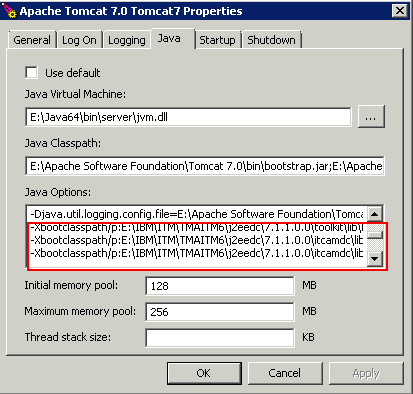
6- Add to the System Environment Variable PATH into the System Environment Variables the same value that was set for PATH into the catalina.bat:
<DC_home>\toolkit\lib\<win_arch>
in our Windows 64-bits example:
E:\IBM\ITM\TMAITM6\j2eedc\7.1.1.0.0\toolkit\lib\win64
Apart from small differences depending on the particular Windows distribution, this can basically be done from Control Panel-->Advanced System Settings-->Environment Variables-->Edit System Variable: Path

7- Restart Windows.
Was this topic helpful?
Document Information
Modified date:
17 June 2018
UID
swg21961542