How To
Summary
In case of a problem with Single Sign On (SSO), IBM Support needs the SAML2 response to investigate the issue.
Follow instructions below to collect SAML response information from different browsers.
Steps
Firefox
- Open the browser (preferably a private window).
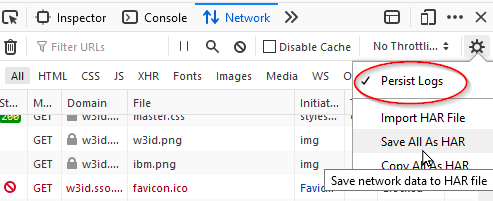
- Go to Firefox Options > Web Developer > Toggle Tools > Network
- Check that the "Persist Logs" option is enabled.
- Reproduce the error.
- Right click the gear in Developer tool window and "Save all as HAR".
- Open HAR file in a text editor.
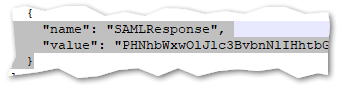
- Search for SAMLResponse, and copy the information from "SAMLResponse" until the last " and send us that information.
Google Chrome
- Go to Chrome options > More Tools > Developer Tools
- Make sure that the "Preserve Log" is enabled.
- Reproduce the error.
- Go to the developer tool panel, click the down arrow in line 2 to export HAR.

- Save the HAR file.
- Open HAR file in a text editor.
- Search for SAMLResponse, and copy the information from "SAMLResponse" until the last " and send us that information.
Document Location
Worldwide
[{"Business Unit":{"code":"BU053","label":"Cloud & Data Platform"},"Product":{"code":"SS2MKC","label":"IBM Blueworks Live"},"ARM Category":[{"code":"a8m50000000CeZOAA0","label":"Admin Console->Security->Single Sign On (SSO)"}],"ARM Case Number":"","Platform":[{"code":"PF025","label":"Platform Independent"}],"Version":"All Version(s)","Line of Business":{"code":"LOB45","label":"Automation"}}]
Was this topic helpful?
Document Information
Modified date:
11 August 2020
UID
ibm16257541