Troubleshooting
Problem
This document describes how to change an ASM (Advanced System Management) password on a FSP-based System.
Resolving The Problem
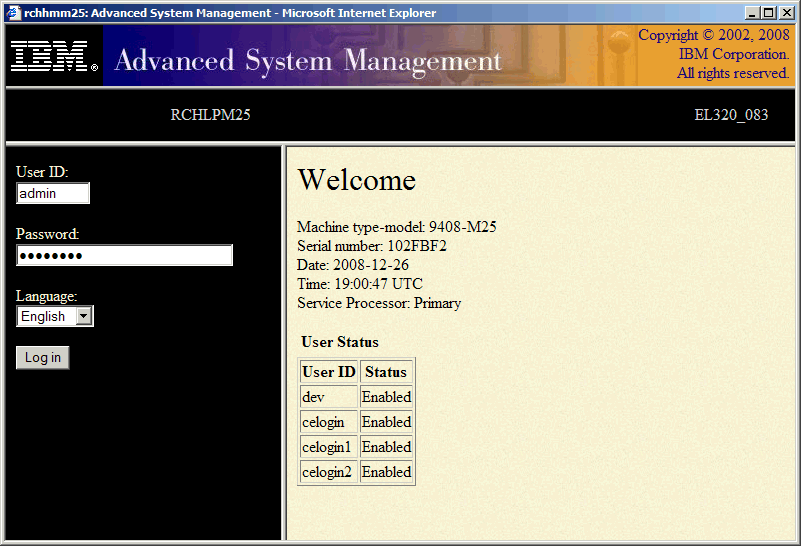
From the Advanced System Management (ASM) login screen, type the user ID and password, and click the Log in button or press the Enter key.
Note: Ensure the desired system is selected.
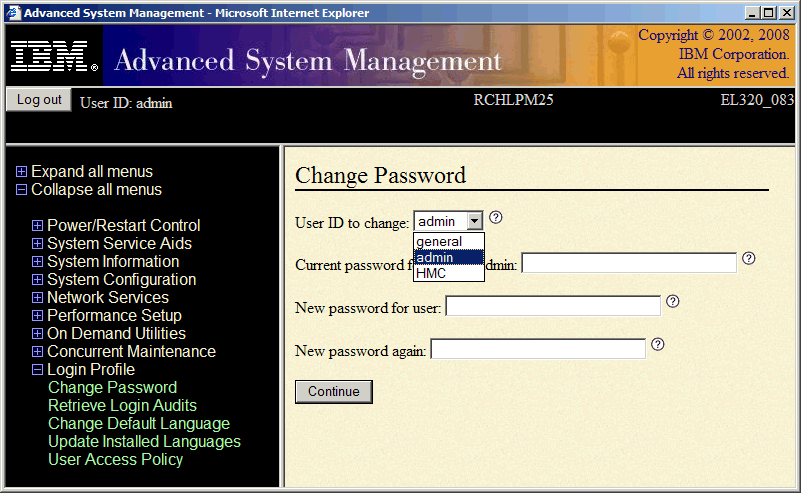
Expand Login Profile, select Change Password, and then select the User ID you want to change.
Note: The Current password field indicates the user signed into ASM (not necessarily the User ID being changed).
Note: If the admin password is lost, contact your hardware service provider. See the following document for information about ASM authority levels - https://www.ibm.com/docs/en/power9?topic=asmi-authority-levels
Note: Ensure the desired system is selected.
Expand Login Profile, select Change Password, and then select the User ID you want to change.
Note: The Current password field indicates the user signed into ASM (not necessarily the User ID being changed).
Note: If the admin password is lost, contact your hardware service provider. See the following document for information about ASM authority levels - https://www.ibm.com/docs/en/power9?topic=asmi-authority-levels
[{"Product":{"code":"SSB6AA","label":"Power System Hardware Management Console Physical Appliance"},"Business Unit":{"code":"BU054","label":"Systems w\/TPS"},"Component":"POWER5\u2122","Platform":[{"code":"PF012","label":"IBM i"}],"Version":"5.4.5;6.1;5.3.0;5.3.5;5.4.0;6.1.0;6.1.1","Edition":"","Line of Business":{"code":"LOB08","label":"Cognitive Systems"}}]
Historical Number
349813115
Was this topic helpful?
Document Information
Modified date:
15 May 2023
UID
nas8N1015942