Troubleshooting
Problem
In order to add icons with frames in the Legend dialog of IBM i2 Analyst's Notebook the user needs to create their own custom icons
Symptom
There are no icons with frames in the Legend dialog.
Cause
This functionality is not currently available but an enhancement request has been raised for consideration for a future release.
Resolving The Problem
In order to have icons with frames in the Legend dialog the user needs to create a custom icon of the entity in Analyst's Notebook. To do so please follow the instructions shown below:
- On a blank chart create a mobile phone entity. Close up to the entity so it looks like the screenshot below:
- Then add a frame to it by doing the following:
- Double click on the entity or right click and select Edit Item Properties…
- Click on Style – Frame
- Tick the Display a Frame: box
- Select the colour and margin you desire and click OK
- Then click on the name of the entity (Mobile Phone 1 or similar) and delete it leaving only one empty space so you can use it. It should look like this:
- Then click on Alt – PrtScn keys on your keyboard simultaneously and open MS Paint. This tool can be found in the Accessories folder in Windows under the label Paint.
- Paste the Screen capture we have just taken by using Ctrl + V or right click on the blank space and select Paste
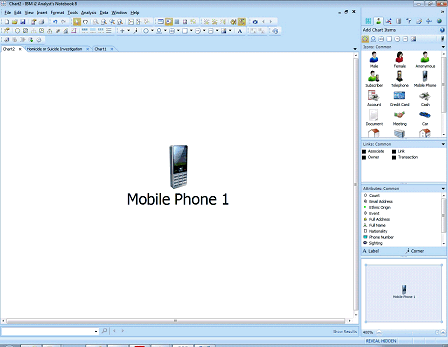
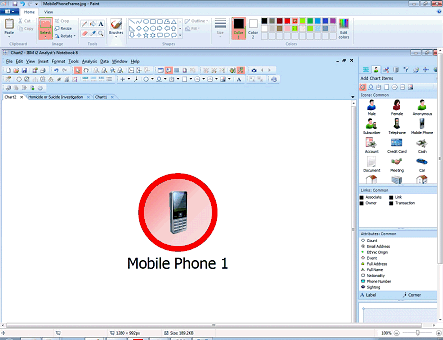
- Then select the icon area only and copy or cut the icon onto a new image. Save the image with your preferred name but in the Save as Type: drop box select the extension .PNG. It should look like this:
- Once it is saved you need to place that file in the following folder:

- C:\Program Files (x86)\Common Files\i2 Shared\Images 8.5\Basic\Icons
- If your computer does not have a Program Files (x86) folder it would have a Program Files one instead, so it would look like this:
- C:\Program Files\Common Files\i2 Shared\Images 8.5\Basic\Icons
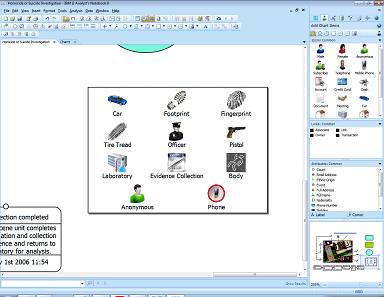
- Then go back to Analyst’s Notebook and open the Legend dialog, click on Icon and look for the icon you have just created in the list

- Please see below for an example:
[{"Product":{"code":"SSXUXD","label":"i2 Analyst's Notebook"},"Business Unit":{"code":"BU059","label":"IBM Software w\/o TPS"},"Component":"--","Platform":[{"code":"PF033","label":"Windows"}],"Version":"8.9.9;8.9.7;8.9.5;8.9.3;8.9.11;8.9.1;8.9;9.0.0","Edition":"All Editions","Line of Business":{"code":"LOB24","label":"Security Software"}}]
Was this topic helpful?
Document Information
Modified date:
16 June 2018
UID
swg21664309