Product Documentation
Abstract
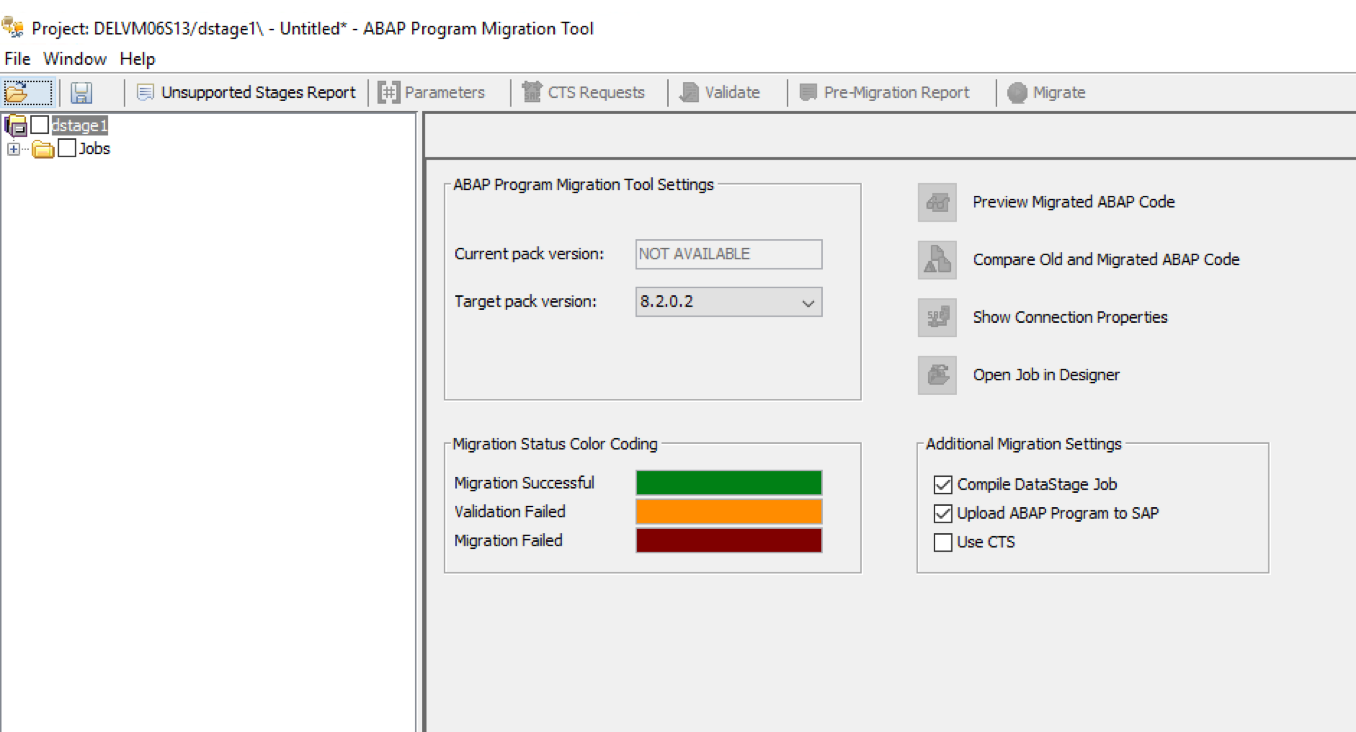
ABAP Program Migration Tool (referred to as "the Tool" in this document) allows migration of ABAP Extract Stage jobs designed in the earlier releases of the Pack version to the current version.
Content
- Overview
- Prerequisites
- Setting up and starting the Tool
- Configuring the Tool
- -Setting the preferences
- -Configuring job parameters
- -Configuring additional migration settings
- -Configuring CTS Request
- Generating the Unsupported stages Report
- Migrating ABAP Extract Stage Jobs
- -Preparing the jobs to be migrated
- -Validating the jobs to be migrated
- -Pre-Migration of jobs
- -Migrating the selected jobs
- -Compiling the jobs
- Using additional functions
- Saving Migration Project
- Known Limitations
Overview
The ABAP stage of Information Server Pack for SAP Applications is used to extract data from an SAP application server. The stage automatically generates an ABAP program based on the extraction parameters and uploads it to the SAP server. During run-time the stage invokes the ABAP Program on the SAP server and extracts the data by means of RFC transfer.
Due to periodic enhancements and critical fixes done in the ABAP Program, it is often needed to re-generate the ABAP Program to make it compatible with the current Pack version, including new features. Failure to do so might mean the job will either not be supported during run time or may lead to inconsistent data.
Note: determining the generating Pack version for an ABAP stage program is described in technote 0871100.
Before this tool the only way you can do this is to edit the designed ABAP Extract Stage in DataStage Designer and re-generate the ABAP Program. This is a manual process which is recommended for a limited number of jobs, but for large sets of the jobs becomes impractical.
The Tool is developed to address the need for automatically migrating large number of ABAP Extract Stage jobs. The target version can be selected in the tool. During this process, it re-generates the ABAP Program as per the selected target version.
Features:
- Ability to connect to Information Server v11.3 and later and get the applicable ABAP Extract Stage jobs for selected project
- Extensive validation of ABAP Extract Stage jobs to check their fitness for migration.
- Pre-migration check for the preview of the migrated ABAP Program before migration
- Migration of the ABAP Program with an option to upload the ABAP Program directly to SAP server with/without CTS.
- Saving the migrated ABAP Extracts Stage jobs back to Information Server
- Compiling migrated jobs using DataStage Multiple Job Compile.
- Generate premigration / migration reports.
Prerequisites
Prerequisites to using the Tool:
- The Tool is supported only for Information Server version 11.3.1.2 and higher. The tool requires client tier setup therefore you need to install Information Server Client version 11.3.1.2 or above.
- SAP Java Connector (JCo) 3.0 files (sapjco3.dll, sapjco3.jar) are required on client tier (copy them to <ISHome>/ASBNode/lib/java). Reference technote 22016343 for details .
- Both ABAP program Source Version and Target Version transports need to present on the SAP Server while migrating the jobs through migration tool. For example, if originally the ABAP programs were created in version 8.0.0.3 and are now migrated to version 8.2.0.0, the SAP transports from both version 8.0.0.3 and 8.2.0.0 should be imported on the SAP Server.
- Currently the tool supports migration of jobs to target Pack version 8.1.0.0, 8.2.0.0, 8.2.0.1. Note though the jobs migrated to Pack version 8.1.0.0 are fully compatible with version 8.1.0.1.
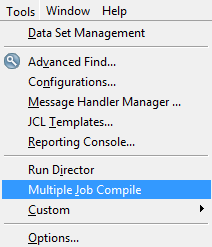
- It is recommended to compile all the ABAP Extract jobs through option Multiple Job Compile present in DataStage Designer in the Tools menu before invoking the Tool.
Setting up and starting the Tool
Follow these steps to install the Tool on the Information Server Client tier machine:
- The Tool is delivered using the zip file ABAP_Program_Migration_Tool.zip available in the Windows installation image for Pack for SAP Applications 8.1.0.1 and 8.2.0.0
- Extract to subfolder Clients\Classic\ABAP_Program_Migration_Tool inside the Information Server installation folder
(e.g. C:\IBM\InformationServer\Clients\Classic\ABAP_Program_Migration_Tool)
or to other folder of your choice. If using a custom folder, set IIS_CLIENT_HOME environment variable at the system level to point to the path of the Information Server installation directory (e.g. C:\IBM\InformationServer) - To invoke the Tool, go to extracted ABAP_Program_Migration_Tool directory and execute the batch file run_ABAP_Program_Migration_Tool.bat
- It will invoke the Logon dialog; fill the credentials: Domain (as <Host name of the service tear>:<Port number>), User name, Password, Project (press the refresh button to list the available projects). The screenshot below shows for comparison the Tool logon window on left and the DS Designer logon window on right.

- At the initial login the Tool may throw the exception below related to the import of signed certificate. To resolve this issue you need to update the certificate as shown in Running the UpdateSignerCerts command.
Failed to authenticate the current user against the selected Services Tier. The URL [iiop://host:2809] that is used to connect to the host [host] on the port [9080] is incorrect or is not trusted. To trust the connection, import signer certificate into the local truststore, by running the following UpdateSignerCerts command: UpdateSignerCerts{.sh|.bat} -host host -port 9080. - Once the user successfully logs in, the tool lists only ABAP Extract jobs from the selected DataStage project which meets the migration criteria:
Criteria Name
Value
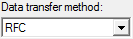
Data transfer Method
RFC is used as the Data transfer Method tab in the ABAP Extract job e.g. as shown below in the ABAP Extract Stage GUI
Generation method
Either one from below method to generate SQL in ABAP Extract Stage job:
- Build SQL query
- Build Extraction Object
Present in the ABAP Program tab in the ABAP Extract job.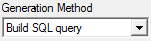
ABAP Program Development Status
Either one of these statuses:
- Program needs to be loaded to SAP
- Program loaded to SAP
- Program needs to be saved to a file
- Program saved to file <file Name>
- Program ready for runtime load
- Program not used for <Local File> data transfer method
- Program needs to be re-generated. Current ABAP program version mismatches with pack version
Present in the ABAP Program tab in the ABAP Extract job: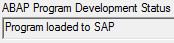
Configuring the Tool
You must configure the preferences and various settings for the Tool, before you can use it.
Setting the preferences
1. Start and Log in to the Tool.
2. Click Window > Preferences.
3. In the Local Editor executable field, specify the executable file for editor you want to use for preview of ABAP code.
4. In the Diff Tool Executable field, specify the executable file for the Diff tool to compare two versions of the ABAP code.
5. In the Temporary Folder field, specify the name and path for the folder to save the intermediate files. The ABAP code is saved in this temporary folder when the Diff tool compares different versions of the ABAP code.
6. In the Location for Migration Reports field, specify name and path of the folder where you want to save the migration reports generated by tool. Pre-Migration reports are saved to a subfolder named PreMigrationReports. Migration reports are saved to a subfolder named MigrationReports.
Configuring job parameters
The migration tool processes only the subtrees of the selected tree node. The parameters that are used in stages that are not contained in this subtree are not displayed. You can specify parameter values for parameters used in the connection settings of the ABAP extract jobs:
1. In the project tree, click a tree node.
2. Click Parameters.
3. Select a parameter name and specify a value in the Parameter value column. You can modify the parameters used in the fields User, Password, Language, and Client ID.
4. Click Apply. If a parameter name is used multiple times, then you can use a specified value for all instances of the parameter.
Configuring additional migration settings
You can configure additional migration settings in the Tool:
1. Select Compile DataStage Job to compile the corresponding InfoSphere™ DataStage® jobs after the stage migration process.
2. Select Upload ABAP Program to SAP to upload the ABAP program generated to the SAP server during the migration process.
3. Select Use CTS to upload the ABAP programs by using the SAP Change and Transport System.
Configuring CTS Request
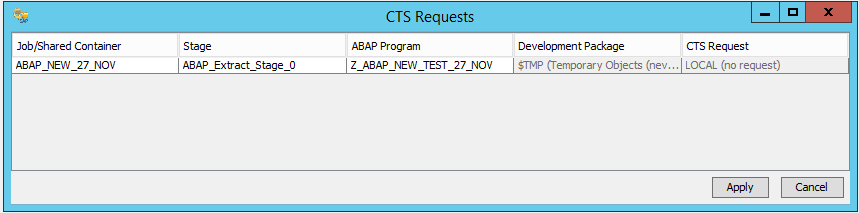
The Tool uses SAP CTS (Correction and Transport System) to upload ABAP programs for the jobs which are designed with the CTS options. To upload an ABAP program by using CTS, a development package and a CTS request must be selected for each individual ABAP Extract Stage job:
1. Select the jobs to be migrated
2. Click CTS Requests in the toolbar. A dialog is displayed that enables you to select a development package and a CTS request for each individual ABAP program that is planned to be uploaded during the migration process. You need to enter the following details:
a. In the Development Package column, select an existing development package. The development package must be present on the SAP side.
Note: If the ABAP program has been loaded to SAP previously using CTS, the development package is pre-selected. In this case, the development package is displayed only for informational purposes and cannot be changed.
b. In the CTS Request column, select a request. It must be present on the SAP side.
Generating the Unsupported stages Report
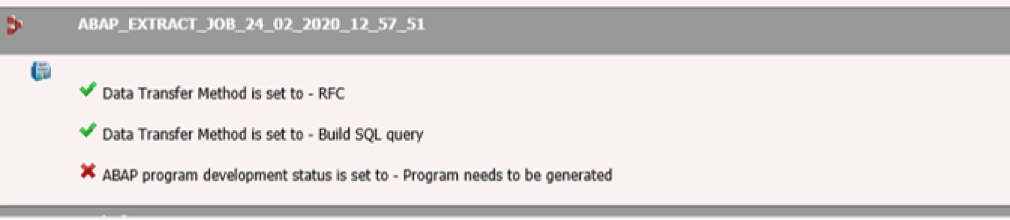
supported for migration through the tool, since they do not meet the migration criteria. The report is generated in HTML format.
| Criteria Name | Value |
| Data Transfer Method | Data Transfer Method is set to either:
See ‘Data Transfer Method’ tab of stage UI in job:
|
| Generation Method | ABAP program Generation Method is set to:
See ‘ABAP Program’ tab of stage UI in job:
|
| ABAP Program Development Status | ABAP Program Development Status is set to either:
See ‘ABAP Program’ tab of stage UI in job:
|


Migrating ABAP Extract Stage Jobs
Preparing the jobs to be migrated
In the tool, select all jobs that are to be part of migration. Click the check box next to the stage that you want to include in migration from the project tree. To select the entire subtree, select the check box in the root node as shown below.

Validating the jobs to be migrated
Validation of ABAP Extract jobs is done through the Validate button before migration:
1. Once the user selects the ABAP Extract jobs for migration the Validate button will get enabled and it's mandatory to validate the ABAP Extract jobs before you can use pre-migration and migration functionalities in the tool.
Note: In case you change anything in parameters/CTS options/selection of jobs, you are required to run the validation functionality again to ensure that jobs are validated for the current selected jobs with correct connection and other settings.
2. For each selected ABAP Extract job following validation checks are done:
| Error Type | Description |
| ERROR | Validate SAP connection parameters to check whether SAP connection can be successfully created during migration. In case SAP connection fails, validation fails, and you will see this error message: |
| ERROR | Validate the ABAP program present in the ABAP Extract job with the target version selected in the Tool. |
| ERROR | Validate the syntax error in the ABAP code present in ABAP Extract job. If the ABAP code contains a syntax error, migration of such jobs cannot be guaranteed and therefore such jobs will get failed in validation with the following message: |
| Warning | Validate the UPLOADEDCODE stage property with ABAPCODE stage property. Since migration tool will migrate the ABAP code as stored in stage level (ABAPCODE), it may overwrite the different ABAP code in SAP server. Therefore, it is important for you not to overlook this warning. You can generally resolve this in DS Designer by editing the job and uploading the ABAP Program to SAP. You will get the following validation warning message in case this check fails: |
| Warning | Validate the ABAP Code uploaded in SAP with ABAP code present in ABAP Extract job. This check will additionally help to identify the cases where the ABAP Code is manually edited only in SAP server. In case this is not done, both this and previous validation check results will remain same. You will get the following validation warning message in case this check fails: |





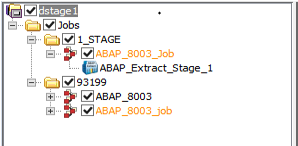
After Validation, the color of the job nodes in Project tree will change as per the validation status:
- passed validation cases job name color is black, e.g. ABAP_8003 job below
- failed validation cases job name color is orange, e.g. ABAP_8003_job below
Pre-Migration of jobs
This functionality is used to generate the Pre-Migration report in HTML format for the ABAP Extract jobs selected for Migration.
Procedure:
1. On the successful validation of ABAP Extract jobs, the Pre-Migration Report button will get enabled. Clicking this button will pre-migrate the selected jobs
2. The report shows the pre-migration status of the selected ABAP Extract jobs in the HTML report format. It is divided in two sections:
a. Successfully validated jobs are listed under the SUCCESFULLY MIGRATED JOBS section. The report also lists the migrated ABAP code corresponding to each ABAP Extract job as shown below. You can open the migrated ABAP program directly from the browser to check the migrated code.
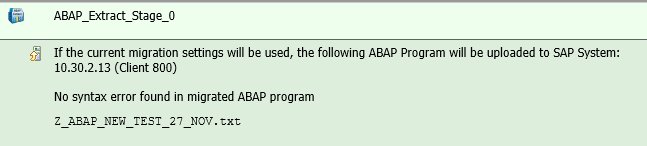
b. Failed validation jobs are listed under the FAILED MIGRATED JOBS section. You can check the validation failure reason corresponding to each job listed here:
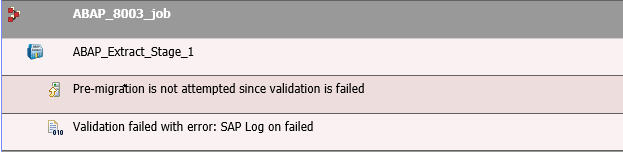
Migrating the selected jobs
This functionality is used to migrate the ABAP Extract job as per the Target version selected in the Tool.
Procedure:
1. Close DataStage Designer before migration of ABAP Extract job; otherwise a warning is shown:

2. On successful generation of Pre-Migration Report the Migrate button will get enabled. Clicking this button will migrate the selected ABAP extract jobs.
3. Migration will happen only for the jobs which have successfully passed the validation.
4. On successful migration, the message below will display; also an Migration Report is generated in HTML format.
5. In background the following operations will occur:
a. ABAP code will be uploaded to SAP server in case you have selected option Upload ABAP Program to SAP
b. Updated ABAP Extract Stage will be saved back to DataStage repository
c. Multiple Job Compile tool will be invoked in case you have selected option Compile DataStage Job
6. The Migration Report is generated on successful migration. This report is divided in two section as follows:
a. Successfully migrated jobs are listed under the SUCCESFULLY MIGRATED JOBS section. The report also lists the Migrated ABAP Code per the target version selected in the Tool as shown below:
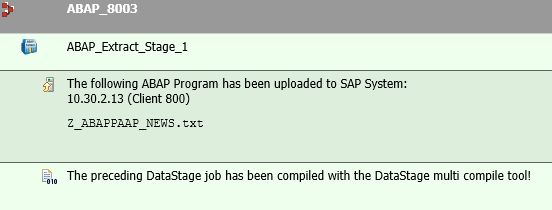
b. Failed migration jobs are listed under the FAILED MIGRATED JOBS section. You can check the validation failure reason corresponding to each ABAP Extract job listed in this section.

7. After Migration the selected jobs listed in the Project tree change color as shown below:
a. successfully migrated jobs gets, color changes to Green.
b. failed migrated jobs, color changes to Red.

Compiling the jobs
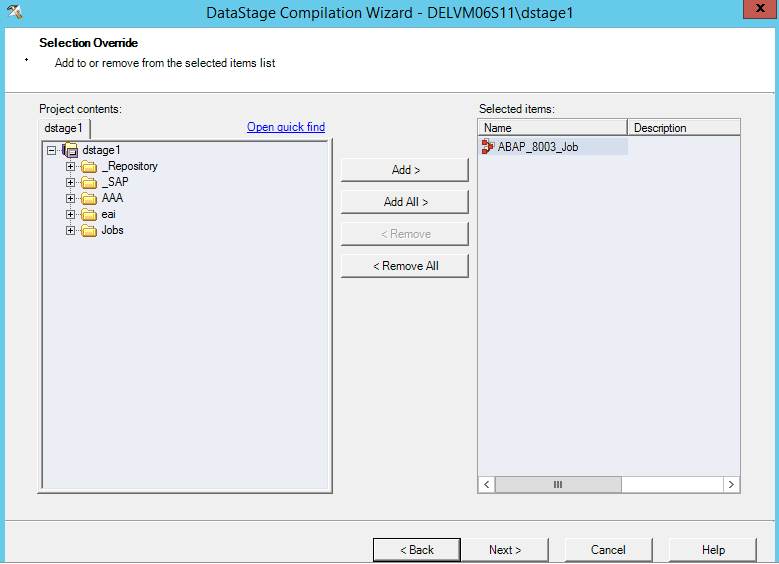
The Tool provides an option to compile the migrated ABAP Extract jobs through Datastage function Multiple Job Compile. This functionality is controlled by Compile DataStage Job check box (enabled by default).
On the successful migration of jobs, the Tool opens the DataStage Compilation Wizard automatically as shown below:
Using additional functions
You can view the connection properties, preview the ABAP code, and compare two versions of the ABAP code before migrating the jobs for a single stage by using the migration tool. Additionally, you can also open the corresponding ABAP extract job in DataStage Designer for the stage that you have selected.
Procedure
- Click Preview ABAP Code to preview the ABAP code before migrating the job. This option is available only when you select a single stage on the project tree. The system generates a new ABAP program by using the RFC settings and both programs are displayed in a new window.
- Click Compare ABAP Code to compare two versions of the ABAP code. It generates the new ABAP program by using the RFC settings and the program is displayed in the Diff tool.
- Click Validate Stage Migration Settings to verify the names used for the RFC destination, the RFC queue (if selected), the Program ID, and the SAP connection.
- Click Show Connection Properties to view the connection properties that you specified for the stage. The Parameters window will open in advance if there are parameters that must be resolved.
- Click Open Job in Designer to open the corresponding jobs in DataStage Designer client.
- Click Window/Refresh from DataStage Server to refresh the job repository from DataStage server. This is required in case there are any simultaneous job changes and/or creation/deletion of any new/existing jobs in the DataStage Designer when the session for the Tool is already open. You can refresh the project in migration tool using this command Saving Migration Project. However please be noted using this option will remove all the color coding from the jobs from your current migration project.
Saving Migration Project
The Tool allows you to save the status of your migration project. This becomes important while working with a project containing a large number of jobs to be migrated. Using this option, you can save the last status of jobs (through color coding of the job name) in repository so it can be reused next time when you invoke the Tool.
Procedure
1. Whenever you close the Tool, you are advised to save the Migration Settings. This will save the following information:
a. Migration status reflected in the color coding of jobs as shown below:
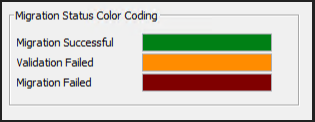
b. Current selected jobs in the job repository.
2. When you invoke again the Tool, the jobs will be refreshed from the DataStage server. You can open the saved Migration Settings file. In case the job names are not changed, your last selection of the jobs along with the migration status will be restored in the job repository.
Known Limitations
Following are the known limitation in the Tool:
1. The Tool will not able to list the ABAP Extract Server type jobs in the Project tree (ref. 277821), unlike Parallel type jobs. As a workaround, follow the steps below for Server type jobs:
a. Logon into DataStage Designer and open the ABAP Extract Server type job stage which is not listing in the Tool.
b. Then close the stage by clicking OK button.
c. Compile the same job through Compile button.
d. Refresh the project tree in the Tool by selecting Window/Refresh from DataStage Server.
2. The Tool currently does not support migration of ABAP Extract jobs configured through SNC (Secure Network Communications).
3. The Tool is only available in English language.

Was this topic helpful?
Document Information
Modified date:
22 April 2020
UID
ibm10742639