Viewing clstat in X Window System display mode
When you start the /usr/es/sbin/cluster/clstat utility on a node capable of displaying X Window System applications, the clstat utility displays its graphical interface if the client's DISPLAY environment variable is set to the value of the X server's node address.
/usr/es/sbin/cluster/clstat [-n name][-c Id][ -r #][-D debug_level][-s]where:
| Flag name | Description |
|---|---|
| -n name | The cluster name. This option cannot be used with the -c option. |
| -c ID | Displays information about the cluster with the specified ID if that cluster is active. This option cannot be used with the -n option. |
| -r # | The interval at which the clstat utility updates the display. For the graphical interface, this value is interpreted in tenths of seconds. By default, clstat updates the display every 0.10 seconds. |
| -D debug_level | The level of debugging to be performed. The levels range from 1 to 10 in increasing amounts of information. The default (0) turns debugging off. |
| -s | Displays service labels for serial networks and their state (up or down). |
The clstat utility graphical interface uses windows to represent cluster nodes, as in the figure shown here:

The middle box in the first row indicates the cluster name and ID. If the cluster is stable, this box appears green. If the cluster destabilizes for any reason, this box changes to red.
The large boxes in other rows represent nodes. A node name appears in a box for each active node in the cluster. You can see up to sixteen nodes per cluster. Nodes that are up are shown in green, nodes that are down are shown in red, nodes that are joining or leaving the cluster are shown in yellow (topology changes), and nodes that are undefined are shown in the background color. Colors are configured in the xclstat X Window resource file in the /usr/es/sbin/cluster/samples/clstat directory.
- red
- dark gray
- yellow
- gray
- green
- light gray
- PREV
- Displays the previous cluster (loops from end to start).
- NEXT
- Displays the next cluster (loops from start to end).
- cluster:ID
- The refresh bar. Pressing this bar updates the status display.
- QUIT
- Cancels the clstat utility.
- HELP
- Displays help information.
Viewing network interface and resource group information in an X Window display
To view information about network interfaces and resource groups for a node, click mouse button 1 on the appropriate node box in the clstat display. A pop-up window similar to the following appears. The title in the example shows that you are viewing node holmes in cluster_1.
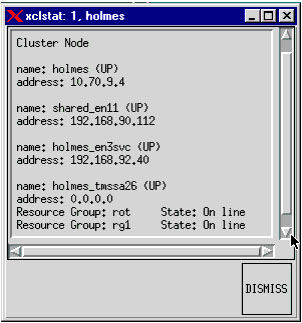
clstat displays only the state (online or offline) of resource groups.
Click on the DISMISS button to close the pop-up window and to return to the clstat display window. Do not use the Close option in the pull-down menu of the window to close this display; it terminates the clstat utility.