Resend packages in the Drafts folder
This topic describes why packages you send may end up in the "Drafts" folder rather than being delivered to your recipients as expected. It also describes how to troubleshoot the issue and send the package as intended.
Aspera Connect comprises both a free, lightweight app and a browser extension; you must install both. Further, you must allow Connect to connect your AoC app with the transfer server relevant to the files and folders in your package.
Failure to install the Connect app and browser extension, and failure to allow the connection to the transfer server are two of the primary reasons that Packages you send may end up in the Drafts folder.
For details, see Installing Aspera Connect.
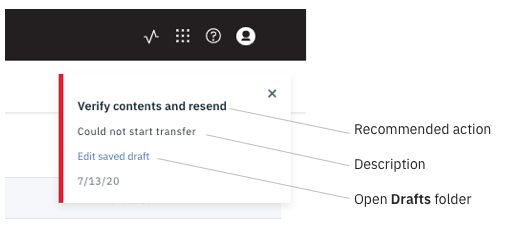
When AoC fails to start a transfer for a package you send, you'll see an error message, "Verify contents and resend". AoC moves the package to the Drafts folder in your Packages app. Click Edit saved draft in the error message to open the Drafts folder. You can also open the Drafts folder from the left panel of the Packages app.
In your Packages app Drafts folder, click the package row to view the package details. Any files and folders listed have been transferred successfully. Files and folders that you sent but are not listed did not transfer.
To add the missing content, click Upload or drag to add the missing items to the package. Then click Send. The files that were transferred successfully in the first attempt will not be transferred again since they already exist at your intended destination; this means you do not incur more transfer and storage charges. Yet the final package contents are intact in your Sent folder after the transfer succeeds.