Adicionar campos de pesquisa a páginas de pesquisa existentes
Compreenda e aprenda a search_fields.json sintaxe que define os campos de pesquisa a serem exibidos na interface do usuário. Você pode adicionar campos de pesquisa, como botões de opção, campos de texto, menus suspensos e seletores de data, para incluir mais parâmetros na consulta de pesquisa.
A título de referência, o tutorial a seguir mostra como adicionar campos de pesquisa a páginas de pesquisa já existentes: Tutorial: Personalização do fluxo de criação de pedidos.
Locais dos arquivos JSON
Atualize ou crie o arquivo JSON na pasta do src-custom/assets/custom módulo. Por exemplo, packages/<route>/src-custom/assets/custom/search_fields.json.
Se não forem necessárias personalizações adicionais além das alterações no arquivo JSON, não é necessário associar o arquivo JSON a nenhuma rota. Em vez disso, crie o arquivo JSON na pasta packages/<app>-root-config/src/assets/custom/search_fields.json. Isso garante que as futuras atualizações do Order Hub sejam aplicadas automaticamente, sem a necessidade de sincronizar manualmente o seu código de personalização.
Observação: essa abordagem não exige a atualização das rotas no package-customization.json arquivo durante a implantação.
Sintaxe JSON
Ao criar JSON para novos campos personalizados, não utilize a sintaxe do arquivo padrão search_fields.json no código-fonte. Em vez disso, use a seguinte sintaxe:
- O corpo principal do JSON contém atributos de objeto definidos de forma exclusiva que correspondem a diferentes módulos.
- orders é o módulo para as páginas de pesquisa de pedidos.
- shipments é o módulo para as páginas de pesquisa de remessas.
- nodes é o módulo da página de pesquisa de nós.
- alerts é o módulo da página de pesquisa de alertas.
- Cada objeto contém uma
fieldsmatriz que inclui atributos.
Atributos
- rótulo
- Um rótulo para o campo de pesquisa.
- tipo
- O tipo do campo de pesquisa. Você pode definir o atributo com um dos seguintes valores:
- addressPicker
- Você pode procurar e selecionar um endereço.

- data
- Você pode digitar ou selecionar uma data no seletor de datas.

- suspenso
- Você pode escolher a partir de um menu suspenso.
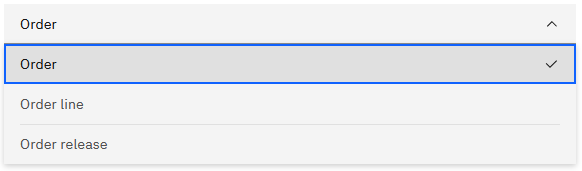
- dropdownQuery
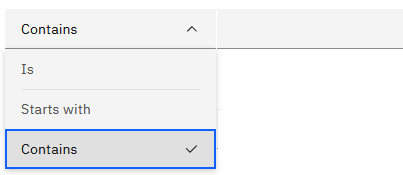
- Você pode inserir um valor no campo de pesquisa e especificar um operador a ser usado na consulta. Dependendo da configuração, o campo de valor pode ser um campo de texto ou uma lista suspensa. Por exemplo, você pode selecionar operadores como “É”, “Contém ” e “Começa com ”.
- nodePicker
- Você pode selecionar a partir de uma lista de nós.

- número
- Você pode digitar números no campo de pesquisa.

- rádio
- Você pode escolher apenas uma entre várias opções. Você também pode usar o orientation atributo para determinar se os botões de opção devem ser exibidos na horizontal ou na vertical.

- Texto
- Você pode digitar um texto no campo de pesquisa.

- alternado
- Você pode alternar entre dois modos.

- orientação
- Utilizado apenas para a orientação dos
radiotipos. Você pode definir o atributo com um dos seguintes valores:- Horizontal
- Vertical
- valor
- Especifica o valor que o sistema envia na solicitação de pesquisa, com base na sua entrada ou seleção.
- lista
- Uma lista estática de valores a serem exibidos em menus suspensos e botões de opção.
- buscar
- Semelhante a um list mas os valores exibidos são obtidos por meio de APIs do sistema IBM Sterling® Order Management. Para obter mais informações sobre as APIs, consulte Geração e acesso ao Javadoc.
- operador
- O atributo "operator" é aplicado ao valor especificado na solicitação da API que é iniciada. Você pode definir o atributo com um dos seguintes valores.
- EQ - Igual a
- LIKE - Contém
- FLIKE - Começa com
- destino
- Determina onde o valor resultante do campo pode ser aplicado.
- solicitação
- Quando a condição é satisfeita, a propriedade (na notação de pontos) a ser definida na solicitação da API é preenchida com o valor do campo.
- showWhen
- Determina qual opção da lista “Mostrar por” o campo exibe. Para exibir o campo na página de pesquisa sem controlar onde ele será exibido, não inclua o atributo.
Exemplos de JSON
Os exemplos a seguir apresentam alguns casos de uso para personalizar as páginas de pesquisa de Pedidos e de Remessas.
Observação: O exemplo a seguir inclui comentários embutidos para orientar e explicar os atributos enquanto você analisa o código. Como o JSON não suporta comentários, este exemplo não é um exemplo válido de JSON tal como está exibido. Se você pretende copiar este exemplo, certifique-se de remover os comentários embutidos.
Exemplo em JSON para um menu suspenso.{
"orders": {
"fields": [
{ // 1 Example for standard text input
"label": "Order name", //The label to display in the user interface
"type": "text", //The type of field set to text
"request": "OrderName", //Pass the user input to the specified property of the getOrderList API call
"target": "orders", //Value is used only on "Search for: orders"
},
{ // 2 Example for node picker
"label": "Shipping node",
"type": "nodePicker",
"target": "releases", //Value is used only on "Search for: Order release".
"request": "OrderLine.ShipNode", //Pass the user selection to the specified getOrderReleaseList property
"value": {
"selectedNode": [],
"enterprise": ""
}
},
{ // 3 Example for dropdown that fetches payment method options from api
"label": "Payment type",
"type": "dropdown",
"target": "orders",
"request": "PaymentMethod.PaymentType", //Pass the user selected value to the specified getOrderList property
"fetch": { //Identify that the dropdown options need to be fetched
"api": "getPaymentTypeList", //Fetch dropdown options from getPaymentTypeList api
"type": "oms", //Must be "oms" to fetch from Sterling Order Management API.
"parameters": { //Parameters to pass to getPaymentTypeList call
"CallingOrganizationCode": "{{enterprise}}"
},
"response": { //Get the response from getPaymentTypeList call
"listAttribute": "PaymentType", //Retrieve the 'PaymentType' from the response
"map": {
"id": "PaymentType", //Sets the id to the values of the PaymentType response
"label": "PaymentTypeDescription" //Sets the dropdown options to the values of the PaymentTypeDescription response
}
}
}
},
{ // 4 Example for dropdown with static, user defined options
"label": "Is Pre Order",
"type": "dropdown",
"target": "orders",
"list": [ { "id": "Y", "label": "Y" }, { "id": "N", "label": "N" } ], //List the options of the dropdown
"request": "OrderLine.CustomAttributes.BUC_IsPreOrder", //Pass the user selected value to the specified property
},
{ // 5 Another example for dropdown with static, user defined options
"label": "Is VIP Order",
"type": "dropdown",
"target": "orders",
"request": "OrderLine.CustomAttributes.BUC_IsVIPOrder",
"list": [ { "id": "Y", "label": "Y" }, { "id": "N", "label": "N" } ]
},
{ // 6 Example for dropdownQuery, which is text input along with operator choice of "Is", "Starts with", "Contains"
"label": "Serial No",
"type": "dropdownQuery",
"target": "orders",
"request": "OrderLine.SerialNo",
"operator": "LIKE", //Set the default to LIKE. LIKE == Contains, EQ == Is, FLIKE == Starts with
"fetch": {
"api": "getQueryTypeList", //Call getQueryTypeList to get the list of options
"type": "oms", //Must be "oms" to fetch from Sterling Order Management API.
"parameters": {},
"translation": {
"prefix": "ORDER_SEARCH.GENERAL.LABEL_QUERY_", //To support translation, specify the key that holds the translated string.
"key": "label" //The translations for "Is,Contains,Starts with" is provided by IBM.
}, //For custom strings, you can add translated strings into the /assets/i18n folder
"response": { //Retrieve response from the getQueryTypeList call
"listAttribute": "StringQueryTypes.QueryType",
"map": {
"id": "QueryType",
"label": "QueryTypeDesc"
}
}
}
},
{ // 7 Example for toggle
"label": "Draft order",
"type": "toggle",
"target": "orders",
"request": "DraftOrderFlag", //Pass the user selected value to the specified property
"list": [ //List options are based on the valid inputs for the property. In this case, DraftOrderFlag is a 1 character flag that requires the value Y or N
{ "id": "true", "label": "Y" }, { "id": "false", "label": "N", "selected": "true" }
]
},
{ // 8 Example for radio type
"label": "Kit code",
"type": "radio",
"list": [ //The list of radio options
{ "id": "LK", "label": "Logical kit" }, { "id": "BUNDLE", "label": "Bundle" }, { "id": "", "label": "None", "selected": "true" }
],
"target": "orders",
"orientation": "vertical", //Set orientation as vertical
"request": "OrderLine.KitCode" //Pass the user selected value to the specified property
},
{ // 9 Example for date
"label": "Import license expire date",
"type": "date",
"target": "orders",
"request": "OrderLine.ImportLicenseExpDate" //Pass the user selected value to the specified property
},
{ // 10 Another example for text
"label": "Customer zip code",
"type": "text",
"request": "CustomerZipCode",
"target": "orders",
},
{ // 11 Example for dropdown that fetches unit of measure options from api
"label": "Custom unit of measure",
"type": "dropdown",
"target": "orders",
"request": "MeasureOfUnit", //Pass the user selected value to the specified getOrderList property
"fetch": { //Identify that the dropdown options need to be fetched
"api": "getItemUOMMasterList", //Fetch dropdown options from getItemUOMMasterList api
"type": "oms", //Must be "oms" to fetch from Sterling Order Management API.
"parameters": { //Parameters to pass to getItemUOMMasterList
"CallingOrganizationCode": "{{enterprise}}",
"UOMType": "QUANTITY",
"IsInventoryUOM": "Y"
},
"response": { //Get the response from getItemUOMMasterList call.
"listAttribute": "ItemUOMMaster", //Retrieve the 'ItemUOMMaster' from the response
"map": {
"id": "UnitOfMeasure", //Sets the id to the values of the PaymentType response
"label": "Description" //Sets the dropdown options to the values of the ItemUOMMaster.Description response
}
}
}
},
{ // 12 Another example of node picker
"label": "Merge node",
"type": "nodePicker",
"target": "orders", //Applies only to "Search for: Order"
"request": "OrderLine.MergeNode",
"value": {
"selectedNode": [],
"enterprise": ""
}
},
{ //Example for addressPicker
"label": "Payment bill to",
"type": "addressPicker",
"target": "orders",
"request": "PaymentMethod.BillToKey", //Pass the user value to the specified getOrderLineList property
"value": {
"content": "",
"address": ""
}
},
{
"label": "Prime line number",
"type": "number",
"request": "PrimeLineNo", //Pass the user value to the specified getOrderLineList property
"target": "all",
},
{
"label": "Batch No",
"type": "dropdownQuery",
"target": "orders", //Apply to Search for: Orders
"request": "OrderLine.OrderLineInvAttRequest.BatchNo",
"operator": "LIKE",
"fetch": {
"api": "getQueryTypeList",
"type": "oms",
"parameters": {},
"translation": {
"prefix": "ORDER_SEARCH.GENERAL.LABEL_QUERY_",
"key": "label"
},
"response": {
"listAttribute": "StringQueryTypes.QueryType",
"map": {
"id": "QueryType",
"label": "QueryTypeDesc"
}
}
}
},
{
"label": "Is open receipt",
"type": "toggle",
"target": "all",
"request": "OpenReceiptFlag",
"list": [ { "id": "true", "label": "Y" }, { "id": "false", "label": "N", "selected": "true" } ]
},
{
"label": "Lot Attribute 1",
"type": "dropdownQuery",
"target": "orders",
"request": "OrderLine.OrderLineInvAttRequest.LotAttribute1",
"operator": "LIKE",
"fetch": {
"api": "getQueryTypeList",
"type": "oms",
"parameters": {},
"translation": {
"prefix": "ORDER_SEARCH.GENERAL.LABEL_QUERY_",
"key": "label"
},
"response": {
"listAttribute": "StringQueryTypes.QueryType",
"map": {
"id": "QueryType",
"label": "QueryTypeDesc"
}
}
}
}
]
},
"shipments": { //object for shipment search page
"fields": [
{
"label": "Freight terms",
"type": "dropdown",
"target": "shipments", //Applies only to "Search for: Shipment"
"request": "FreightTerms", //Pass the user selected value to the specified getShipmentList property
"fetch": { //Fetch dropdown options from getFreightTermsList API
"api": "getFreightTermsList",
"type": "oms", //Must be "oms" to fetch from Sterling Order Management API.
"parameters": {
"CallingOrganizationCode": "{{enterprise}}"
},
"response": {
"listAttribute": "FreightTerms", //Retrieve the FreightTerms property from the response
"map": {
"id": "FreightTerms", //Assign IDs to the options
"label": "Description" //Sets the dropdown options to the values of the Description response
}
}
}
},
{
"label": "Ship via",
"type": "dropdown",
"list": [ { "id": "ROAD", "label": "Road" }, { "id": "AIR", "label": "Air" }, { "id": "SEA", "label": "Sea" } ],
"target": "shipments",
"request": "ShipVia"
},
{
"label": "Quantity",
"type": "number",
"target": "shipments",
"request": "ShipmentLines.ShipmentLine.Quantity"
},
{
"label": "Backroom pick complete",
"type": "dropdown",
"list": [ { "id": "Y", "label": "Y" }, { "id": "N", "label": "N" } ],
"target": "shipments",
"request": "ShipmentLines.ShipmentLine.BackroomPickComplete"
}
]
}
}Para que isso funcione com uma lista como a do exemplo, é preciso adicionar um parâmetro extra chamado secondaryType.
 {
                "id": "paymentType",
                "label": "custom Payment Type",
                "type": "dropdownQuery",
                "comboType": "single",
                "target": "orders",
                "request": "PaymentMethod.PaymentType",
                "secondaryType": "dropdown",
                "queryList": [
                    {
                        "id": "EQ",
                        "label": "Is"
                    },
                    {
                        "id": "FLIKE",
                        "label": "Starts with"
                    },
                    {
                        "id": "LIKE",
                        "label": "Contains"
                    }
                ],
                "fetch": {
                    "api": "getPaymentTypeList",
                    "type": "oms",
                    "parameters": {
                        "CallingOrganizationCode": "{{enterprise}}"
                    },
                    "response": {
                        "listAttribute": "PaymentType",
                        "map": {
                            "id": "PaymentType",
                            "label": "PaymentTypeDescription"
                        }
                    }
                },
               "value": {
                    "qryType": "",
                    "id": "",
                    "content": "",
                    "value": ""
                }
            },
Este é um exemplo de ` dropdownQuery ` com outra lista suspensa de valores.
Exemplo de interface do usuário
A imagem a seguir mostra a página de pesquisa de pedidos de saída após o envio do exemplo em JSON para IBM.