Samsung Approved for Enterprise (SAFE) is a set of management features that are available to be used on Samsung devices. Management features include:
- SAFE Capability Profiles dashboard
- SAFE Fixlets, including Exchange Profile, Restart,and Shut Down
- Additional functionality in the Android Recommended Apps dashboard
SAFE Capability Profiles Dashboard - Similar to Nitrodesk Touchdown, you can create SAFE profiles that enforce various security settings and restrictions on your Samsung devices. This dashboard creates profiles that set numerous management features on your Samsung devices.
Expand the Samsung SAFE node in the Mobile Device Management navigation tree and click the Samsung SAFE Capability Profiles dashboard. Open the dashboard and click New Profile.

The Define Profile window organizes content in App and System tabs.

The App tab disables packages and installs or uninstalls blacklists. You can either select a package to disable, or click Add to add a package to the disable list.
Use the System tab to either allow or disable a list of features.
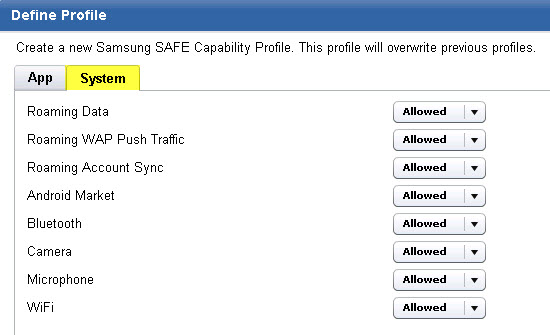
After setting all parameters for your new profile, click the Create Profile Task button at the bottom of the window.
Exchange Profile – This Fixlet deploys a Microsoft Exchange profile onto your Samsung devices. In the task window, you can include options, such as email address, username, or domain as part of the profile.

After you populate all fields, click in the Actions box to deploy the action with your selected profile options.
The Exchange Profile includes four new Fixlets that enable or disable encryption for internal or external storage on your Samsung devices. Access these Fixlets under the Samsung Approved for Enterprise node in the navigation tree.

Click any of these Fixlets from the navigation tree to manage storage encryption, and click in the Actions box of the Fixlet window to deploy each action.
Restart – This Fixlet allows you to restart the operation of your Samsung devices. Click Restart Device (SAFE only) – Android from the navigation tree under Samsung Approved for Enterprise, and click in the Actions box to restart devices.
Shut down – This Fixlet allows you to shut down the entire operation of your Samsung devices. Click Shutdown Device (SAFE only) – Android from the navigation tree under Samsung Approved for Enterprise, and click in the Actions box to shut down devices.
Apps dashboard – This links to the existing Recommended Apps dashboard and includes two new tabs for SAFE functionality – Silently install apps, and Remove/Wipe apps. For both of these features, click Android Settings from the navigation tree, select Samsung approved for enterprise, then click the Recommended Apps – Android dashboard. See two new tabs at the top:

To install a list of apps on Samsung devices, click to open the Recommended Apps – Android dashboard from the navigation tree and click the Import Apps tab. In the App Library, click to check the apps that you want to be part of your installation list. Then click Create install apps list (SAFE Only).

After clicking Create install apps list (SAFE Only), enter the name for the app list in the next window. Then click Create.

Click OK on the Fixlet creation dialog. The name of your new app list is displayed in the App Lists Library.
The Remove/Wipe Apps tab shows a list of apps that are currently installed on Samsung devices in your deployment. To remove or wipe an app, select one or more apps from the list and click either Remove or Wipe.
