Milvus
Milvus 大規模で動的なベクトルデータを効率的に保存・検索するために設計されたオープンソースのベクトルデータベースです。 これは、ベクトル類似度検索のためのオープンソースの C++ ライブラリであるFacebook Faissに基づいて開発されています。 Milvus を使用することで、ベクトルデータの作成、管理、クエリを効率的に行える環境が提供され、インテリジェントなアプリケーションの開発が促進されます。
Milvus Observability with Instana
OpenTelemetry と Instana を併用することで、 Milvus のデータベース操作(create、insert、upsert、deleteなど)のトレースを収集できます。
Milvus 設定
作業を開始する前に、お使いの環境がすべての前提条件を満たしていることを確認してください。 詳細については、 「前提条件」 を参照してください。
Milvus には、ローカル環境でさまざまな方法で接続できます。 以下の方法は、 Docker を使用して接続する方法の一つです。
プロジェクトで Milvus を使用するには、 Milvus をインストールして設定する必要があります。 また、 Docker を使用してローカルマシンにインストールすることもできます。
Docker のインストール :お使いのシステムに Docker がインストールされていることを確認してください。 Docker の公式サイトからダウンロードできます。
Milvus のインストール : Milvus では、 Milvus リポジトリに Docker の Compose 設定ファイルを提供しています。 Docker のComposeを使用して Milvus をインストールするには、以下の手順に従ってください:
次のコマンドを実行して、 docker の設定ファイルをダウンロードしてください:
wget https://github.com/milvus-io/milvus/releases/download/v2.5.5/milvus-standalone-docker-compose.yml -O docker-compose.yml次のコマンドを実行して、 Milvus を起動します:
sudo docker compose up -d次のような出力が得られます:
Creating milvus-etcd  ... done
Creating milvus-minio ... done
Creating milvus-standalone ... done
Milvus を起動すると、以下のコンテナが起動して実行されます: milvus-standalone, milvus-minio, および milvus-etcd。
次のコマンドを実行すると、コンテナが起動して正常に動作しているかどうかを確認できます:
sudo docker-compose ps
次のような出力が得られます:
      Name                     Command                  State                            Ports
--------------------------------------------------------------------------------------------------------------------
milvus-etcd         etcd -advertise-client-url ...   Up             2379/tcp, 2380/tcp
milvus-minio        /usr/bin/docker-entrypoint ...   Up (healthy)   9000/tcp
milvus-standalone   /tini -- milvus run standalone   Up             0.0.0.0:19530->19530/tcp, 0.0.0.0:9091->9091/tcp
コンテナを起動したら、 Milvus サーバーが稼働していることを確認してください。 http://localhost:19530
PyMilvus, をインストールするには、次のコマンドを実行してください:
pip install pymilvus
IBM watsonx の依存関係をインストールするには、次のコマンドを実行してください:
pip install ibm-watsonx-ai==1.1.20 langchain-ibm==0.3.1
LLMへの申請では、次のコマンドを実行してTraceloopトレーサーを初期化してください:
from traceloop.sdk import Traceloop
Traceloop.init()
以下のサンプルアプリケーションでは、 Milvus に接続し、データベースにデータを挿入し、挿入、削除、アップサート、検索、取得、クエリを含む作成、読み取り、更新、削除(CRUD)操作を実行する方法を示しています。
以下のコードを使用して、 WatsonxEmbeddingMilvus.pyという名前のサンプルアプリケーションを生成できます:
from pymilvus import MilvusClient

from traceloop.sdk import Traceloop
from traceloop.sdk.decorators import workflow, task

from langchain_ibm.embeddings import WatsonxEmbeddings
from ibm_watsonx_ai.metanames import EmbedTextParamsMetaNames
import os

Traceloop.init(app_name="Watsonx_Embeddings_MilvusClient")

# connect to Milvus Locally
@task(name="setup_milvus_client")
def setup_milvus_client(uri: str, collection_name: str, dimension: int):
    client = MilvusClient(uri=uri)
    ##create a collection in Milvus DB
    if client.has_collection(collection_name=collection_name):
        client.drop_collection(collection_name=collection_name)
    client.create_collection(
        collection_name=collection_name, dimension=dimension, timeout=10, metric_type="COSINE"
    )
    return client


embedding_model = None  # Define Embedding Model globally

#Initialize watsonx embedding model
@task(name="initialize_embedding_model")
def initialize_embedding_model(
    ibm_cloud_url: str,
    ibm_cloud_api_key: str,
    model_id: str,
    project_id: str,
    model_kwargs: dict = None,
    encode_kwargs: dict = None,
):
    embed_params = {
    EmbedTextParamsMetaNames.TRUNCATE_INPUT_TOKENS: 3,
    EmbedTextParamsMetaNames.RETURN_OPTIONS: {"input_text": True},
    }
    global embedding_model
    model_kwargs = model_kwargs or {}
    encode_kwargs = encode_kwargs or {"normalize_embeddings": False}

    embedding_model = WatsonxEmbeddings(
        url=ibm_cloud_url,
        project_id=project_id,
        model_id=model_id,
        apikey=ibm_cloud_api_key,
        params=embed_params
    )


# embed Documents and insert it to Milvus DB
@task(name="encode_documents_and_insert")
def encode_documents_and_insert(
    client: MilvusClient,
    collection_name: str,
    partition_name: str,
    docs: list,
    subject: str,
    timeout: float,
):
    vectors = embedding_model.embed_documents(docs)
    data = [
        {"id": i, "vector": vectors[i], "text": docs[i], "subject": subject}
        for i in range(len(vectors))
    ]

    res = client.insert(
        collection_name=collection_name,
        partition_name=partition_name,
        data=data,
        timeout=timeout,
    )
    print(res)


# apply vector embedding on the query and search the same in the vecotr db
@task(name="perform_vector_search")
def perform_vector_search(
    client: MilvusClient,
    collection_name: str,
    query: str,
    limit: int,
    output_fields: list,
):
    query_vector = embedding_model.embed_query(query)
    result = client.search(
        collection_name=collection_name,
        partition_name="partitionA",
        data=[query_vector],
        limit=limit,
        output_fields=output_fields,
    )
    return result


# search in vecotr db with filters applied
@task(name="perform_vector_search_with_filter")
def perform_vector_search_with_filter(
    client: MilvusClient,
    collection_name: str,
    partition_names: list,
    anns_field: str,
    search_params: dict,
    query: str,
    filter: str,
    limit: int,
    output_fields: list,
    timeout: float,
):
    query_vector = embedding_model.embed_query(query)
    searchResult = client.search(
        collection_name=collection_name,
        partition_names=partition_names,
        search_params=search_params,
        anns_field=anns_field,
        data=[query_vector],
        filter=filter,
        limit=limit,
        output_fields=output_fields,
        timeout=timeout,
    )
    return searchResult


# query for entries in the Collection
@task(name="perform_query")
def perform_query(
    client: MilvusClient,
    collection_name: str,
    filter: str,
    output_fields: list,
):
    queryResult = client.query(
        collection_name=collection_name,
        filter=filter,
        partition_names=["partitionA"],
        output_fields=output_fields,
    )
    return queryResult


# query the db passing list of ids
@task(name="perform_query_ids")
def perform_query_Ids_partition(
    client: MilvusClient,
    collection_name: str,
    partition_names: list,
    limit: int,
    ids: list,
    output_fields: list,
    timeout: float,
):
    queryResult = client.query(
        collection_name=collection_name,
        partition_names=partition_names,
        limit=limit,
        ids=ids,
        timeout=timeout,
    )
    return queryResult

# delete entries from the collection
@task(name="delete_entities")
def delete_entities(
    client: MilvusClient,
    collection_name: str,
    partition_name: str,
    ids: list = None,
    filter: str = None,
    timeout: float = None,
):
    if ids is not None:
        deleteResult = client.delete(collection_name=collection_name, ids=ids)
        print(deleteResult)
    if filter is not None:
        deleteRes = client.delete(
            collection_name=collection_name,
            timeout=timeout,
            filter=filter,
            partition_name=partition_name,
        )
        print(deleteRes)

# modify data in the collection
@task(name="upsert_entities")
def upsert_entities(
    client: MilvusClient,
    collection_name: str,
    partition_name: str,
    docs: list,
    ids: list,
    subject: str,
    timeout: float,
):
    vectors = embedding_model.embed_documents(docs)
    data = [
        {"id": ids[i], "vector": vectors[i], "text": docs[i], "subject": subject}
        for i in range(len(vectors))
    ]

    res = client.upsert(
        collection_name=collection_name,
        partition_name=partition_name,
        data=data,
        timeout=timeout,
    )
    print("Upsert Result:", res)


@task(name="get_entities")
def get_entities(
    client: MilvusClient,
    collection_name: str,
    partition_names: list,
    output_fields: list,
    ids: list,
    timeout: float,
):
    result = client.get(
        collection_name=collection_name,
        partition_names=partition_names,
        output_fields=output_fields,
        ids=ids,
        timeout=timeout,
    )
    return result

@workflow(name="milvus_operations_with_watsonx")
def milvus_operations_with_watsonx():
    client = setup_milvus_client(
        uri="http://127.0.0.1:19530", collection_name="demo_collection", dimension=768
    )
    partition_name = "partitionA"
    client.create_partition(
        collection_name="demo_collection", partition_name=partition_name
    )

    #  Watsonx Embedding model parameters
    ibm_cloud_url = os.getenv("WATSONX_URL")
    ibm_cloud_api_key = os.getenv("WATSONX_API_KEY")
    model_id = (
        "ibm/slate-125m-english-rtrvr"  # or any other supported model
    )
    project_id=os.getenv("WATSONX_PROJECT_ID")

    initialize_embedding_model(
        ibm_cloud_url=ibm_cloud_url,
        ibm_cloud_api_key=ibm_cloud_api_key,
        model_id=model_id,
        project_id=project_id
    )

    docs_history = [
        "Artificial intelligence was founded as an academic discipline in 1956.",
        "Alan Turing was the first person to conduct substantial research in AI.",
        "Born in Maida Vale, London, Turing was raised in southern England.",
    ]

    encode_documents_and_insert(
        client=client,
        collection_name="demo_collection",
        partition_name=partition_name,
        docs=docs_history,
        subject="history",
        timeout=10,
    )

    # Upsert example
    new_docs_history = [
        "Alan Turing developed the Turing Test.",
        "Artificial intelligence continues to evolve.",
    ]
    new_ids_history = [
        0,
        1,
    ]
    upsert_entities(
        client=client,
        collection_name="demo_collection",
        partition_name=partition_name,
        docs=new_docs_history,
        ids=new_ids_history,
        subject="history",
        timeout=10,
    )

    # Get example
    get_result = get_entities(
        client=client,
        collection_name="demo_collection",
        partition_names=[partition_name],
        output_fields=["text", "subject"],
        ids=new_ids_history,
        timeout=10,
    )
    print("Get Result:", get_result)

    # Semantic Search
    # Vector search
    result = perform_vector_search(
        client=client,
        collection_name="demo_collection",
        query="Who is Alan Turing?",
        limit=2,
        output_fields=["text", "subject"],
    )
    print(result)

    # Vector Search with Metadata Filtering
    docs_biology = [
        "Machine learning has been used for drug design.",
        "Computational synthesis with AI algorithms predicts molecular properties.",
        "DDR1 is involved in cancers and fibrosis.",
    ]

    encode_documents_and_insert(
        client=client,
        collection_name="demo_collection",
        partition_name=partition_name,
        docs=docs_biology,
        subject="biology",
        timeout=10,
    )

    search_params = {"metric_type": "COSINE", "params": {}}

    searchResult = perform_vector_search_with_filter(
        client=client,
        collection_name="demo_collection",
        partition_names=[partition_name],
        anns_field="vector",
        search_params=search_params,
        query="tell me AI related information",
        filter="subject == 'biology'",
        limit=2,
        output_fields=["text", "subject"],
        timeout=10,
    )
    print(searchResult)

    # Perform Query
    queryResult = perform_query(
        client=client,
        collection_name="demo_collection",
        filter="subject == 'history'",
        output_fields=["text", "subject"],
    )
    print(queryResult)

    # Perform Query with ids as input param
    queryResult = perform_query_Ids_partition(
        client=client,
        collection_name="demo_collection",
        partition_names=[partition_name],
        limit=1,
        ids=[0, 2],
        output_fields=["text", "subject"],
        timeout=10,
    )
    print(queryResult)

    # Delete entities
    delete_entities(
        client=client,
        collection_name="demo_collection",
        partition_name=partition_name,
        ids=[0, 2],
        timeout=10,
    )

    # 8. Delete entities by a filter expression
    delete_entities(
        client=client,
        collection_name="demo_collection",
        partition_name=partition_name,
        filter="subject == 'biology'",
        timeout=10,
    )


milvus_operations_with_watsonx()
IBM watsonx にアクセスするには、以下の認証情報が必要です:
export WATSONX_URL=<watsonx-url>
export WATSONX_API_KEY=<watsonx-iam-api-key>
export WATSONX_PROJECT_ID=<watsonx-project-id>
サンプルアプリケーションを実行して、インストールと設定を確認してください。
python WatsonxEmbeddingMilvus.py
トレースとメトリクスを Instana にエクスポートするには、以下のエクスポート設定を使用してください:
OpenTelemetry のトレース、メトリクス、およびログデータを Instana エージェントに送信する
エージェント・モード
アプリケーションを設定して、 Instana エージェントのエンドポイントにデータを送信するようにします:
export OTEL_RESOURCE_ATTRIBUTES="INSTANA_PLUGIN=genai"
export TRACELOOP_BASE_URL=<instana-agent-host>:4317
export TRACELOOP_LOGGING_ENABLED=true
export TRACELOOP_METRICS_ENABLED=true
export OTEL_EXPORTER_OTLP_INSECURE=true
ポートに関する詳細については、 「 OpenTelemetry データを Instana エージェントに送信する」 を参照してください。
エージェントレスモード
アプリケーションを設定して、データを Instana バックエンドに直接送信するようにします:
export OTEL_RESOURCE_ATTRIBUTES="INSTANA_PLUGIN=genai"

export TRACELOOP_BASE_URL=<instana-otlp-endpoint>:4317
export TRACELOOP_HEADERS="x-instana-key=<agent-key>,x-instana-host=<instana-host>"
export TRACELOOP_LOGGING_ENABLED=true
export TRACELOOP_METRICS_ENABLED=true
export OTEL_EXPORTER_OTLP_INSECURE=false
詳細については、 「 OpenTelemetry のデータを Instana バックエンドに送信する」 を参照してください。
トレースの表示
LLMアプリケーションの実行時に収集されたトレース情報を表示するためのアプリケーション・パースペクティブを作成するには、以下の手順を実行してください:
- Instana のUIで、次のいずれかの方法で「新規アプリケーション・パースペクティブ」ウィザードを開きます:
- Instana のダッシュボードにある「 アプリケーション 」セクションで、「 アプリケーションを追加 」をクリックします。
- ナビゲーションメニューから、 「アプリケーション 」>「 追加」 をクリックし、「 新しいアプリケーション・パースペクティブ 」を選択します。
- 「サービス」または「エンドポイント」 を選択し、 「次へ」 をクリックします。
- 「フィルターを追加」 をクリックし、サービス名を選択してください。 条件
ORを使用することで、複数のサービスやエンドポイントを選択できます。 サービス名は、のapp_nameパラメータで指定Traceloop.init()されます。 例えば、Watsonx_Embeddings_MilvusClientなどです。 - [アプリケーション・パースペクティブ名] フィールドに、LLM アプリケーション・パースペクティブの名前を入力します。 次に「作成」をクリックします。
新しいアプリケーションのビューが作成されました。
トレース情報を表示するには、 Instana UI のナビゲーションメニューから「 Analytics 」をクリックします。 アナリティクス・ダッシュボードでは、アプリケーション、サービス、エンドポイントを使用して、呼び出しを分析できます。 Instana サービス名、エンドポイント名、および呼び出し名に基づいてデータを表示します。 任意のタグを使用して、トレースや呼び出しをフィルタリングしたりグループ化したりできます。例えば、次のようにフィルタリングできます 'Trace->Service Name' equals Watsonx_Embeddings_MilvusClient。 詳細については、 「トレースとコールの分析」 を参照してください。
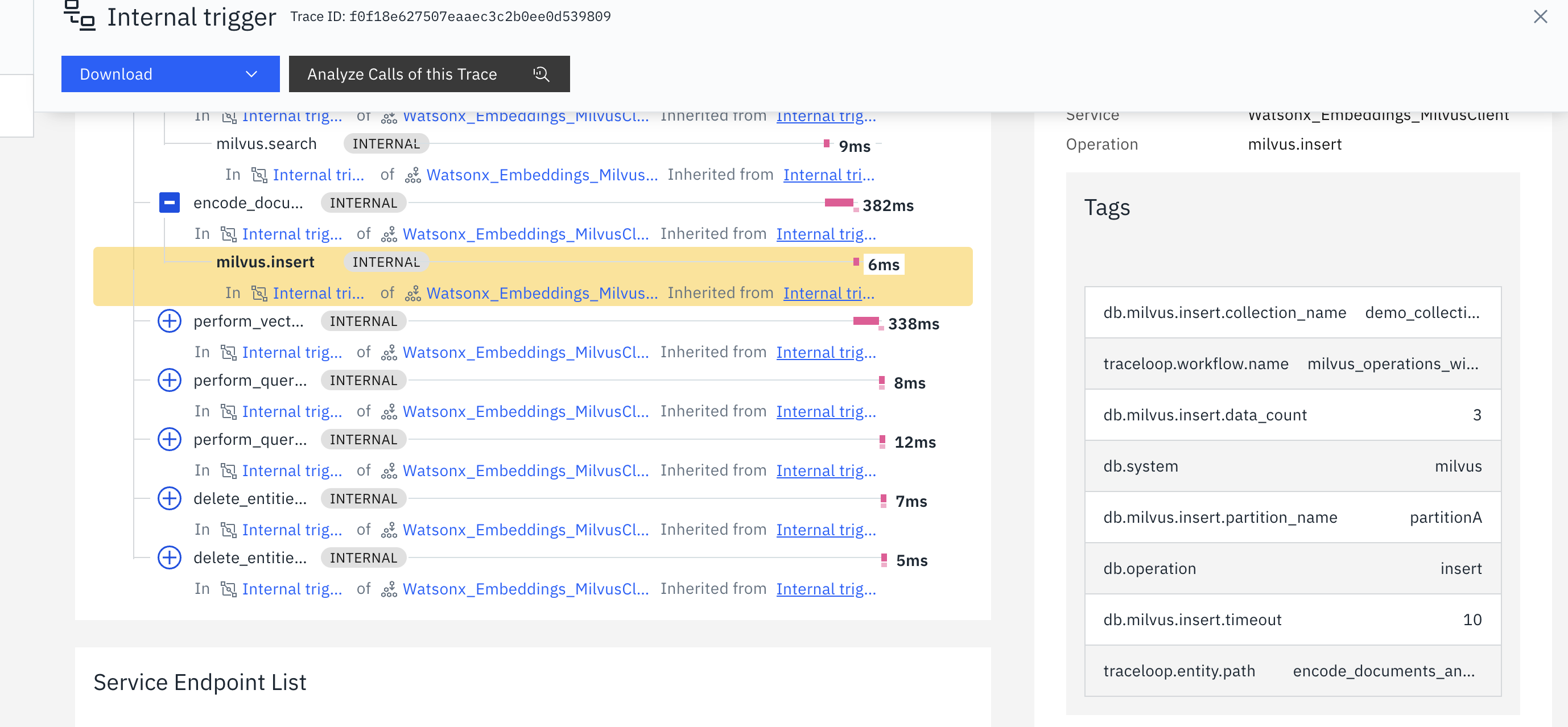
前述のコードから収集されたトレースは、 Instana のUIに表示されます。



メトリックの表示
Milvus のデータベース操作から収集されたメトリクスを確認するには、以下の手順を実行してください:
- Instana のUIにあるナビゲーションメニューから、 「インフラストラクチャ」 を選択します。
- 「インフラストラクチャの分析」 をクリックします。
- エンティティタイプのリストから、 「 OTel 」 の「 Milvus 」DBを選択してください。
- 「 OTel 」 Milvus DB エンティティタイプのエンティティインスタンスをクリックします。 関連するダッシュボードが表示されます。
メトリクス・ダッシュボードでは、 Milvus データベースのパフォーマンスと状態に関する詳細情報を確認できます。具体的には以下の項目が含まれます:
- 操作メトリクス :期間ごとの操作数(挿入、更新・挿入、削除)を確認します。
- 検索距離 :検索クエリベクトルと一致したベクトルとの間の距離。
- レイテンシ指標 :クエリ操作の応答時間を監視します。
