BPMN collaboration simulation
BPMN collaboration communication and simulation
BPMN collaboration communication is similar to how UML parts with behavior communicate with each other across a connector structure. However, BPMN collaboration simulation contains a message that is sent across one message flow, from a sender directly to a receiver process.
You can show and animate the internal communication processes in BPMN collaboration diagrams in the same way as for a BPMN process in isolation.
BPMN collaboration and UML interfaces
You can link each BPMN process in the collaboration to a UML interface. You can then relate these interfaces to units in a topology diagram. When a BPMN collaboration is related to a topology diagram, you can visualize in a topology diagram the communication across a message flow and the components that represents the sending and receiving processes. The decorator that shows these message flows in the topology diagram is a blue rectangle with text. To control whether this decorator is shown, use the preference on the Topology Animation preference page called Animate message flows in topology diagrams. By default this preference is disabled.
Example
The following example shows a model for which topology animation is possible:

The following diagram shows that Pool1 has a process that is linked to a UML interface named I1, and Pool2 has a process that is linked to a UML interface named I2:
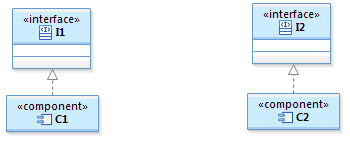
The components C1 and C2 are shown in the following topology diagram:

When you simulate the BPMN collaboration and a send message task is next to execute, the "message flow" decorator appears on the corresponding constraint link is displayed in the topology diagram. The text shown in the decorator is the name of the message ("Message1" in the above example). If no message is defined for the message flow, the text is S -> T, where S is the name of the source node and T is the name of the target node. If these names are empty, the metaclass name for that node is used instead. When the receive message task is next to execute, the blue box moves across the topology link and stays at the receiving end to illustrate that the message is sent. As an example, the following topology diagram shows when the Message1 message in the above model is about to be sent.

The following diagram shows the message being received.

Because the sending and receiving of a message are two separate steps, the text box stays at the receiver end after it moves across the link. If the preference for showing historic message lines is enabled, historic message lines are shown between the nodes afterward. The historic message flows are also displayed in the Historic Messages view. Their kind is set to Message Flow.
- Animate message flows in collaboration diagrams: When you enable this preference, the blue text box is displayed in BPMN collaboration diagrams.
- Show arrows for historic messages in collaboration diagrams: When you enable this preference, colored arrows for historic message flows are displayed in BPMN collaboration diagrams.
