Editing Instance Settings
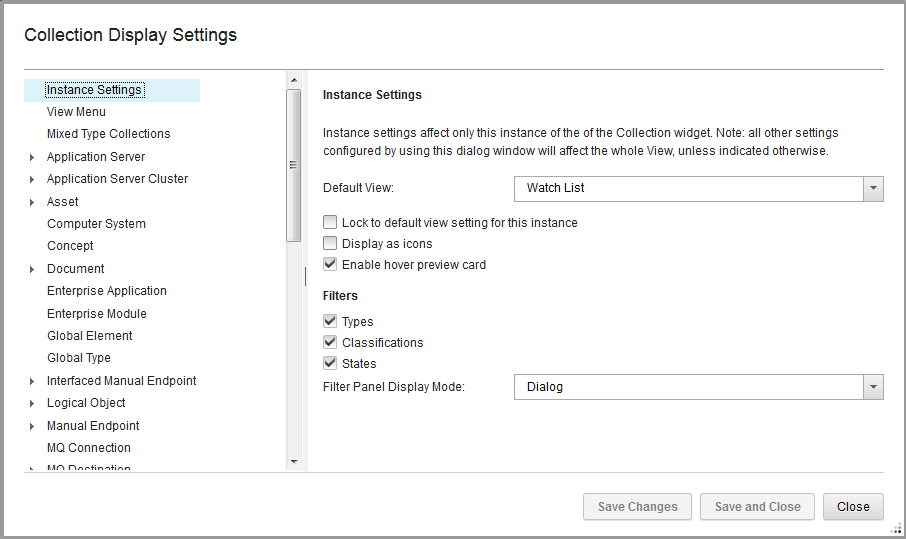
Use the Instance Settings pane of the Display Settings window to edit the general settings for this instance of the Collection widget.
Open the Instance Settings pane by clicking Instance Settings in the navigation pane of the Display Settings window.
Use this pane to specify the default view for this instance of the Collection widget. You can configure the views available by selecting View menu in the navigation pane. If you select None, no collection is displayed in this Collection widget instance by default. See Editing the View menu settings for more details.
Select the Lock to default view option to prevent the Collection widget from displaying collections from other widgets. Selecting this option hides the View menu in the Collection widget.
If you select None as the default view, the Hide view menu option is displayed. Selecting the Hide view menu option hides the View menu, but the Collection widget still displays collections from other widgets.
Select the Display as icons option if you want to browse through items in the Collection widget by using an Icon view. In Icon view, each business object is represented by icons. By default this option is not selected. Here is an example of the Collection widget as it appears when Display as icons is selected.
Select the Enable hover preview card option if you want to have details of an item displayed in a card when you hover over it.
Select one or more of the Filters options if you want to filter items displayed in the Collection widget by their type, classification, or lifecycle state. You can also choose to display the filter as a side panel to the collection widget, or as a window that opens when you click the Filter button.

This example shows the icon view with no border or title bar.
The following graphic shows the Instance Settings pane of the Display Settings window.