Actualización de la configuración de tabla y los datos
Aprenda a actualizar la configuración de tabla y los datos después de que se haya enviado el formulario. En esta lección, se asegura de que el formulario funciona correctamente y se prepara para llenar los datos de las API REST.
Procedimiento
- Enviar el formulario:
- Vaya a la página Crear reserva y especifique y envíe una reserva. Por ejemplo:
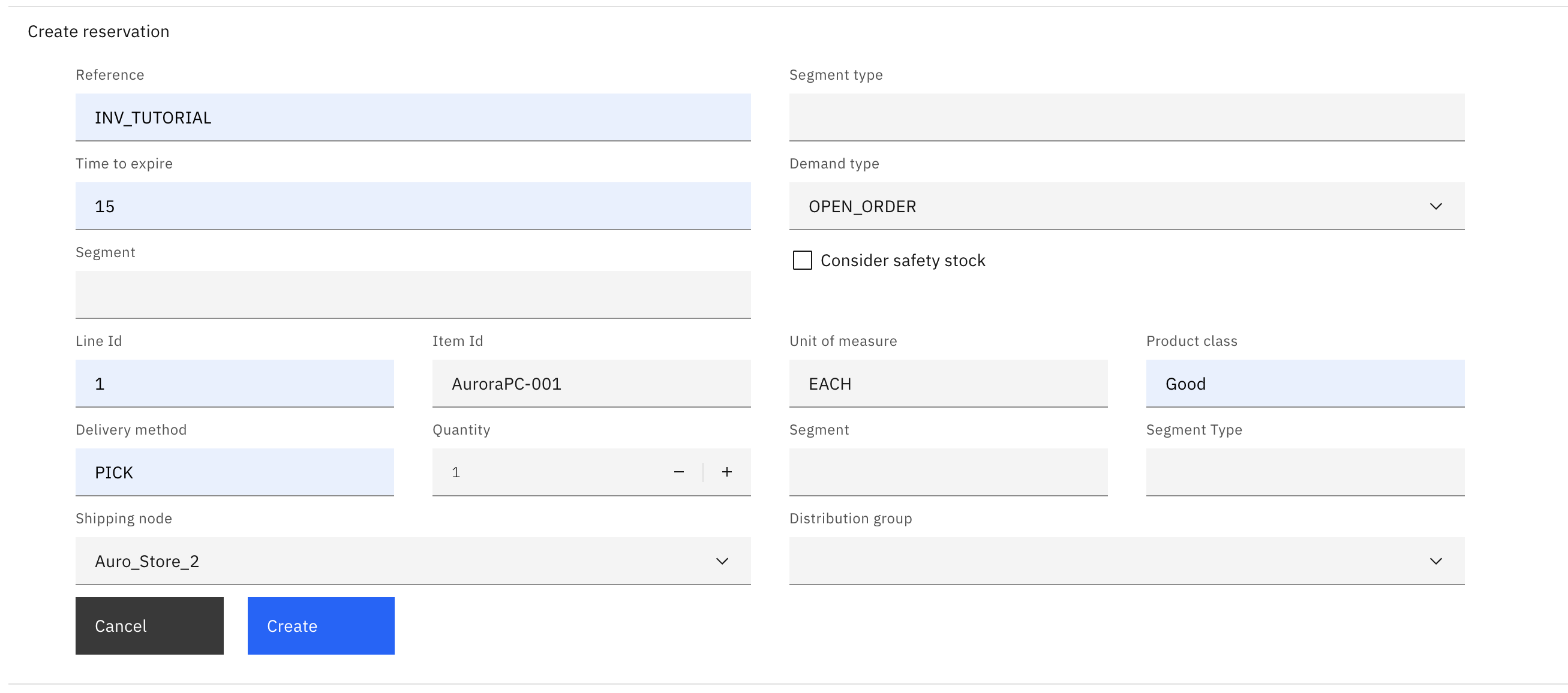
- Después de enviar el formulario, debería ver el siguiente mensaje:

- Vaya a la página Crear reserva y especifique y envíe una reserva. Por ejemplo:
- En un terminal, vaya al directorio src-custom/app/features/create-reservation .
- Ejecute el mandato siguiente para generar una tabla para que los usuarios vean y actualicen los valores de reserva.Este mandato utiliza los scripts de generación de código de IBM que se incluyen en el kit de herramientas del desarrollador.
ng g @buc/schematics:table-component \ --name create-reservation \ --extend ClientSidePaginationBaseTableComponent \ --path packages/inventory-search-results/src-custom/app/features/create-reservation \ --json-file-path packages/inventory-search-results/src-custom/assets/custom \ --translation-file-path packages/inventory-search-results/src-custom/assets/custom/i18n- --name <nombre de la tabla>,
- --path <ruta a donde desea crear la tabla>
- --json-file-path <ruta abuc-table-config.json donde se agregará la configuración de la tabla>
- --translation-file-path <ruta al archivo JSON de traducción personalizada>
- --extend <nombre de clase de tabla extensible>
ng g @buc/schematics:table-component --help - Después de ejecutar el script, se crean nuevos archivos en la ubicación que especificó y elext-search-module.ts el archivo se actualiza con un nuevo componente, CreateReservationTableComponent.
- Dado que el componente personalizado que ha generado (
CreateReservationTableComponent) necesita utilizar programas de utilidad y bibliotecas de IBM , mueva el componente al archivo app-customization.impl.ts realizando los pasos siguientes.- Edite el archivo src-custom/app/features/ext-search.module.ts con los cambios siguientes.
- Suprima la sentencia import {CreateReservationTableComponent} .
- Borrar CreateReservationTableComponent desde el
declarationsformación.
import { NgModule } from '@angular/core'; import { CommonModule } from '@angular/common'; @NgModule({ declarations: [ ], imports: [ CommonModule ] }) export class ExtSearchModule { } - Actualice el archivo src-custom/app/app-customization.impl.ts con los cambios siguientes.
- Añada la siguiente sentencia de importación.
import { CreateReservationTableComponent } from './features/create-reservation/create-reservation-table/create-reservation-table.component'; - Agregar CreateReservationTableComponent a la matriz de componentes.
static readonly components = [CreateReservationComponent, CreateReservationTableComponent];
- Añada la siguiente sentencia de importación.
- Edite el archivo src-custom/app/features/ext-search.module.ts con los cambios siguientes.
- Abra el archivo src-custom/app/features/create-reservation/create-reservation-table/create-reservation-table.component.ts y busque el valor selector .En este caso, el valor es buc-create-reservation-table. Debe utilizar este valor en el HTML para visualizar la tabla.
- Añada el código siguiente al archivo src-custom/app/features/create-reservation/create-reservation.component.html después del comentario <! -Reservation table -- >.
<buc-create-reservation-table [parentPage]="this"></buc-create-reservation-table> - Vuelva a Order Hub y vuelva a cargar el bastidor.Vaya a la página Crear reserva para verificar que se muestra la tabla.

- Tenga en cuenta que la cabecera incluye un recuadro de selección. Para eliminar el recuadro de selección, realice los pasos siguientes.
- Abra el archivo src-custom/app/features/create-reservation/create-reservation-table/create-reservation-table.component.html .
- Añada el código siguiente al final del elemento
<buc-table>.[showSelectionColumn]="false"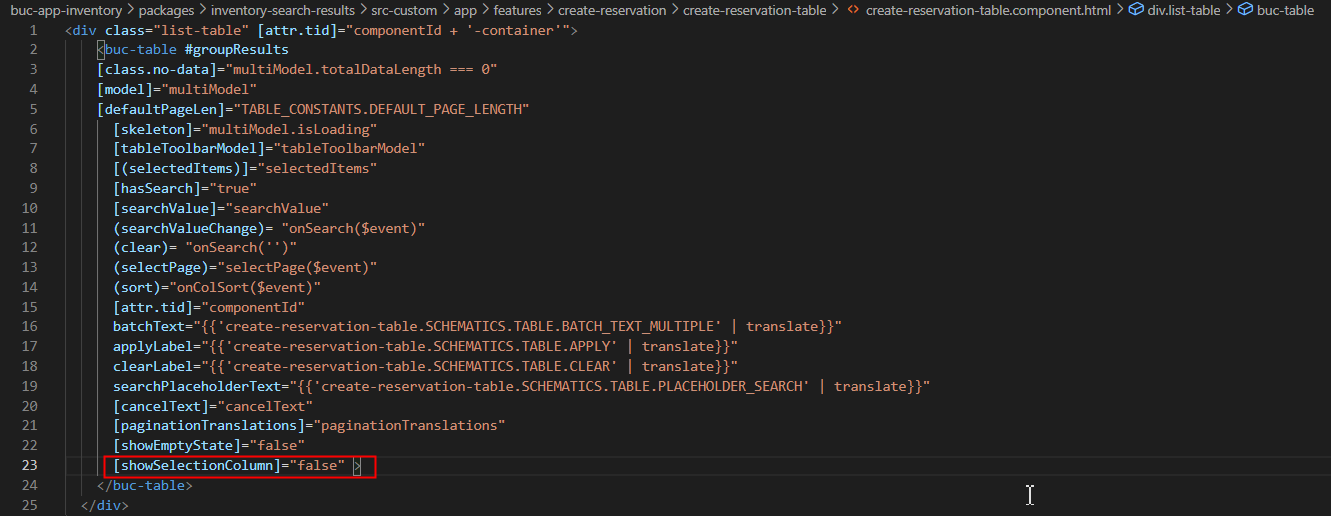
- Abra el archivo packages/inventory-search-results/src-custom/assets/custom/buc-table-config.json .
- Sustituya la matriz headers de create-reservation-tablepor el código siguiente para actualizar las series de cabecera de tabla.
Después de sustituir las cabeceras, asegúrese de que el código se parezca al fragmento de código siguiente.{ "name": "Node id", "id": "nodeId", "sortKey": "nodeId", "dataBinding": "shipNode" }, { "name": "Available On hand", "id": "availableOnHand", "sortKey": "availableOnHand", "dataBinding": "reservedQuantity" }, { "name": "Reserved Total", "id": "totalReservedQty", "sortKey": "totalReservedQty", "dataBinding": "reservedQuantity" }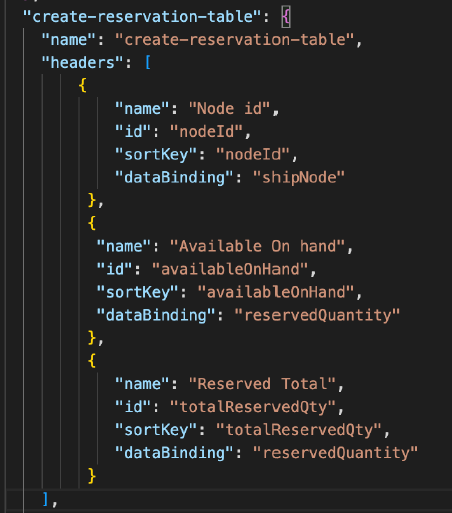
- Actualice la sección Cabeceras de tabla en el archivo create-reservation-table.component.ts .Observe que los ID coinciden con los valores de buc-table-config.json para esta tabla.
/* Table Headers */ public readonly TABLE_HEADERS: any = { TH_NODE_ID: 'nodeId', TH_AVLBL_ON_HAND: 'availableOnHand', TH_TOTAL_RESRV: 'totalReservedQty' }; - Edite el archivo src-custom/app/features/create-reservation/create-reservation-table/create-reservation-table.component.ts con los cambios siguientes.
- Para llenar la tabla con datos, puede utilizar los parámetros de consulta de buc-table-config.json y algunas variables que Order Hub almacena en contexto.Añade el InventoryContextService y InventoryAvailabilityService como parámetros del constructor.
private ctx: InventoryContextService, private invAvlSvc: InventoryAvailabilityService, private reservationService: CreateReservationService - Añada el ID de arrendatario, la sentencia de importación y el código:
- Añada la variable siguiente a la clase
CreateReservationTableComponent. Esta variable se utiliza en la llamada de API.public tenantId; - Agregue el siguiente código al
ngOninit()método para poblar el tenantId:this.tenantId = BucSvcAngularStaticAppInfoFacadeUtil.getInventoryTenantId(); - Añada la sentencia de importación correspondiente:
import { BucSvcAngularStaticAppInfoFacadeUtil } from '@buc/svc-angular'; - Añada el siguiente código:
getInventoryAvailabilityBreakup() {
	const searchCriteria = this.ctx.getSearchCriteria();
	const item = (this.reservationService.itemData?.itemId) ? [this.reservationService.itemData.itemId] : [''];
	const nodes = searchCriteria.filterCriteria.nodes;
	this.parentPage.nodesIds = nodes;
	const data = [];
	return this.invAvlSvc.getAvailabilityBreakupInventory(item, nodes,
		[], [searchCriteria.operators.uom.value],
		[searchCriteria.operators.pc.value], searchCriteria.filterCriteria,
		searchCriteria.operators.org.value, false, '').pipe(
		map((response: InventoryBreakupResponse) => {
			response.nodes.forEach(el => {
				const colD = {
					breakup: {},
					itemId: '',
					availableOnHand: '',
					nodeId: '',
					totalReservedQuantity: ''
				};
				colD.breakup = el.breakup;
				colD.availableOnHand = response.summary?.availToSell;
				colD.nodeId = el.nodeId;
				colD.totalReservedQuantity = el.breakup.totalReservedQuantity;
				data.push(colD);
			});
			return data;
		}),
		catchError(() => {
			this.multiModel.totalDataLength = 0;
			return [];
		})
	);
}
getReservation() {
	return this.reservationService.getReservation(this.tenantId,
		this.reservationService.reservationRef).pipe(
		catchError(() => {
			this.multiModel.totalDataLength = 0;
			return [];
		})
	);
}
- Añada la variable siguiente a la clase
- Prepare la tabla para obtener los datos de las API:
- Sustituya el método
fetchTableData()por el código siguiente para llamar agetReservationygetInventoryAvailabilityBreakup:protected fetchTableData(): Observable < any[] > { const observables = []; observables.push(this.getReservation()); observables.push(this.getInventoryAvailabilityBreakup()); return forkJoin(observables).pipe(map((res) => { const reservationResp: any = res[0]; const nodebrkUp: any = res[1]; const rows = reservationResp.map((item: any) => ({ shipNode: item.shipNode, reservedQuantity: item.reservedQuantity, totalOnhandSupplyQuantity: nodebrkUp.map((data) => data.nodeId === item.shipNode ? data.breakup.totalOnhandSupplyQuantity[0] : '') })) return rows; })); } - Para visualizar información en la tabla, debe utilizar la API
getAvailabilityBreakupInventoryexistente y la APIgetReservationdel paqueteinventory-shared. Por lo tanto, debe añadir las siguientes sentencias de importación:import { InventoryAvailabilityService, InventoryContextService } from '@buc/inventory-shared'; import { InventoryBreakupResponse } from '@buc/inventory-shared/lib/services/inventory-availability.service'; import { CreateReservationService } from "../services/create-reservation.service"; import { map, catchError } from 'rxjs/operators'; import { forkJoin } from 'rxjs';
- Sustituya el método
- Añada un método de manejador para mostrar notificaciones de éxito o error. Order Hub tiene servicios para mostrar notificaciones.
- Añada
BucNotificationServicecomo parámetro de constructor:private bucNotificationService: BucNotificationService - Añada el método
showNotification:// notification showNotification(statusType, message) { const notification = new BucNotificationModel({ statusType, statusContent: message }); this.bucNotificationService.send([notification]); } - Añada la sentencia de importación correspondiente:
import { BucNotificationModel, BucNotificationService} from '@buc/common-components';
- Añada
- Para llenar la tabla con datos, puede utilizar los parámetros de consulta de buc-table-config.json y algunas variables que Order Hub almacena en contexto.
- Añada un pie de página con las opciones Cancelar y Crear .
- Abra el archivo src-custom/app/features/create-reservation/create-reservation.component.html .
- Sustituya el
<div class="screen-footer">existente por el código siguiente.<div class="screen-footer"> <!-- button row --> <div class="cds--row"> <div class="cds--col"> <buc-button [attr.tid]="'create-rule-cancel'" class="padding-right--1rem" [type]="'secondary'" (click)="onCancel()" [btnSize]="'normal'"> {{ 'custom.LABEL_CANCEL' | translate }} </buc-button> <buc-button id="saveBtn" [attr.tid]="'create-rule-save'" [type]="'primary'" [btnSize]="'normal'" (click)="onSave()"> {{ 'custom.LABEL_CREATE' | translate }} </buc-button> </div> </div> </div> - Actualice el archivo src-custom/assets/custom/i18n/en.json con series de traducción para las etiquetas Cancel y Create.
"custom": { "LABEL_CREATE_RESERVATION": "Create reservation", "SUCCESS_RESERVATION": "Reservation successful", "ERROR_RESERVATION": "Reservation failed:", "LABEL_CREATE": "Create", "LABEL_CANCEL": "Cancel" },
- Actualice el archivo src-custom/app/features/create-reservation/create-reservation.component.ts para manejar las acciones Cancelar y Crear .
- En clase CreateReservationComponent, declara una nueva variable booleana isCancelled.
public isCancelled: boolean; - En el método constructor , añada el parámetro Router.
private router: Router - Añada los métodos siguientes para manejar las acciones Cancelar y Crear .
onCancel() { this.isCancelled = true; this.router.navigate([Constants.RESULTS_ROUTE]); } onSave() {} - Añada las sentencias de importación siguientes.
import { ActivatedRoute, Router } from '@angular/router'; import { Constants } from '@buc/inventory-shared';
- En clase CreateReservationComponent, declara una nueva variable booleana isCancelled.
- Cree un servicio para llamar a la API Crear reserva de Sterling™ Intelligent Promising Inventory Visibility para rellenar los datos de disponibilidad.
- Abra el archivo src-custom/app/features/create-reservation/services/create-reservation-service.ts .Actualice el archivo con el código siguiente para llamar a la API Sterling Intelligent Promising Inventory Visibility Get Reservation:
getReservation(tenantId, referenceId = 'REF2'): Observable < any > { if (tenantId === undefined || tenantId === null || tenantId === '') { return throwError(new Error('Missing required parameter: tenantId')); } let path = '/{tenant}/v1/reservations?reference={referenceId}'; path = path.replace('{tenant}', tenantId).replace('{referenceId}', referenceId); const url = this.domain + path; const obsToReturn$ = this.http.post(url, this.resourceDomain, null, this.options); return obsToReturn$; }
- Abra el archivo src-custom/app/features/create-reservation/services/create-reservation-service.ts .
- Si está suscrito a Global Inventory Visibility, abra el archivo src-custom/app/features/create-reservation/create-reservation.component.ts y añada el código siguiente.
- Añada un método de manejador para mostrar notificaciones de éxito o error. Order Hub tiene servicios para mostrar notificaciones.
- Añade el BucNotificationService como parámetro del constructor.
private bucNotificationService: BucNotificationService - Añada el método showNotification .
// notification showNotification(statusType, message) { const notification = new BucNotificationModel({ statusType, statusContent: message }); this.bucNotificationService.send([notification]); } - Añada la sentencia de importación correspondiente.
import { BucNotificationModel, BucNotificationService} from '@buc/common-components';
- Añade el BucNotificationService como parámetro del constructor.
- Modificar el onSave() método según sea necesario.
async onSave() {
    // Call GIV API here
        try {
      alert('Call GIV API here');
      this.showNotification('success', this.nlsMap['custom.SUCCESS_RESERVATION']);
      this.router.navigate([Constants.RESULTS_ROUTE]);
    } catch (error) {
      this.showNotification('error', this.nlsMap['custom.ERROR_RESERVATION'] + ' ' + error.error_message);
    }
  }
- Añada un método de manejador para mostrar notificaciones de éxito o error. Order Hub tiene servicios para mostrar notificaciones.