Añadir campos de búsqueda a las páginas de búsqueda existentes
Comprende y aprende la search_fields.json sintaxis que define los campos de búsqueda que se mostrarán en la interfaz de usuario. Puedes añadir campos de búsqueda, como botones de opción, campos de texto, menús desplegables y selectores de fecha, para incluir más parámetros en la consulta de búsqueda.
A modo de referencia, el siguiente tutorial explica cómo añadir campos de búsqueda a las páginas de búsqueda existentes: Tutorial: Personalización del flujo de creación de pedidos.
Ubicaciones de los archivos JSON
Actualiza o crea el archivo JSON dentro de la carpeta del src-custom/assets/custom módulo. Por ejemplo, packages/<route>/src-custom/assets/custom/search_fields.json.
Si no se requieren personalizaciones adicionales aparte de los cambios en el archivo JSON, no es necesario asociar dicho archivo a ninguna ruta. En su lugar, crea el archivo JSON en la carpeta packages/<app>-root-config/src/assets/custom/search_fields.json. De este modo, te aseguras de que las futuras actualizaciones de Order Hub se apliquen automáticamente sin necesidad de sincronizar manualmente tu código de personalización.
Nota: Este método no requiere actualizar las rutas en el package-customization.json archivo durante la implementación.
Sintaxis JSON
Cuando crees datos JSON para nuevos campos personalizados, no utilices la sintaxis del archivo predeterminado search_fields.json del código fuente. En su lugar, utiliza la siguiente sintaxis:
- El cuerpo principal del JSON contiene atributos de objeto definidos de forma única que se corresponden con diferentes módulos.
- orders es el módulo para las páginas de búsqueda de pedidos.
- shipments es el módulo para las páginas de búsqueda de envíos.
- nodes es el módulo de la página de búsqueda de Node.
- alerts es el módulo de la página de búsqueda de alertas.
- Cada objeto contiene una
fieldsmatriz que incluye atributos.
Atributos
- etiqueta
- Una etiqueta para el campo de búsqueda.
- tipo
- El tipo de campo de búsqueda. Puedes establecer el atributo en uno de los siguientes valores:
- addressPicker
- Puedes buscar y seleccionar una dirección.

- fecha
- Puedes introducir una fecha o seleccionarla en el selector de fechas.

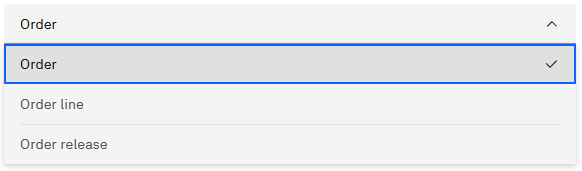
- desplegable
- Puedes elegir en un menú desplegable.
- dropdownQuery
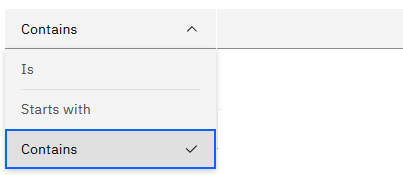
- Puedes introducir texto en el campo de búsqueda y también especificar el operador que se utilizará en la consulta. Por ejemplo, puedes añadir una consulta en el menú desplegable para incluir opciones como «Es », «Contiene » y «Empieza por ».
- nodePicker
- Puedes seleccionar uno de la lista de nodos.

- número
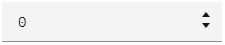
- Puedes introducir números en el campo de búsqueda.
- opción
- Solo puedes elegir una de las varias opciones disponibles. También puedes utilizar el orientation atributo para determinar si los botones de opción se muestran en horizontal o en vertical.

- Texto
- Puedes escribir texto en el campo de búsqueda.

- conmutar
- Puedes alternar entre dos modos.

- orientation
- Se utiliza únicamente para la orientación de
radiolos tipos. Puedes establecer el atributo en uno de los siguientes valores:- Horizontal
- Vertical
- valor
- Especifica el valor que el sistema envía en la solicitud de búsqueda, en función de lo que hayas introducido o seleccionado.
- list de
- Una lista estática de valores que se mostrarán en los menús desplegables y los botones de opción.
- captar
- Es similar a un list pero los valores que se muestran se obtienen mediante las API del sistema IBM Sterling® Order Management. Para obtener más información sobre las API, consulta «Generación y acceso a Javadoc ».
- operador
- El atributo «operator» se aplica al valor especificado en la solicitud de la API que se inicia. Puedes establecer el atributo en uno de los siguientes valores.
- EQ - Igual a
- LIKE - Contiene
- FLIKE - Empieza con
- destino
- Determina dónde se puede aplicar el valor resultante del campo.
- solicitud
- Cuando se cumple la condición, la propiedad (en notación de puntos) que se va a establecer en la solicitud de la API comienza con el valor del campo.
- showWhen
- Determina la opción de «Mostrar por» que se aplica al campo. Para mostrar el campo en la página de búsqueda sin controlar dónde se muestra, no incluyas el atributo.
Ejemplo JSON
El siguiente ejemplo muestra algunos casos de uso para personalizar las páginas de búsqueda de pedidos y de envíos.
Nota: El siguiente ejemplo incluye comentarios en el código para orientarte a la hora de analizar los atributos. Dado que JSON no admite comentarios, este ejemplo no es un ejemplo válido de JSON tal y como se muestra. Si piensas copiar este ejemplo, asegúrate de eliminar los comentarios en línea.
{
  "orders": {
    "fields": [
      {	// 1  Example for standard text input
        "label": "Order name",	//The label to display in the user interface
        "type": "text",			//The type of field set to text
        "request": "OrderName",	//Pass the user input to the specified property of the getOrderList API call
        "target": "orders",		//Value is used only on "Search for: orders"
      },
      {	// 2  Example for node picker
        "label": "Shipping node",
        "type": "nodePicker",
        "target": "releases",   //Value is used only on "Search for: Order release".
        "request": "OrderLine.ShipNode",  //Pass the user selection to the specified getOrderReleaseList property
        "value": {
          "selectedNode": [],
          "enterprise": ""
        }
      },
      {	// 3  Example for dropdown that fetches payment method options from api
        "label": "Payment type",
        "type": "dropdown",
        "target": "orders",
        "request": "PaymentMethod.PaymentType",	//Pass the user selected value to the specified getOrderList property
        "fetch": {			//Identify that the dropdown options need to be fetched
          "api": "getPaymentTypeList",	//Fetch dropdown options from getPaymentTypeList api
          "type": "oms",				//Must be "oms" to fetch from Sterling Order Management API.
          "parameters": {				//Parameters to pass to getPaymentTypeList call
            "CallingOrganizationCode": "{{enterprise}}"
          },
          "response": {					//Get the response from getPaymentTypeList call
            "listAttribute": "PaymentType",		//Retrieve the 'PaymentType' from the response
            "map": {
              "id": "PaymentType",		 //Sets the id to the values of the PaymentType response
              "label": "PaymentTypeDescription" //Sets the dropdown options to the values of the PaymentTypeDescription response
            }
          }
        }
      },
      {	// 4  Example for dropdown with static, user defined options
        "label": "Is Pre Order",
        "type": "dropdown",
        "target": "orders",
        "list": [ { "id": "Y", "label": "Y" }, { "id": "N", "label": "N" } ],	//List the options of the dropdown
        "request": "OrderLine.CustomAttributes.BUC_IsPreOrder",				//Pass the user selected value to the specified property
      },
      {	// 5  Another example for dropdown with static, user defined options
        "label": "Is VIP Order",
        "type": "dropdown",
        "target": "orders",
        "request": "OrderLine.CustomAttributes.BUC_IsVIPOrder",
        "list": [ { "id": "Y", "label": "Y" }, { "id": "N", "label": "N" } ]
      },
      {	// 6  Example for dropdownQuery, which is text input along with operator choice of "Is", "Starts with", "Contains"
        "label": "Serial No",
        "type": "dropdownQuery",
        "target": "orders",
        "request": "OrderLine.SerialNo",
        "operator": "LIKE",		//Set the default to LIKE. LIKE == Contains, EQ == Is, FLIKE == Starts with
        "fetch": {
          "api": "getQueryTypeList",	//Call getQueryTypeList to get the list of options
          "type": "oms",				//Must be "oms" to fetch from Sterling Order Management API.
          "parameters": {},
          "translation": {
            "prefix": "ORDER_SEARCH.GENERAL.LABEL_QUERY_",	//To support translation, specify the key that holds the translated string.
            "key": "label"				//The translations for "Is,Contains,Starts with" is provided by IBM.
          },						//For custom strings, you can add translated strings into the /assets/i18n folder
          "response": {				//Retrieve response from the getQueryTypeList call
            "listAttribute": "StringQueryTypes.QueryType",
            "map": {
              "id": "QueryType",
              "label": "QueryTypeDesc"
            }
          }
        }
      },
      {	// 7  Example for toggle
        "label": "Draft order",
        "type": "toggle",
        "target": "orders",
        "request": "DraftOrderFlag",	//Pass the user selected value to the specified property
        "list": [ 		//List options are based on the valid inputs for the property. In this case, DraftOrderFlag is a 1 character flag that requires the value Y or N
		{ "id": "true", "label": "Y" }, { "id": "false", "label": "N", "selected": "true" }
		]
      },
      {	// 8  Example for radio type
        "label": "Kit code",
        "type": "radio",
        "list": [ 	//The list of radio options
		{ "id": "LK", "label": "Logical kit" }, { "id": "BUNDLE", "label": "Bundle" }, { "id": "", "label": "None", "selected": "true" }
		],
        "target": "orders",
        "orientation": "vertical",		//Set orientation as vertical
        "request": "OrderLine.KitCode"	//Pass the user selected value to the specified property
      },
      {	// 9  Example for date
        "label": "Import license expire date",
        "type": "date",
        "target": "orders",
        "request": "OrderLine.ImportLicenseExpDate" //Pass the user selected value to the specified property
      },
      {	// 10  Another example for text
        "label": "Customer zip code",
        "type": "text",
        "request": "CustomerZipCode",
        "target": "orders",
      },
      {	// 11  Example for dropdown that fetches unit of measure options from api
        "label": "Custom unit of measure",
        "type": "dropdown",
        "target": "orders",
        "request": "MeasureOfUnit",	//Pass the user selected value to the specified getOrderList property
        "fetch": {					//Identify that the dropdown options need to be fetched
          "api": "getItemUOMMasterList",	//Fetch dropdown options from getItemUOMMasterList api
          "type": "oms",			//Must be "oms" to fetch from Sterling Order Management API.
          "parameters": {			//Parameters to pass to getItemUOMMasterList
            "CallingOrganizationCode": "{{enterprise}}",
            "UOMType": "QUANTITY",
            "IsInventoryUOM": "Y"
          },
          "response": {		//Get the response from getItemUOMMasterList call.
            "listAttribute": "ItemUOMMaster",	//Retrieve the 'ItemUOMMaster' from the response
            "map": {
              "id": "UnitOfMeasure",	//Sets the id to the values of the PaymentType response
              "label": "Description"	//Sets the dropdown options to the values of the ItemUOMMaster.Description response
            }
          }
        }
      },
	  {	// 12  Another example of node picker
        "label": "Merge node",
        "type": "nodePicker",
        "target": "orders",            //Applies only to "Search for: Order"
        "request": "OrderLine.MergeNode",
        "value": {
          "selectedNode": [],
          "enterprise": ""
        }
      },
      {    //Example for addressPicker
        "label": "Payment bill to",
        "type": "addressPicker",
        "target": "orders",
        "request": "PaymentMethod.BillToKey",  //Pass the user value to the specified getOrderLineList property
        "value": {
          "content": "",
          "address": ""
        }
      },
      {
        "label": "Prime line number",
        "type": "number",
        "request": "PrimeLineNo",    //Pass the user value to the specified getOrderLineList property
        "target": "all",

      },
      {
        "label": "Batch No",
        "type": "dropdownQuery",
        "target": "orders",                //Apply to Search for: Orders
        "request": "OrderLine.OrderLineInvAttRequest.BatchNo",
        "operator": "LIKE",
        "fetch": {
          "api": "getQueryTypeList",
          "type": "oms",
          "parameters": {},
          "translation": {
            "prefix": "ORDER_SEARCH.GENERAL.LABEL_QUERY_",
            "key": "label"
          },
          "response": {
            "listAttribute": "StringQueryTypes.QueryType",
            "map": {
              "id": "QueryType",
              "label": "QueryTypeDesc"
            }
          }
        }
      },
      {
        "label": "Is open receipt",
        "type": "toggle",
        "target": "all",
        "request": "OpenReceiptFlag",
        "list": [ { "id": "true", "label": "Y" }, { "id": "false", "label": "N", "selected": "true" } ]
      },
      {
        "label": "Lot Attribute 1",
        "type": "dropdownQuery",
        "target": "orders",
        "request": "OrderLine.OrderLineInvAttRequest.LotAttribute1",
        "operator": "LIKE",
        "fetch": {
          "api": "getQueryTypeList",
          "type": "oms",
          "parameters": {},
          "translation": {
            "prefix": "ORDER_SEARCH.GENERAL.LABEL_QUERY_",
            "key": "label"
          },
          "response": {
            "listAttribute": "StringQueryTypes.QueryType",
            "map": {
              "id": "QueryType",
              "label": "QueryTypeDesc"
            }
          }
        }
      }
    ]
  },
  "shipments": {   //object for shipment search page
    "fields": [
        {
            "label": "Freight terms",
            "type": "dropdown",
            "target": "shipments",   //Applies only to "Search for: Shipment"
            "request": "FreightTerms",    //Pass the user selected value to the specified getShipmentList property
            "fetch": {                //Fetch dropdown options from getFreightTermsList API
                "api": "getFreightTermsList",
                "type": "oms",        //Must be "oms" to fetch from Sterling Order Management API.
                "parameters": {
                    "CallingOrganizationCode": "{{enterprise}}"
                },
                "response": {
                    "listAttribute": "FreightTerms",   //Retrieve the FreightTerms property from the response
                    "map": {
                        "id": "FreightTerms",          //Assign IDs to the options
                        "label": "Description"         //Sets the dropdown options to the values of the Description response
                    }
                }
            }
        },
        {
            "label": "Ship via",
            "type": "dropdown",
            "list": [ { "id": "ROAD", "label": "Road" }, { "id": "AIR", "label": "Air" }, { "id": "SEA", "label": "Sea" } ],
            "target": "shipments",
            "request": "ShipVia"
        },
        {
            "label": "Quantity",
            "type": "number",
            "target": "shipments",
            "request": "ShipmentLines.ShipmentLine.Quantity"
        },
        {
            "label": "Backroom pick complete",
            "type": "dropdown",
            "list": [ { "id": "Y", "label": "Y" }, { "id": "N", "label": "N" } ],
            "target": "shipments",
            "request": "ShipmentLines.ShipmentLine.BackroomPickComplete"
        }
    ]
  }
}
Ejemplo de interfaz de usuario
La siguiente imagen muestra la página de búsqueda de pedidos salientes tras subir el archivo JSON de ejemplo a IBM.