Configuring an EKMF Web plug-in

After binding a key management system to the repository, the EKMF plug-in must be configured.

Before you begin

You require an EKMF Web user ID. For more details about access rights, see Access rights.

APKA and AES master keys must be in place on the AP queues that your Linux instance uses. Master keys are set through the TKE.

About this task

Use a command of this form to configure the plug-in:
# zkey kms configure <config_option>
The zkey kms configure command supports plug-in-specific options that the plug-in provides. To see which plug-in-specific options a plug-in provides or requires, use the command:
# zkey kms configure --help
You can supply all configuration options at once, or use the zkey kms configure command several times, supplying only one or a few configuration options each time. A useful command might be zkey kms info, which displays information about the key-management system to which zkey is bound. For example:
# zkey kms info
KMS-Plugin:             EKMFWeb
  Supported key types:  CCA-AESCIPHER
  APQNs:               (configuration required)
....
In the configuration phase, use the info command to see what must still be configured. The preceding example shows that APQNs, that is, AP queues, must be configured.

You must associate AP queues with the key management plug-in. AP queues perform secure key operations for the plug-in. Keys that are generated with the key management plug-in are automatically associated with these AP queues. If a plug-in supports different key types, for example CCA and EP11 keys, then at least one of the matching AP queues with this type must be associated. The EKMF Web plug-in supports only CCA type keys.

An overview of the setup process is shown in Figure 1.
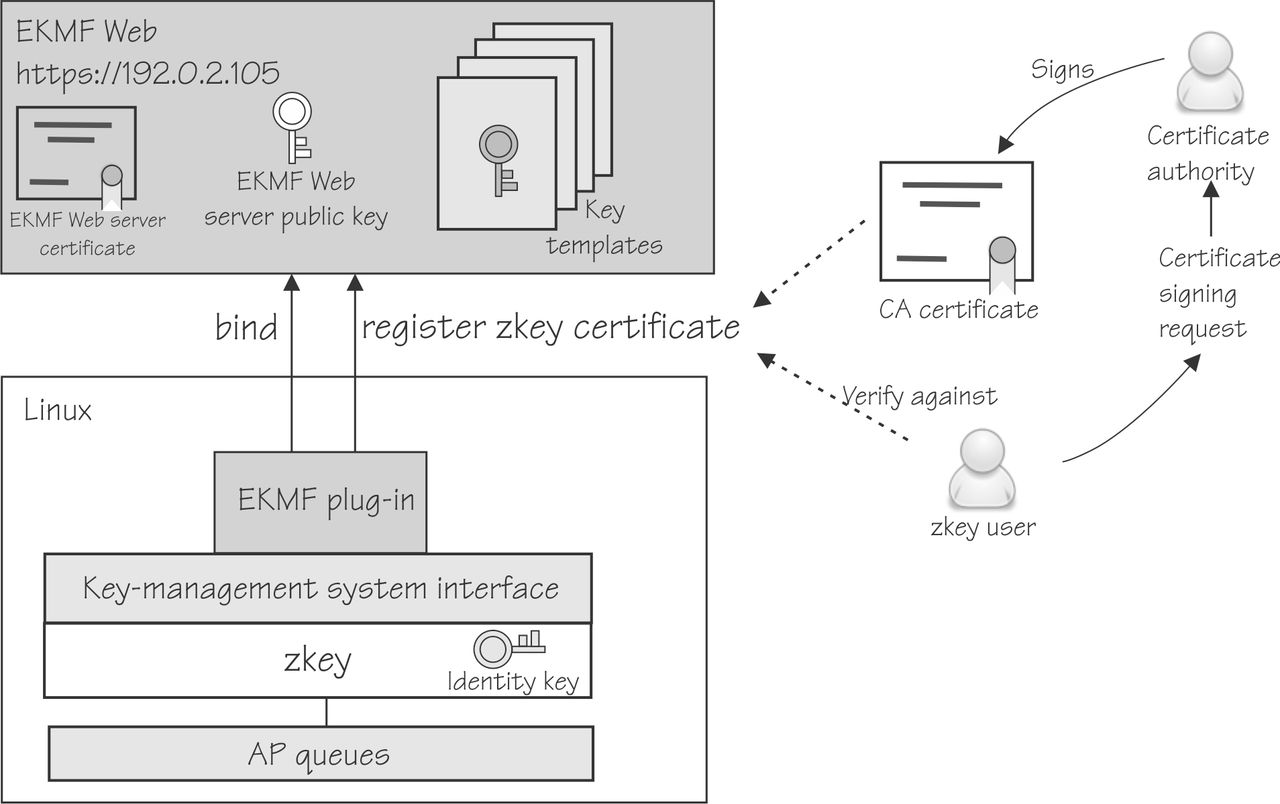
Figure 1. Exchanging configuration information between EKMF Web and zkey

This graphic is described in the text before it.

Procedure

Specify the following settings.
  1. To specify the AP queues to associate with the EKMF Web plug-in, use a command of the form:
    # zkey kms configure --apqns <adapter1.domain1,adapter2.domain2,...>
    The AP queue is defined by its adapter ID and domain ID. If you specify multiple AP queues, they must have the same master key.
    For example, to add AP queues from adapter 08 and 09, both with domain 002f, issue:
    # zkey kms configure --apqns 08.002f,09.002f
    To see whether the AP queues are configured, use zkey kms info:
    # zkey kms info
    KMS-Plugin:             EKMFWeb
      Supported key types:  CCA-AESCIPHER
      APQNs:                08.002f
                            09.002f
      EKMF Web server:      (configuration required)
    
    In the next step, tell zkey which EKMF Web server to use.
  2. Connect to the EKMF Web server.
    Use a command of the form:
    # zkey kms configure --ekmfweb-url <URL>

    The URL must start with https://, and can contain a port number that is separated by a colon. If no port number is specified, 443 is used for HTTPS. You can specify TLS-specific options to control the behavior of the TLS protocol and the validation of the EKMF Web server’s certificate, see zkey kms - Managing secure keys with a KMS plug-in.

    When the connection to the EKMF Web server is established, the EKMF Web settings, such as the EKMF Web server’s public key and the key templates that are used by EKMF Web to generate keys are automatically retrieved from EKMF Web.

    Tip: If the settings change in EKMF Web at a later time, use the --refresh-settings to refresh the settings in zkey.
    # zkey kms configure --ekmfweb-url https://192.0.2.105:30140/
    The EKMF Web server presented the following certificate to identify itself:
    Certificate:
        Data:
            Version: 3 (0x2)
            Serial Number: 942492814 (0x382d4c8e)
            Signature Algorithm: sha256WithRSAEncryption
            Issuer: C=us, O=ibm, OU=ekmf-web, CN=localhost
            Validity
                Not Before: Mar  17 11:37:54 2021 GMT
                Not After : Mar  17 11:37:54 2022 GMT
            Subject: C=us, O=ibm, OU=ekmf-web, CN=localhost
            Subject Public Key Info:
    ....
    zkey: Is this the EKMF Web server you intend to work with [y/N]? y
    Carefully check the certificate to ensure that you are connected to the correct server. For example, have the administrator of the web server send you the server certificate through a different method, and compare that certificate with what the zkey kms configure command gives you.
  3. Log in to the EKMF Web server with the user ID given to you by the administrator.
    zkey: EKMF Web user ID:
    Go to the web browser as instructed and collect a one-time passcode for login. Using passcodes avoids sending passwords in the clear over the connection.
    Now the zkey instance knows which EKMF Web server to work with. Using zkey kms info again, the example configuration now recognizes the key templates for this zkey instance:
    # zkey kms info
    KMS-Plugin:             EKMFWeb
      Supported key types:  CCA-AESCIPHER
      APQNs:                08.002f
                            09.002f
      EKMF Web server:      https://192.0.2.105:30140
      CA-bundle:            System's CA certificates
      Client certificate:   (none)
      Client private key:   (none)
      EBMF Web public key:  ECC (secp521r1)
      Key templates:
        Identity:           ZKEY-ID
          Label template:   ZKEY.ID.EC.<seqno>
        XTS-Key1:           ZKEY-XTS1
          Label template:   ZKEY.XTS1.<seqno>
        XTS-Key2:           ZKEY-XTS2
          Label template:   ZKEY.XTS2.<seqno>
        Non-XTS:            ZKEY-NONXTS
          Label template:   ZKEY.NONXTS.<seqno>
      Identity key:         ECC (secp521r1)
      Registered key label: (registration required)
    
    Also, an identity key that is used to identify the zkey client to EKMF Web is automatically generated locally using the properties that are defined in the identity key template from EKMF Web.

    In the next step, generate a certificate that identifies this zkey instance to EKMF Web.

  4. Generate a certificate with which to register the zkey client with EKMF Web. The zkey utility automatically uses the identity key from the last step when generating the certificate.
    The registration certificate is an X.509 certificate that is generated with the secure identity key as follows:
    1. Use the --gen-csr option to generate a certificate-signing request (CSR) with the identity key. For example:
      # zkey kms configure --gen-csr csr.pem --cert-subject "CN=Example Name;O=Myorg;C=us"
    2. Pass the resulting CSR to a certificate authority (CA) to have it issue a CA-signed certificate for the EKMF Web plug-in.
    Alternative for test setups: You can use the --gen-self-signed-cert option to generate a self-signed certificate with the identity key for the EKMF Web plug-in. Self-signed certificates should be used for testing only. Use the --cert-subject to specify the certificate subject name, and optionally the --cert-extensions option to specify extensions.

    To renew an existing certificate, use the --renew-cert option. The subject name and extensions are then read from the certificate.

  5. Register the zkey client with EKMF Web.
    1. Find out whether the identity key template uses label tags other than the <seqno> tag.
      Registering the client automatically generates an identity key on EKMF Web with the public key from the certificate. If the identity key template in EKMF Web uses label tags other then the sequential numbering, <seqno>, you must specify them using the -T option when you register the client. To find out what the label tags are, use the following command:
      # zkey kms info
    2. Register the client with EKMF Web.
      You receive a certificate file from the CA or from the self-signed certificate process. To use this certificate to register with EKMF Web, use a command of the form:
      # zkey kms configure --register <cert_file>
      For example, assuming the certificate file is called cert.pem:
      # zkey kms configure --register cert.pem
      Using zkey kms info again, you can see that no more configuration steps are open, and this instance of zkey is registered with EKMF Web with the key in the Registered key label field, for example:
      # zkey kms info
      ...
      Registered key label: ZKEY.ID.EC.00001
      This key identifies this instance of zkey to EKMF Web. The certificate contains the public key of the zkey instance so that EKMF Web now knows the public key.

Results

Now zkey and EKMF Web are set up, and you can generate keys.