Removing or replacing a magazine
It is recommended that you unlock the magazine with the Operator Panel, Management GUI, or the
release button on the front panel. If these methods fail, or if a magazine needs to be removed when
the power to the device is off, you can release the magazine manually. Only one magazine or I/O
station can be open at a time.
Note: This procedure is completed more effectively while applications
are idle. While the magazine is extended, the library robotic assembly cannot move media.
- Log in as an administrator.
- Go to .
- On the Actions menu, click Unlock Magazine.
- Click Open in the left or right magazine column within the module that contains the magazine to be opened.
- A message box indicates when the magazine is unlocked.
- Unlock Magazine screen shows that the magazine is now unlocked.
Note: If not removed, the magazine and the I/O station relock after 30 seconds.
To manually eject the magazine, insert a paper clip or a small flat head screwdriver into the
appropriate magazine release hole and gently push the tab in. See Figure 1 and Figure 2.
- Open the magazine access door.
- Insert a paper clip or a small flat head screwdriver into the appropriate magazine release hole
and gently push the tab in.
Figure 1. Manually releasing the right magazine 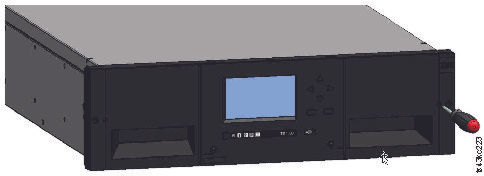
Figure 2. Manually releasing the left magazine 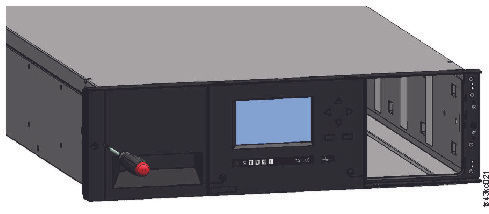
- Pull the magazines out of the module.