Connect to ServiceNow
Overview
This guide walks you through the process of connecting your ServiceNow account to IBM Cloudability. Once connected, you’ll gain access to using ServiceNow within Cloudability.
Prerequisites
- You are a Cloudability administrator.
- Your organization uses ServiceNow Cloud.
- The administrator for your ServiceNow instance is available during the setup process.
- You have the domain name for your ServiceNow instance.
ServiceNow Account Credentialing process involves a few steps which will require you to take actions in both ServiceNow console and Cloudability at various phases.
During this process Cloudability will use your ServiceNow domain to connect with your account.
- Note the Domain Name of your ServiceNow Cloud. e.g. https://xxxyyy.service-now.com
Step 2 - Cloudability
- In Cloudability , navigate to Settings > Vendor Credentials > Add Datasource > ServiceNow . The Add ServiceNow Account panel opens.
- Enter the domain name of your ServiceNow instance.
Select Save .
- Click Generate Script and Download the script .
- In your ServiceNow instance, navigate to System Definitions > Fix Scripts .
- Click New .
- Provide the Name as Cldy Script.
- Paste the generated script from the previous step into the Script section.
- Make sure Application is set to Global .
- Click Submit .
- Go to the created Cldy Script .
- Click Run Fix Script and Proceed .
- Navigate to System Security > Users .
- Search for the Name CldyUser_Script . Note the User ID.
- Click Set Password , and then type and save the password. Note the password down if
required.

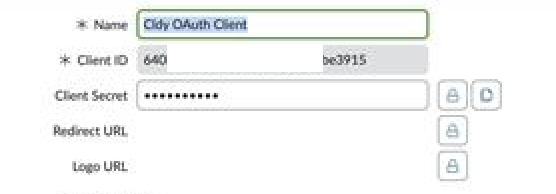
- Navigate to System OAuth > Application Registry .

- Search for the name Cldy OAuth Client . Note the Client Id .
- Click the lock button of the Client Secret . Copy the Client Secret .
Step 4 - Cloudability
- Enter the User ID .
- Enter the Password .
- Enter the Client ID .
- Enter the Client Secret .
- Click Save .

How to confirm success
Check the status under Settings > Vendor Credentials > ServiceNow. A green tick mark indicates that the integration is successful.
Frequently Asked Questions
I followed the above steps but my account status is still red. What should I do?
Please check if you have entered the details correctly e.g Domain name, User Id, Password, ClientId and Client Secret.
How can I edit the details of ServiceNow Integration?
Click on the 3 dots beside the account and click edit. Add the details and save the credential.
In case the domain has changed , please add a new credential by following all the steps mentioned in this integration. Please delete the old account before doing so.