Task classification
You can use the Task classification page to view the list of tasks recorded by the Task Mining Agent. The recorded tasks represent the interactions that you performed in the applications or websites that are included in the Monitoring list of the Task Mining agent.
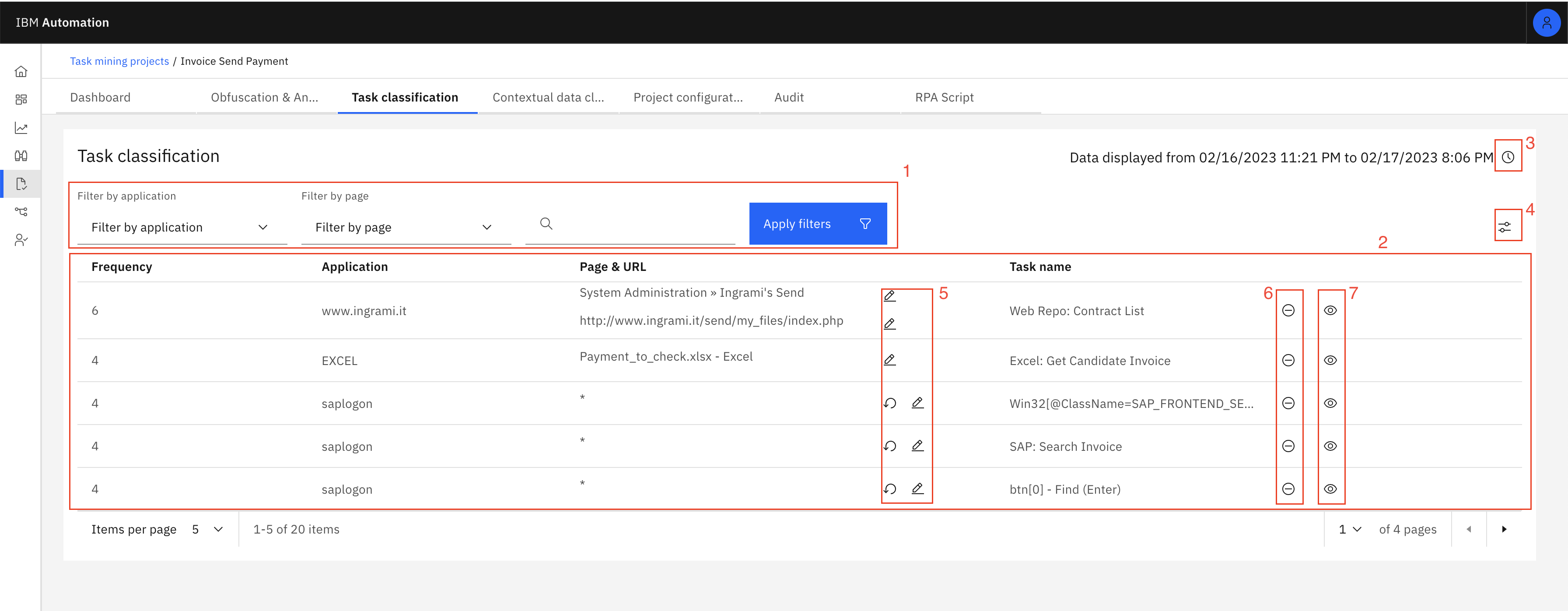
Figure 1. Dashboard
The following table describes the features of the Task classification page.
| Element number | Element name | Description |
|---|---|---|
| 1 | Table filters | You can use the Filter by application list and the Filter by page list to filter based on application, page, and specific words. To do so, specify the required filter in the section, and then click Apply filters. |
| 2 | Task description | The tabular section on the page provides the following information: - Frequency The number of times the task was performed and recorded. - Application The name of the application or website in which the task was performed. - Page & URL The name of the page and the specific URL where the task was registered. - Task name The name of the task. Note that you can give custom names for the task. |
| 3 | The Data analysis info button | Use the button to set a timeframe for data analysis. |
| 4 | Filter options | You can use the filter options button to filter the task based on various criteria. For more information, see the Applying Filters to the task topic. |
| 5 | The Apply wildcard and then Reset buttons | You can use the Apply wildcard button to set the wild cards and aggregation rules for the page title. For more information, see the Setting the aggregation rule for page title and element selector topic. You can then use the Reset button to reset the aggregation rules. |
| 6 | The Exclude task button | You can use the Exclude task button to exclude a task from the project. Similarly, there is an Include task button ("+" symbol) that you can use to include the task to the project. |
| 7 | The Show task properties button | You can use the Show task properties button to set the task properties. For more information, see the Setting the task properties topic. |
Setting the task properties
You can click the  icon to view the properties of each task, such as the name of the page, the selected element, and the associated screen captures as shown
in the following figure.
icon to view the properties of each task, such as the name of the page, the selected element, and the associated screen captures as shown
in the following figure.
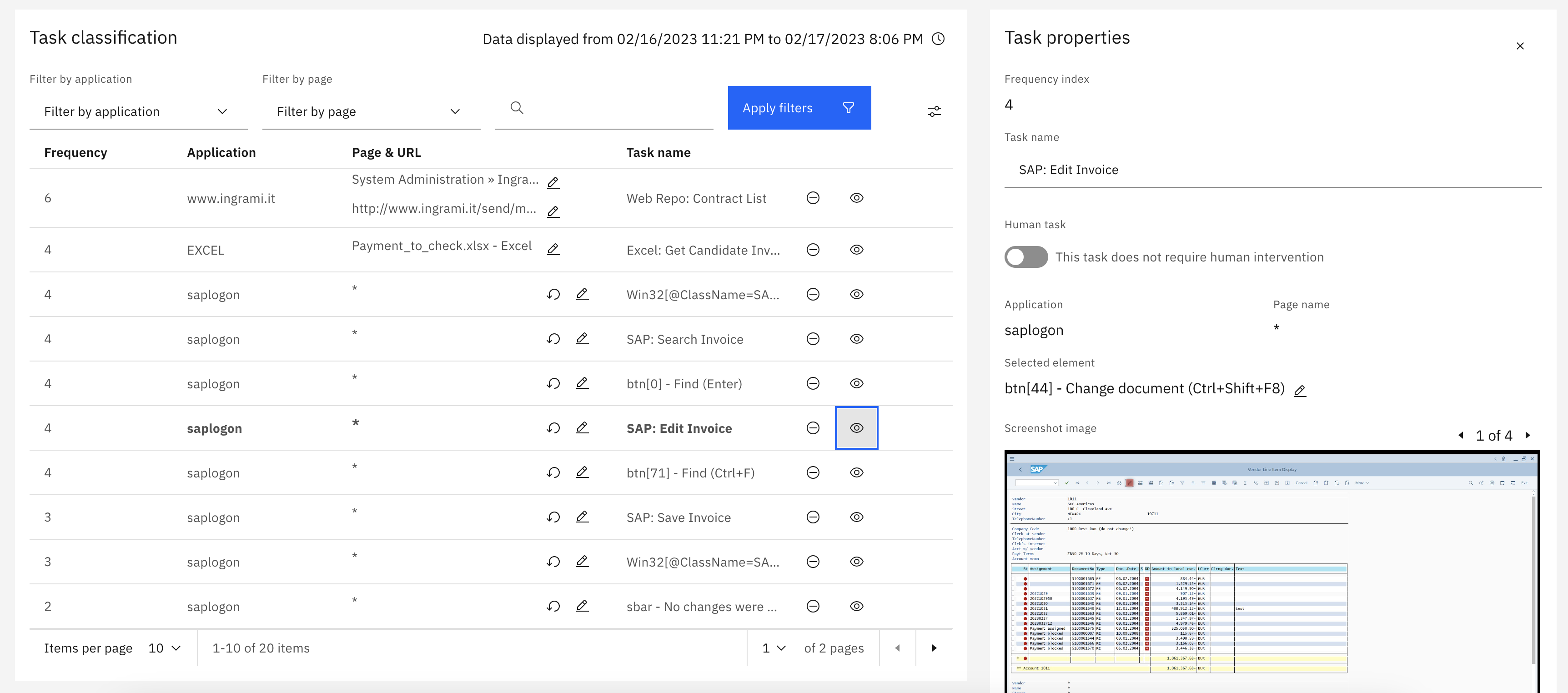
ⓘTips: You can click the magnifying glass icon on the screenshot to enlarge the screen captures.
You can use the Task properties dialog to perform the following tasks:
- Provide a custom name for the task.
- Mark a task as Human task if it should be performed manually and cannot be automated.
- Add the aggregation rule for the element selector by clicking the
 icon.
icon.
Setting the aggregation rule for page title and element selector
On the Task classification page, you must set the aggregation rule for page title and element selector to group different elements into a unique group. This can be very useful when similar tasks, which have only a small difference in the page name or item, are selected. You can apply an aggregation rule to group similar tasks. By using this method, you can manage the tasks more easily.
When you set the aggregation rule, you can replace the aggregated page title or element selector with the following types:
-
Letters
The system aggregates the page title or element that has any letter to the specified character length in the character space you have selected for aggregation -
Any Digits
The system aggregates the page title or element that has any numeric digit to the specified character length in the character space you have selected for aggregation -
Any Character
The system aggregates the page title or element that has any character to the specified character length in the character space you have selected for aggregation -
Any Non-digit Character
The system aggregates the page title or element that has any non-digit character to the specified character length in the character space you have selected for aggregation
Setting the aggregation rule for page title
You can use the following steps to set the aggregation rule for page title:
-
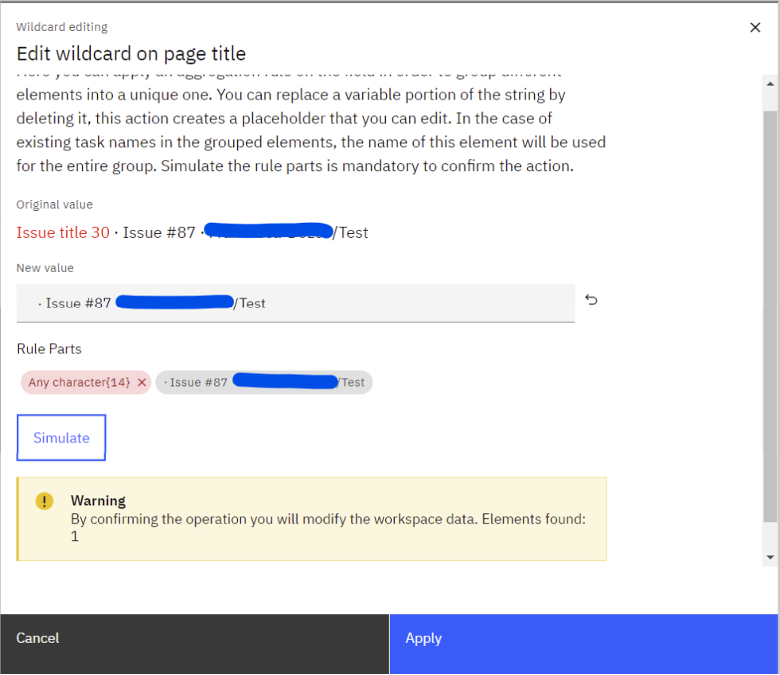
On the Task classification page, click the Apply wildcard button corresponding to the required task.
-
In the New value field of the Edit wildcard on page title dialog, modify the sample value. Note that you can only delete a part of the value in the New value field and not the complete value.
-
In the Rule parts section, click the rule that appears on deleting the string to view the Edit Rule Part section.
-
In the Edit Rule Part section, set the rules, click Simulate, and then click Apply.
Setting the aggregation rule for element selector
You can use the following steps to set the aggregation rule for page title:
-
On the Task properties dialog, click the Apply wildcard button for the selected element.
-
In the New value field of the Edit wildcard on selector dialog, modify the sample value. Note that you can only delete any part of the value in the New value field.
-
In the Rule parts section, click the rule that appears on deleting the string to view the Edit Rule Part section.
-
In the Edit Rule Part section, set the rules, click Simulate, and then click Apply.
After you set the aggregation rule, the wildcard displays the number of page titles or elements that the system has aggregated.
Applying Filters to the task
The filter options button displays the options to filter the tasks based on specific criteria.

You can select the required checkbox and then click Use Selection to display the tasks that satisfy the criteria.
The following table describes the list of available filter options:
| Filter Options | Description |
|---|---|
| Tagging status | Helps to identify the tasks with custom names. - Tagged: Displays the tasks with a custom name. - Untagged: Displays the tasks without a custom name. |
| Inclusion status | Helps to identify the tasks that are included and excluded in a project. - Included: Displays all the tasks that are included in the project. - Excluded: Displays all the tasks that are excluded in the project. |
| Search scope | Helps to filter the tasks based on Name and Id. Before filtering the task by Name or Id, you must select and apply the required filters in the table filters section. |
| Human task | Helps to identify the tasks that should be performed manually. - Mandatory: Displays the tasks that are performed manually and marked as Human task. - Non mandatory: Displays the tasks that do not require human intervention. |