Simulation
The simulation feature makes future predictions by simulating the Return on Investment (ROI) before you implement any process improvement initiative, such as Robotic Process Automation (RPA). You can create or manage simulation from the BPMN tab or use the BPA tool to access the existing simulations.
You create simulations based on the process models in the BPMN tab. In addition, the BPMN feature uses the process data to derive the BPMN model automatically.
You can also create simulations from scratch from the BPA page where you use BPMN from the external sources that integrates with IBM Process Mining.
Simulation specification
After you create a New simulation scenario or choose an Existing scenario, IBM Process Mining automatically generates a pre-calculated Simulation specification based on historical and contextual data of the process.
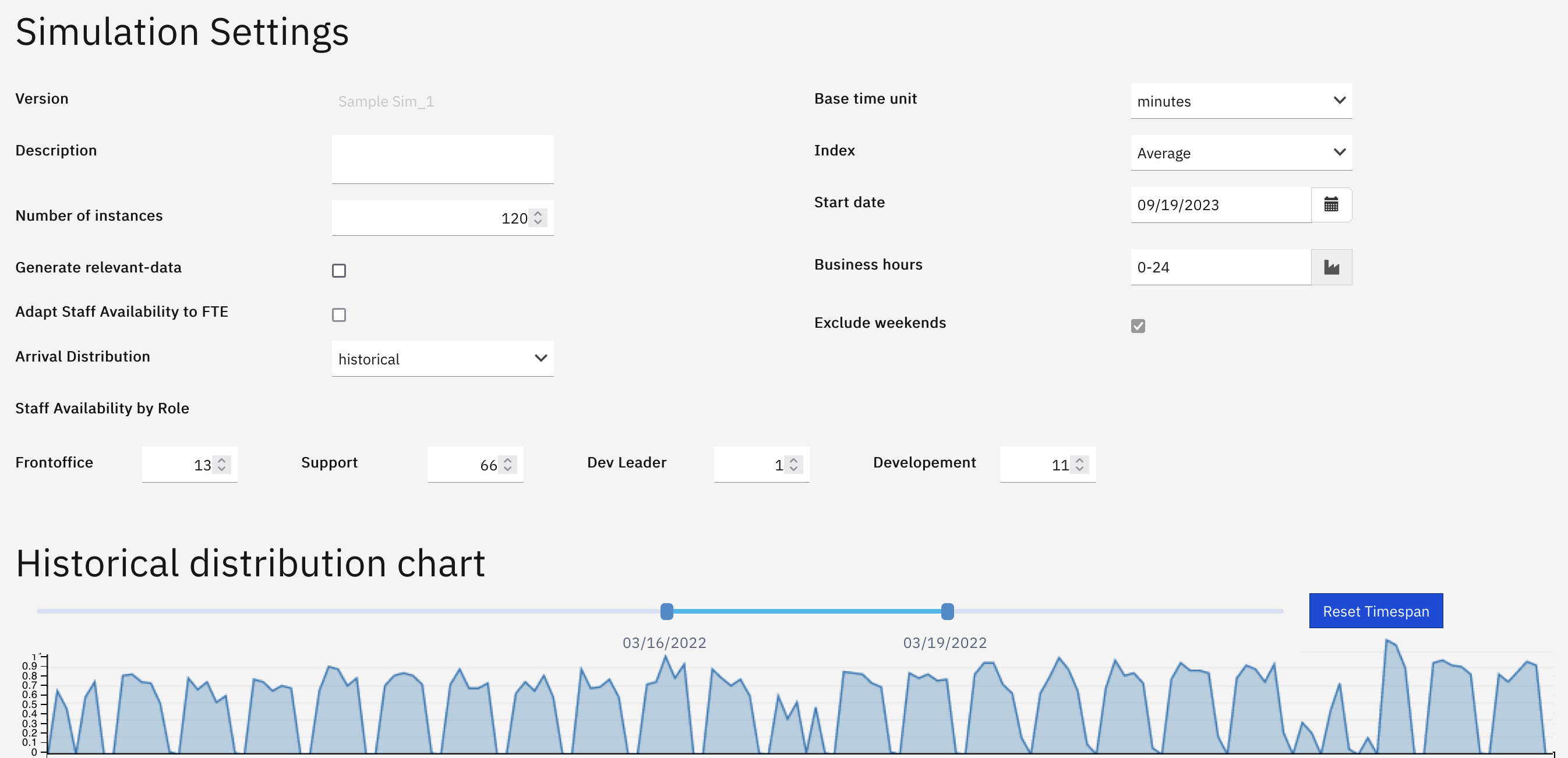
Here, you can update the requirements to run the simulation:
-
Version
Name provided for the Simulation version. -
Description
Additional information of the Simulation version. -
Number of instances
Number of cases that the Simulation generates. -
Generate Relevant-Data
The Simulation generates relevant data that reflects the distribution of the real process. Underlying correlations are discovered and replicated in the simulation. -
Adapt Staff Availability to Full-Time Equivalent (FTE)
Since Staff Availability is gathered from the real process, the measure might be inconsistent when the Resource field does not corresponding to a specific resources (but maybe to an office). By enabling this option, the FTE is used as Staff Availability, when Staff Availability is lower than the FTE calculated by IBM Process Mining. -
Arrival Distribution
The distribution of the generation of cases, which can be generated by the following Distribution Algorithms:- Uniform
- Exponential
- Logarithmic
- Historical (reproduces the reality from the actual process)
-
Staff availability by Role
The number of resources under each role that are available to run an activity. By default, IBM Process Mining provides a realistic value in the fields. You can modify these values to run simulations.
ⓘ Note: If you have not specified any roles in the project, IBM Process Mining provides the Default role to all the resources in the project.
-
Base time unit
By default, the time is precise to minutes. Select seconds to display the time in seconds. -
Index
Considers the median or the average time of the actual process to set the default for the Simulation specification. According to the selection, IBM Process Mining automatically sets all the activities service and waiting times that are retrieved from the data-derived model in the simulation. -
Start date
Date from which you need to start the simulated events. -
Business hours (Exclude weekends)
The working time in which the service and waiting times are considered. By setting 0-24, you are considering the time referred to the entire day (24 h). By setting, for example, 8-18, you are considering only this timeframe to evaluate service and waiting times. By selecting Exclude weekends, you are not considering weekends in the times evaluation.
Simulation preview

The fixed Simulation header automatically updates when any adjustments are made to the configuration of the scenario. The Simulation header includes the following actions:
- Run Simulation Runs the simulation scenario and generates the event logs from the current configurations.
- Versions
- Compare scenarios
 to copy a scenario
 View simulation results of the last run of the scenario (the relative simulation must run at least once).
 to delete the scenario.
- Save Saves the configurations of the current simulation scenario.
- View Results Displays the results if the simulation was run.
- Edit BPMN Modifies the BPMN on which the simulation is based.
- Delete Deletes the current simulation scenario.
Activities
After updating the Simulation specifications, you can find for each activity a pre-calculated field where you can make any necessary changes to four different groups:
Settings
The settings are preconfigured according to the information that is retrieved from the data source. You can change the information based on the scenario that you want to simulate.
In the Settings of each activity, you are able to change different performance indicators to run the simulation:
- FTE (fixed and pre-calculated)
The number of full-time resources that are allocated to an activity to obtain its “As-Is” performance, based on the activity Working time. This number is not the recommended FTE for the activity as the “As-Is” performance might not be optimal. - Service time
The service time of the activity. This value is present only if the service time is available in the data source. - Working time
The time a resource took to run an activity without interruptions; this value can be preset in the Activity working time feature.
Ensure that the service time of the activity is always greater than or equal to its working time. Otherwise, the working time is used as the service time.

Staff
The Staff tab displays the percentage of involvement of each role in the activity. The roles and the initial values are preconfigured by IBM Process Mining using the information in the data source. You can change the values based on the scenario you want to simulate.

ⓘ Note: Ensure that the values you input are whole numbers greater than or equal to 0 and less than or equal to 100.
Scheduling
To force the instant of the start of an activity based on the user configuration. In the Scheduling of each activity, you can change different performance indicators to run the simulation:
-
Business hours
The activity can be performed only during specific hours. -
Enable calendar
Sets a calendar frequency. -
Enable scheduler
Sets a scheduled frequency.

RPA
In the RPA of each activity, you can configure the data from the activity in the case that it is performed automatically through a robot. You can change the following performance indicators to run the simulation:
-
Robotic quote
The percentage of the activity that is managed by robots. -
Business hours
The business hours of the robots. -
Number of robots
The number of robots that will work in parallel with the staff to run the activity. -
Service time (of the robot)
The service time of the robots. The service time of a robot is equal to its working time, as no interruptions occur during the robotic activities.

If an automatic activity attribute is configured in the project settings, the RPA default values (excluding business hours) are automatically retrieved from the data source.
In the RPA menu, you can evaluate the impact of RPA on your process costs and performance. For example, you can increase the Robotic quote of a critical manual activity and simulate how your process would improve.
Waiting times
The Waiting time is the time that is elapsed between the end of the last activity and the beginning of the current activity.
In the Waiting time section of each activity, you can change the waiting time of both manual and robotic tasks for any incoming activities to run the simulation. The default values are automatically retrieved from the data source.

Tip: The waiting time inserted here is a lower limit. Therefore, it always elapses in the simulation regardless of the queues created within the simulated scenario.
To understand Waiting time and its components, see this article .
It is recommended to consider the following best practices:
-
Do not change the waiting time of activities that you want to behave as the As-Is.
-
If you need to configure or change the waiting time for a certain activity, try to estimate the average transit time, that is the waiting time that regularly occurs, even if no queue is generated.
- If you expect no transit time, but the only waiting time is due to queue, set the waiting time to 0 using the Reset waiting times button for a specific activity or for all. The waiting time is automatically generated in the simulation based on the queues created.
-
When a waiting time is caused by the scheduling of the activity, set the correct scheduling in the related settings
Gateways
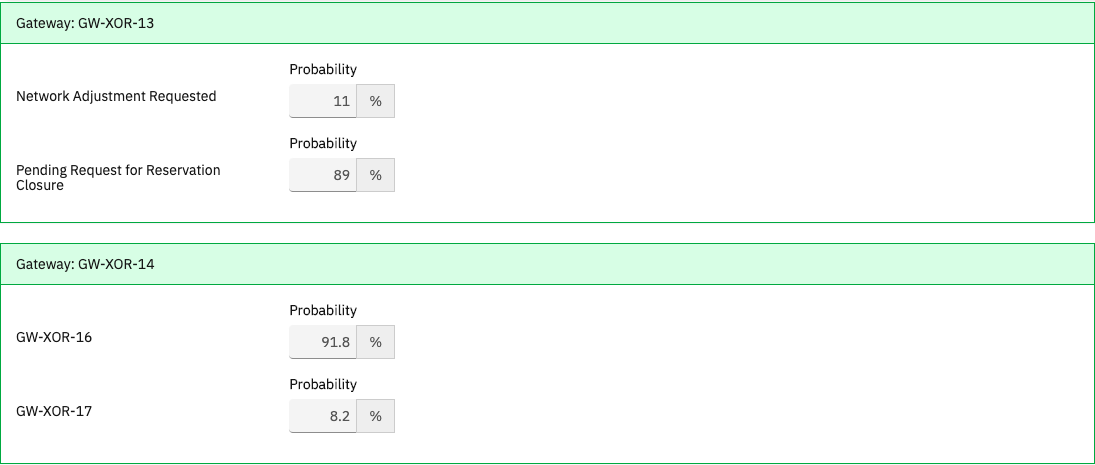
For each Gateway, IBM Process Mining automatically generates a pre-calculated simulation specification based on the historical and contextual data of the process. The specification includes one or more Conditions, or the decision rules, that are discovered before creating a new scenario or link to a decision table when editing the BPMN model.
Edit the following parameters to run the simulation:
- Probability of the Activity
- Probability of the Gateway
ⓘ Note: When you run a simulation, the OR gateways are interpreted as XOR gateways.
Warnings
IBM Process Mining simplifies the Simulation configuration by automatically revealing configuration issues that might affect the Simulation results.
- Red warning message
Parameter limitations.
- Yellow warning triangle
Undefined or missing data. - Warnings list
A list of activities that might have configuration issues. Click Check to navigate to the issue.

Warnings List
| Warning | Description |
| Waiting time less than working time: working time is used as duration | The working time must be revised because the data source detected a minor waiting time. |
| Some activities might have configuration issues | Issue relative to the settings of the related activity. |
| Processing time less than working time: working is used as duration | The configured working time must be revised because the data source detected a minor service time. |
| Variants disabled because manual changes were made in the scenario | If the BPMN was modified manually, it is not possible to reproduce the variants of the original process in the current simulation scenario. |
| FTE not available because Working Time is not defined | The working time of the activity is not defined. |
| Total percentage is not 100 | The sum of the percentages of the possible outputs of a gateway is not equal to 100. It is possible to save the scenario but you can't proceed before resolving the issue. |
| FTE not available because frequency is not defined | The activity is not present in the actual process data source. Therefore, the FTE is not available. |
| Resource-related cost is missing in observed data. The estimated cost does not include this cost component. | The cost of the resource is not defined in the project settings. |
Run simulation
When you click Run Simulation, IBM Process Mining runs the Simulation according to the changes made.

After you run the simulation, you can view the comparison between the real process and the simulated scenario in the Compare.


Import events
Click Import to import the simulated scenario as a new data source in the IBM Process Mining project.
Compare simulation scenarios
Click Versions Compare to compare different simulation scenarios.
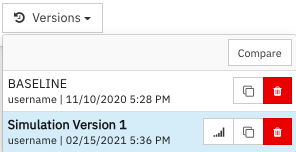
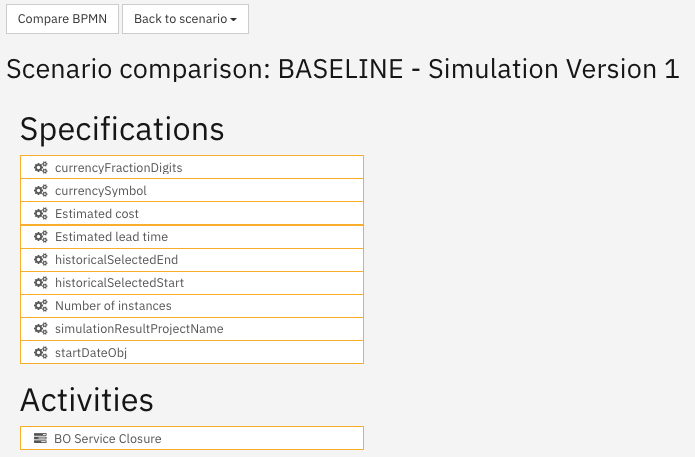
The first scenario selected is considered the “before” scenario. The second scenario is considered the “after” scenario.
Changes might occur in:
- Specifications
- Activities
- Gateways
The type of change can be:
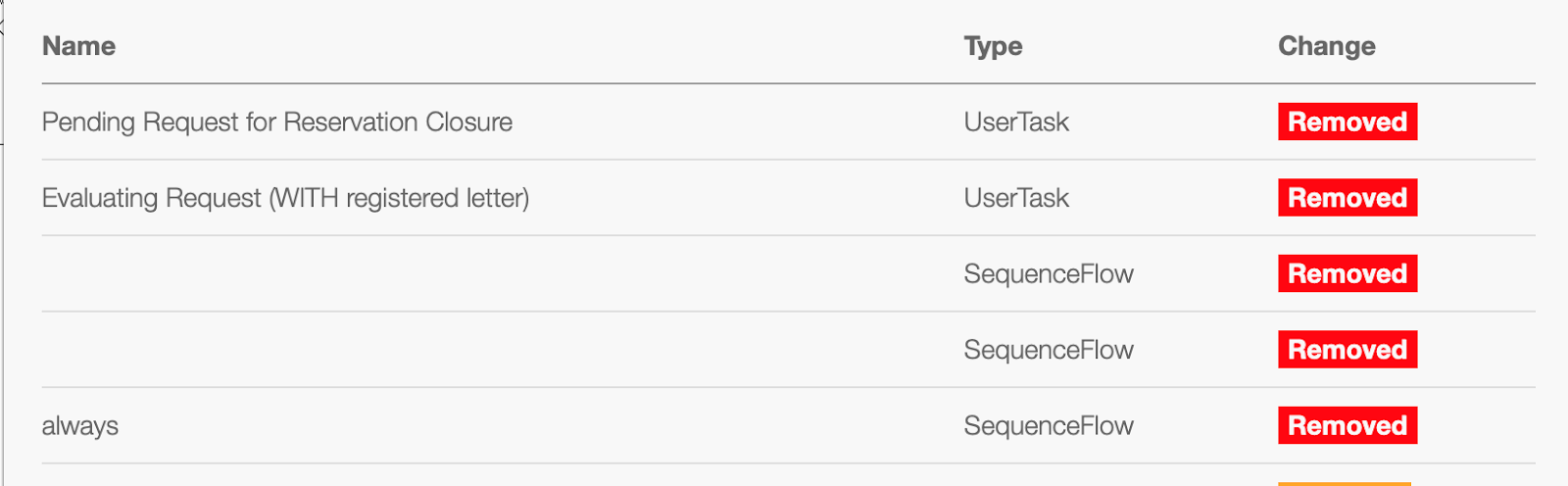
- Modification (orange box,
 )
) - Removal in the “after” scenario (red box,
 )
) - Insertion in the “after” scenario (green box,
 )
)
Select any one of the specification, activity or gateway, to visualize the relative list of specific changes.
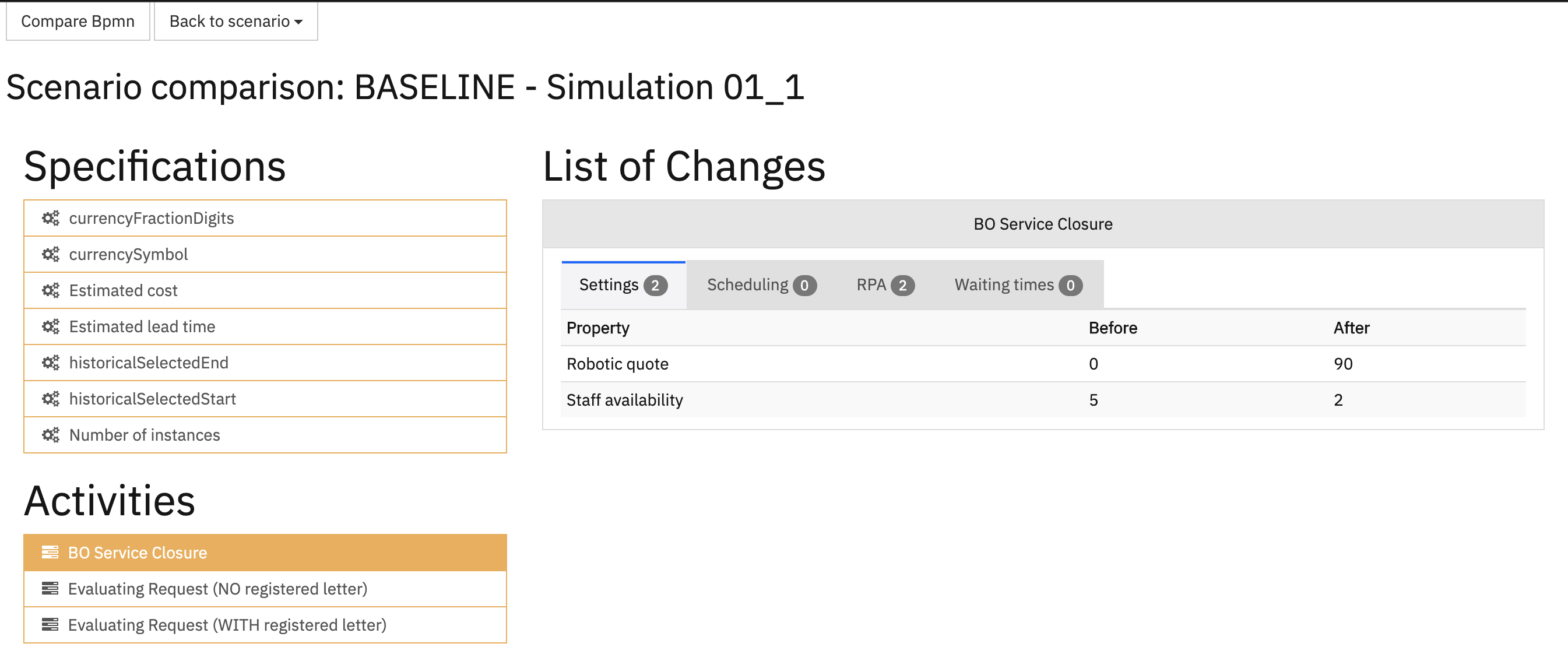
Click Compare BPMN, to compare the two BPMN models.

A list of all the changes is displayed.