Working with tables in IBM Support Insights
Customizing tables
Tables within IBM Support Insights (IBM SI), such as the assets table, by default show a set of commonly used properties. They are displayed in the form of columns in the table.
Please note, if you see values n/a or Unknown in any table in IBM SI - it is due to the data contents of the table. A value of n/ais displayed when there is no sufficient data to populate the field. A value of Unknown is displayed when there is no available data currently to populate the field.
To modify and re-order properties, click the column configuration icon located in the table's header on the left-hand side of the bulk update and export buttons. This will open the Manage columns dialog window, where you can select the columns you wish to view and deselect those you do not wish to view.

The dialog window has a prompt immediately after its header with brief specification on how the column selection works. If the text is not fully visible, you may hover over it to view it in its entirety.
Note, the custom asset properties are also displayed as columns in the assets table. For more details on the custom asset properties, go to the Configurations page.
Viewing assets vs viewing services
In the asset details tables across the application's Inventory management pages, users can switch between viewing assets and viewing services. This is accomplished using the View services button located in the table's header.

Clicking the View services will toggle the visible columns, which users can also do manually using the properties selector button from the table's header. Once services are selected in the view (and not assets) - the Request changes and Edit buttons are no longer visible, as corrections should be made/requested to/for assets, not to services.
Please note, the count of items in the View assets and View services views of the table might be different. The asset view displays the number of devices in the client account inventory, whereas the services view displays the count of service items the client account inventory has.
For example, one asset can have several service line items associated with it. Whereas a different asset can be present in the inventory but not be associated with any contract or service agreement. In both examples - the count in the two views will differ.
Assets that are only under warranty are not displayed while in View services mode.
Searching within tables
Tables across IBM Support Insights allow users to search for specific assets. By clicking on the magnifying glass icon in the tables' headers, you will open a search field on the left-hand side of the search icon itself, where keywords for looking up the desired asset or subset of assets can be populated. Once you have typed in the desired specifics, you may hit the Enter button on your keyboard to trigger the Search, which then refreshes the assets table and displays the subset of assets, corresponding to your populated search criteria.

Please note, if your search criteria contains a blank space, a comma or a tab - the multi-items search will be triggered. Using it, you can still search for product names, families, IDs, etc, that contain any of the specified delimiters - you will simply need to reaffirm your search criteria in the new dialog window.
The assets from the search result can then be selected and downloaded by ticking on the checkbox in the table's header and then the Export selected button. Or, alternatively, the assets can be bulk edited by first selecting them via ticking the checkbox in the table's header and then clicking on the Edit button. For more details on exporting assets, please see the next section on the page, and for editing assets, please see the changing asset properties section.
Multi-items serial number search
The search functionality in the Inventory and Coverage tabs of the Inventory management page of the application allows for searching with multiple items (strings) simultaneously. This means you will be able to search for multiple items at the same time using their serial numbers.
Please note, currently the functionality allows for multi-items searching based only on serial numbers. If you try a simultaneous multiple keywords search from other data points - your search will not yield any results.
You can separate the different serial number items using the following delimiters:
- a comma -
, - a blank space - the
space baron your keyboard - a tab - the
Tab buttonon your keyboard - a new line - an Excel spreadsheet new line
You can either type out several serial numbers, or copy serial number items from a spreadsheet and paste them into the search bar. Copy-pasting rows from Excel adds the serial numbers with a new line delimiter between them (equal, in length, to a blank space), while copy-pasting from the same row of cells from Excel adds the serial numbers with a tab delimiter.
Please note, multi search works only with complete serial numbers, it cannot search with partial serial number elements.
After you have finished your serial numbers input, either manually or copy-pasting, you need to hit the Enter button on your keyboard to trigger the search. Since multiple items are present in the search bar, the multi-search dialog window will open:

In this dialog window you can double check if the search will perform as you wish. If searching with multiple separate strings is your intention, you may verify the accuracy of the search items and simply click the OK button at the end of the dialog window.
However, if you wish your entire input to be used as a single search string, you need to click on the second option - Search for a single string - of the dialog window.

Here you can verify the accuracy of the string the application will use for searching, and proceed to clicking the OK button at the end of the dialog window to trigger the search.
Please note, if your serial numbers contain any of the aforementioned delimiters in them, you need to make sure the entire serial number is taken into account in the search process, and not split by the delimiter. This is done with escaping the delimiter symbol using a backslash symbol in the search.
The following example is provided for a visual representation of symbol escaping
If your serial number is '123 321', you will need to make sure the space in the middle of the number is included in the search.
- If you simply paste the number as is into the search bar -
123 321- the application will consider'123'and'321'as separate items to search for.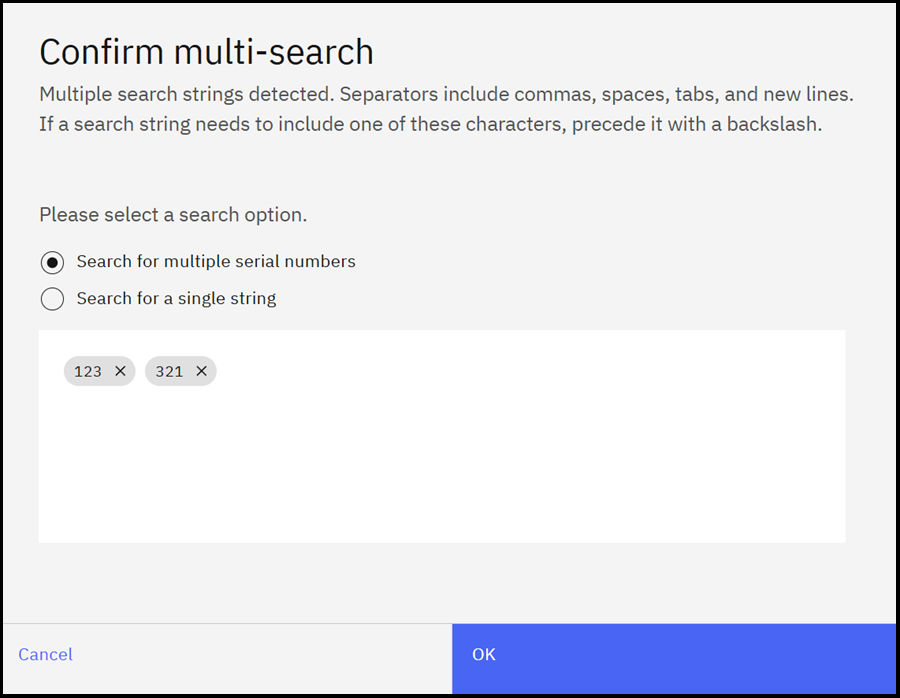
- You need to escape the blank space in the middle of the serial number. This is done using a backslash.
The correct way of searching for such a serial number is
123\ 321
Please do not use any quotation marks in the search functionality, as they are symbols the application will not recognize.
Exporting table content
If you need to export table content - there are currently two options to do so.
Please note, exporting over 20,000 items simultaneously requires significant processing time. If your inventory is larger than the mentioned threshold, please use the available filtering options and export the device segments most valuable to you in the given moment. However, if you wish to export the entire inventory, please allow several minutes for the file compilation and download - do not switch to a different application page and do not close the application until the file is exported.
Export all

The first option is to click on the Export all button in every application table's header in order to export a .xlsx file containing all entries from that table. Note, if you have previously applied a filter on the table, the Export all button will trigger a download of the filtered data subset, instead of the entire dataset.
Export selected

The second option is to manually select the assets a user is interested in, by ticking the checkbox next to their names in the respective table, and then click on the Export selected button in order to export a .xlsx file containing the selected entities.