Supporting project scope in SQL based custom artifact elements
You can add project scope in CAE editor in a new custom artifact element by using the SQL as the query language.
About this task
You can add project scope in conditions to the Custom Artifact elements by using SQL as the query language with following steps
Procedure
- On the editor page, in the SQL query section, add the condition as shown in the following
format
$if(multipleProjectAreas)$ AND (rtc_cm_WorkItem1.PROJECT_AREA_ID IN ($multipleProjectAreas$)) $endif$ Note: When using the SQL based CAE in View and to apply View level project scope, you need to set the variable name as
multipleProjectAreas
. - In the Conditions section of the sidebar, click Refresh
 .
. - The Engineering Insights application auto-populates some fields. You can add the
values to the fields that are not defined. For example, set the Type field as
Project Area from the drop down.
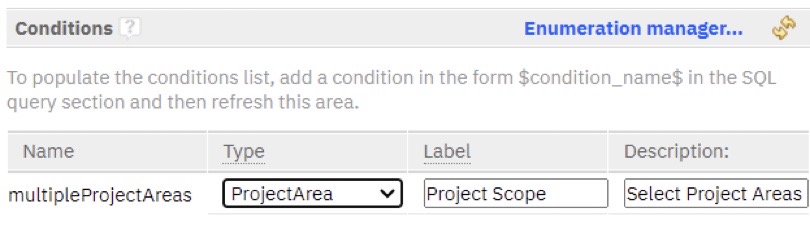
- Click Preview on the results page to view the project scope in
action.

- Click the
 Pencil icon to
open the
Pencil icon to
open the Select project area
dialog box. Select the required project areas.