Managing flows in development
Each event-driven or API flow that you create is added as a tile to your IBM® App Connect on IBM Cloud® or App Connect Designer dashboard. A flow's tile contains an options menu [⋮] that you can use to manage that flow.
As you accumulate more flows, you might perhaps also want to search for a particular flow on occasion, or sort your flows in a useful way. To do this, you can use the search and sort widgets in the banner area.
You can also share your flows with other App Connect users by exporting flows and importing flows, such as to give to another developer to adapt, to move from a test to a production instance of App Connect on IBM Cloud or App Connect Designer, or to move an API flow from App Connect on IBM Cloud to App Connect Designer in a containerized environment.
- Starting or stopping a flow
- Editing an existing or draft flow
- Viewing the configuration of a running flow
- Sorting or searching for flows in the dashboard
- Deleting a flow
- Exporting and importing flows
Starting or stopping a flow
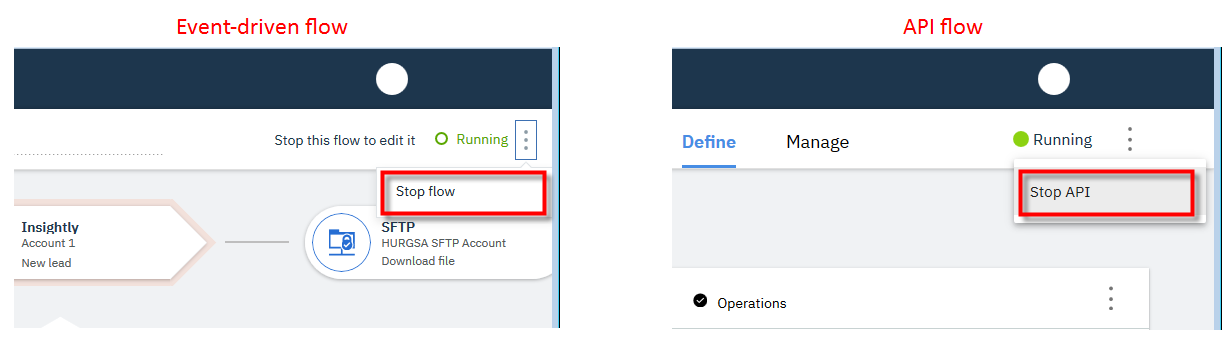
If all the nodes in a flow pass validation, you can start the flow directly from the App Connect on IBM Cloud or App Connect Designer dashboard, or from the flow editor. Flows marked as incomplete cannot be started. You can also stop a running flow (from the dashboard or flow editor) if you need to edit the flow, no longer want it to be triggered, or want to delete it. To start or stop a flow, complete either of the following actions:
- From the dashboard, locate the flow that you want to start or stop. Then, open the flow's
options menu [⋮] and select the action that you want to take:

- From the flow editor, start or stop the flow by using the flow editor's options menu [⋮]. The
following example shows the options to stop a running flow. If the flow is in edit mode, the options
shown will enable you to start the flow.
Editing an existing or draft flow
To change the configuration of an existing flow or complete a draft flow, complete the following steps:
- Perform either of these actions:
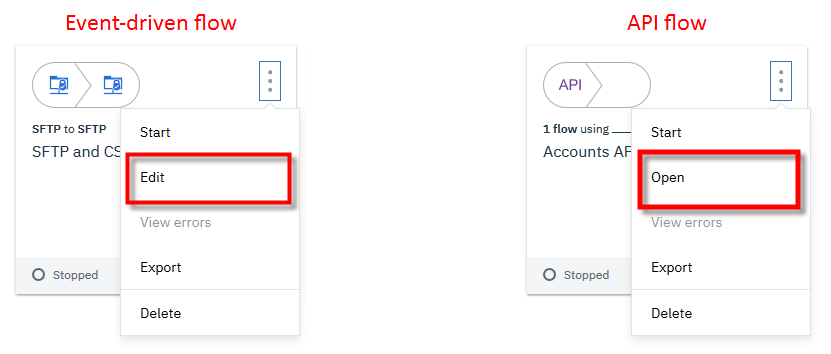
- From the dashboard, locate the flow that you want to edit. If the flow is shown as running,
stop the flow by using the flow's options menu [⋮]. To open the flow in edit mode, either click
anywhere on the flow's tile, or open the flow's options menu [⋮] and select the option to edit the
flow.
- If you are currently viewing a running flow, stop the flow by using the flow editor's options
menu [⋮].
- From the dashboard, locate the flow that you want to edit. If the flow is shown as running,
stop the flow by using the flow's options menu [⋮]. To open the flow in edit mode, either click
anywhere on the flow's tile, or open the flow's options menu [⋮] and select the option to edit the
flow.
Viewing the configuration of a running flow
If you want to examine how a running flow is configured without first stopping the flow, you can view the flow's configuration in read-only mode as follows:
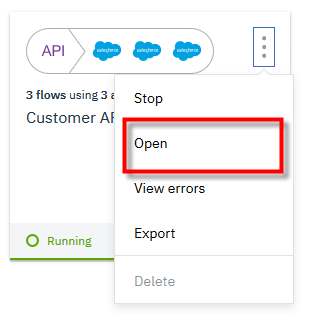
- Click anywhere on the flow's tile. Alternatively, open the flow's
options menu [⋮] and select the option to view the flow:
- For an event-driven flow, select View.

- For an API flow, select Open, click the Operations tab, and then
click the View flow button for the operation you want to view.
If you'd like to edit the flow, you'll need to first stop the flow by using the flow editor's options menu [⋮].
- For an event-driven flow, select View.
Sorting or searching for flows in the dashboard
By default, flows in the dashboard are sorted alphabetically in name order, but you can change
the sort order to view flows in date order. To sort your flows in the dashboard, click
Sort flows
 , and then choose the required option:
- Name: Sorts flows in alphabetical name order
- Date created: Sorts flows in the order in which they were created, with the most recent displayed first
- Date modified: Sorts flows in the order in which they were last edited

You can also use the Search box to filter your flows by name.

Deleting a flow
To delete a flow that is no longer required, complete the following steps:
- From the flow's options menu [⋮], select the option to delete the
flow.

Exporting and importing flows
To export a flow, complete the following steps:
To import a flow, on the dashboard click (or in earlier versions).
- Exporting and importing flows
General information about exporting and importing flows in App Connect Designer in a containerized environment.