Viewing zone details
- Click .
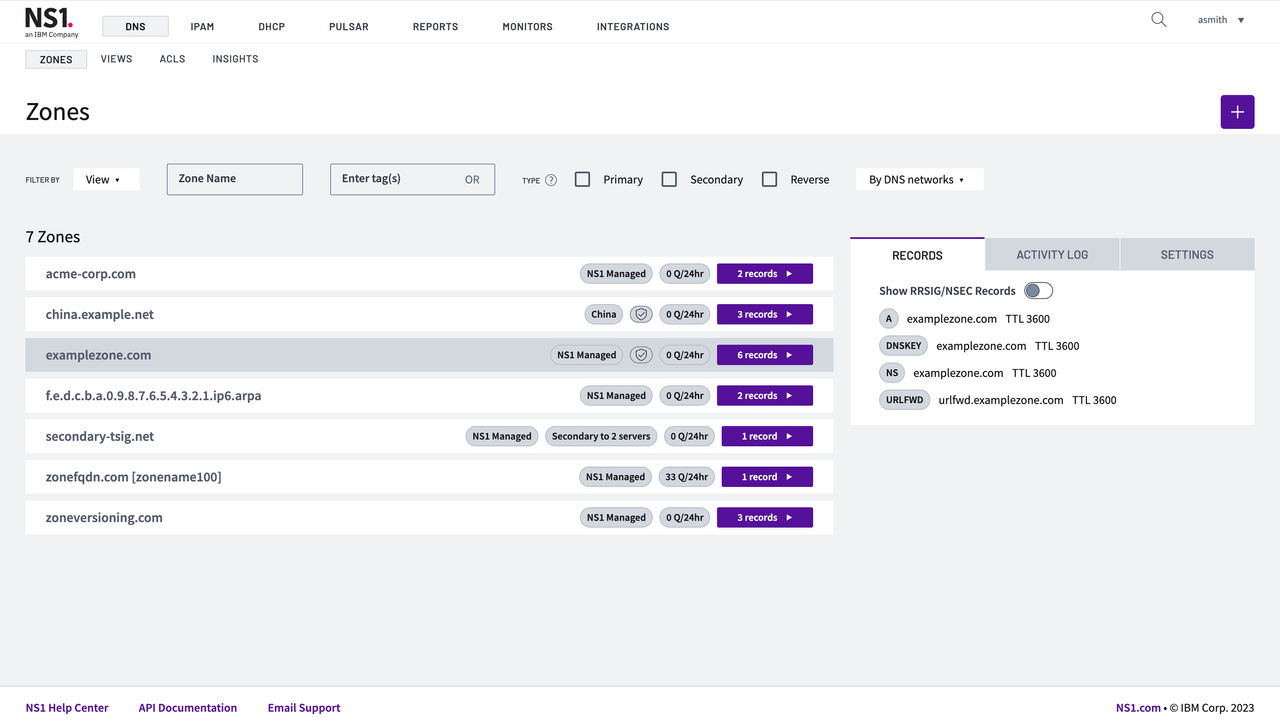
You can highlight a zone by clicking the whitespace next to the zone name or using your keyboard's up/down arrows to move up and down the list. Details about the zone appear in the summary panel on the right, including:
- Records
- This tab shows a list of DNS records associated with the selected zone — including the record type, domain, and TTL value.
- Activity log
- This tab provides a log of recent activity related to the selected zone.
- Settings
- This tab shows a summary of zone settings, including the date and time the zone was created and last modified, the zone's SOA TTL value, serial number, and DNS networks on which the zone is published.
Optionally, you can view and edit the tags associated with this zone. Each tag consists of a key-value pair (that is, a name (required) and a value (optional)). You can apply one or more custom tags to zones in order to simplify DNS search and management.
To add a new tag, click Add a new tag. Then, enter a name for the tag (that is, a key or property) and (optionally) an associated value.
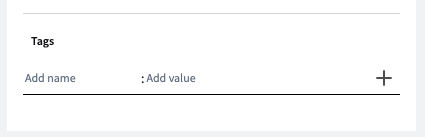
When complete, click the + button to apply the tag to the zone.
From the list of zones, click the name of a specific zone for which you want to view details.
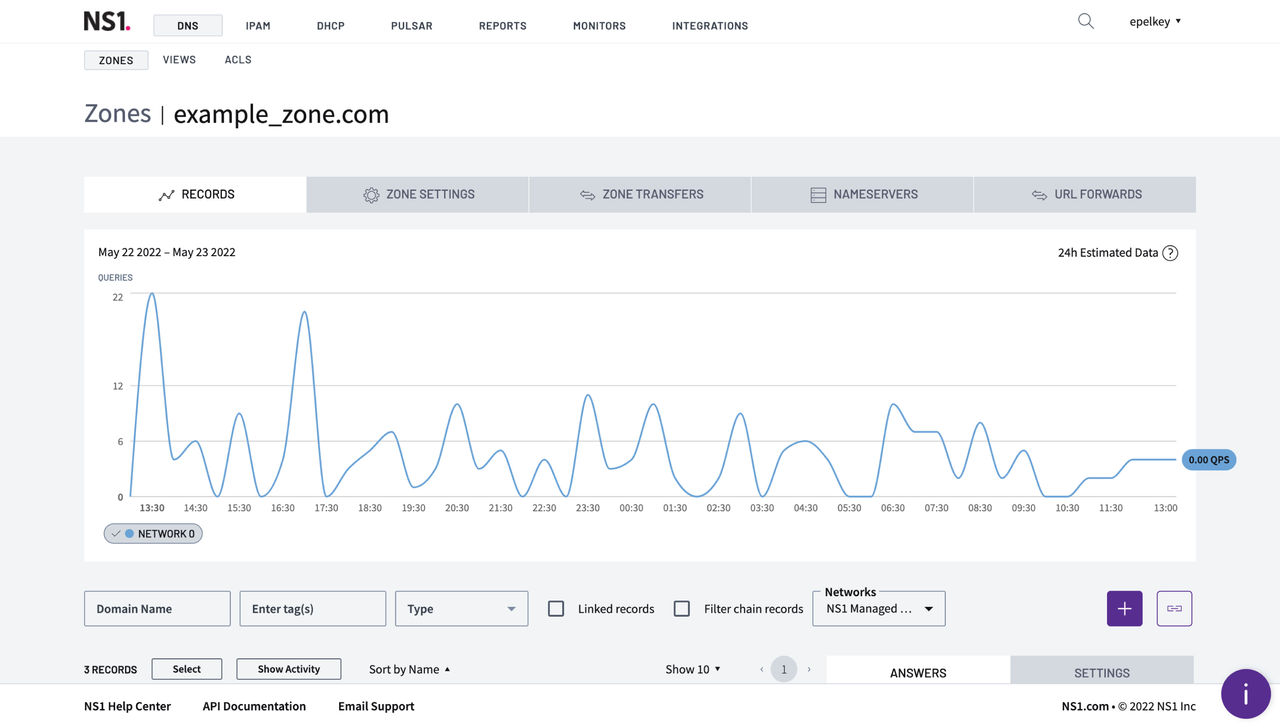
The following sub-pages appear after drilling down into the zone details.
Records
At the top of the Records tab, you can see the number of incoming queries to all records in the zone over the last 24 hours across each DNS network to which the zone is published.
Scroll down to view a list of DNS records associated with this zone. You can search and filter the list of records by domain name, tag(s), record type, or whether or not the record has a Filter Chain configured. You can also create a new record or link a record from this page.
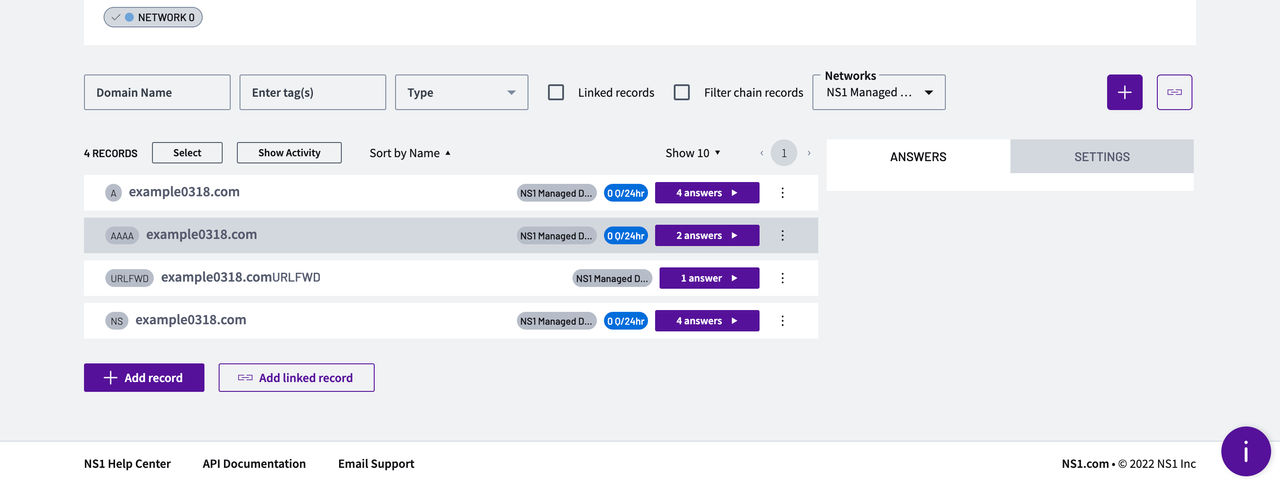
Right above the list of DNS records is an option to select multiple records from the list to perform bulk actions, like deleting multiple records at once.
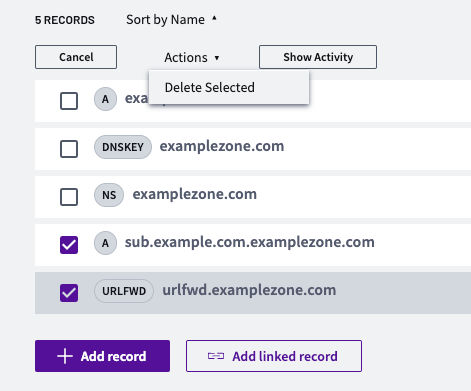
Click Show Activity to view record-level query data for a selected zone.
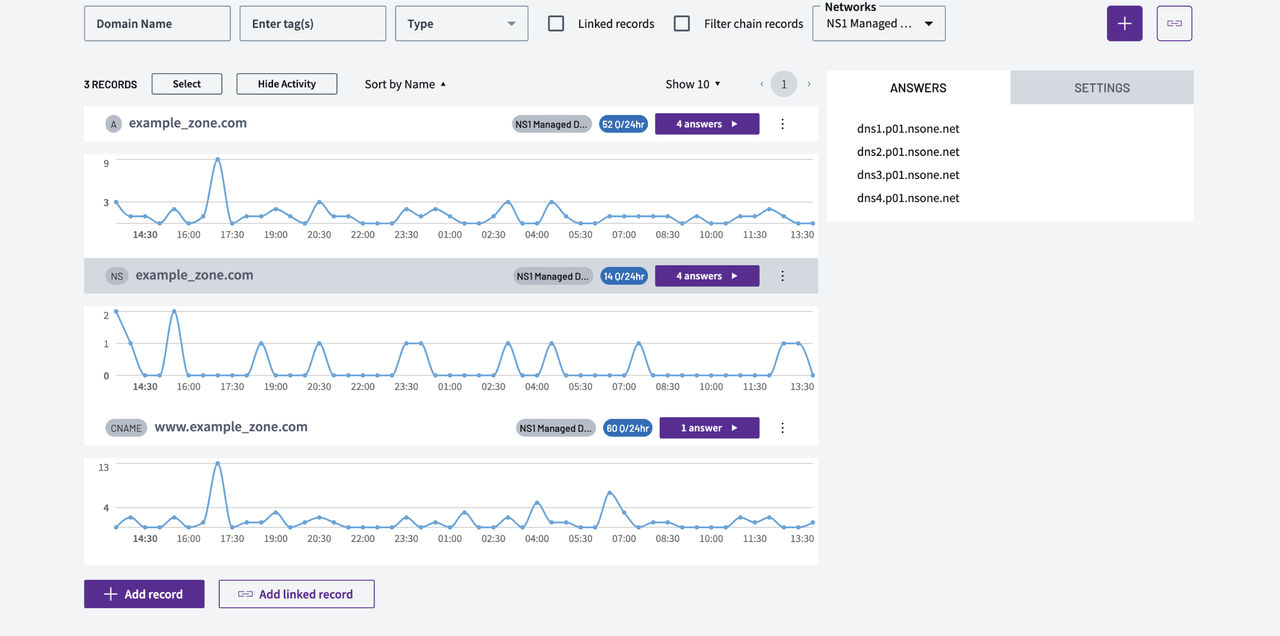
Similar to the Zones page, you can highlight a record to view details in the side panel. The Answers tab shows you a list of answers corresponding to the selected record.
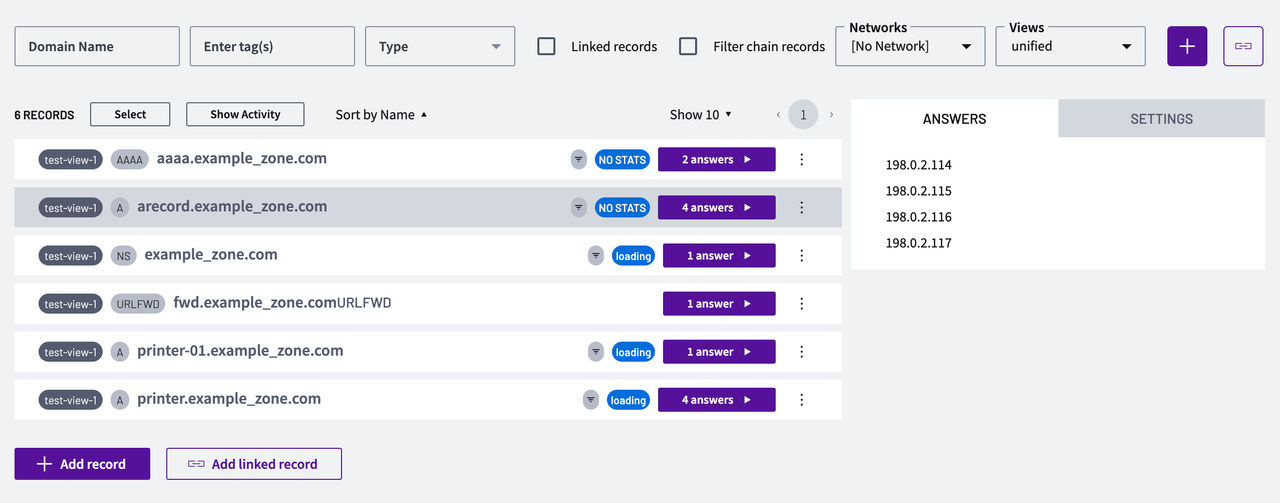
The Settings tab provides general information about the record, including when it was created and last updated. You can apply one or more tags to a record by clicking Add a new tag.
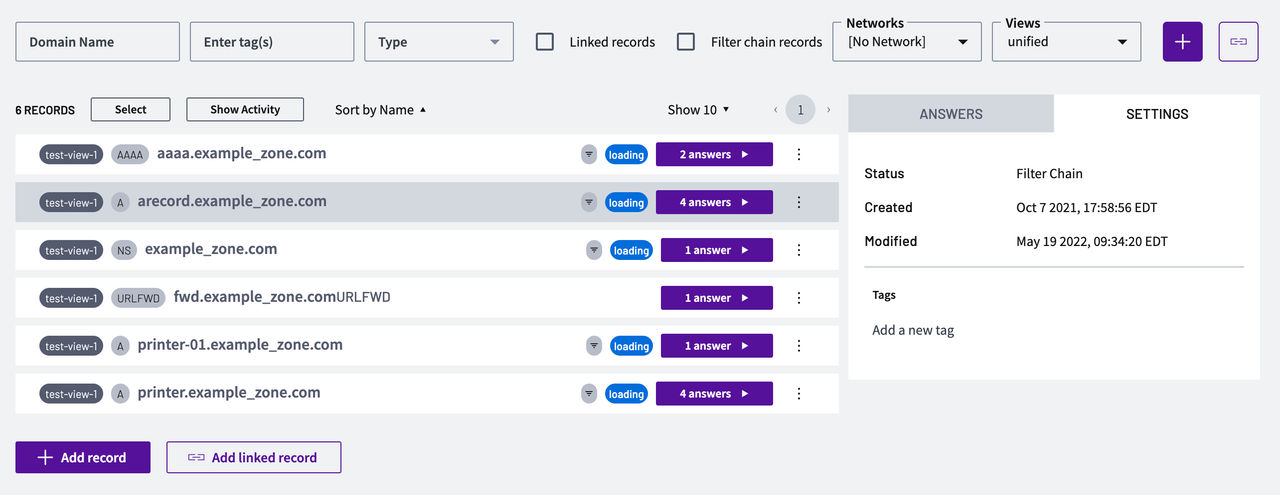
You can click the name of a record from the list to view more details, add answers to the record, etc.
Zone settings
After drilling down into the zone details, you can click the Zone Settings tab to view or edit the zone configuration, including the DNS network(s) on which the zone is published and any associated DNS views.
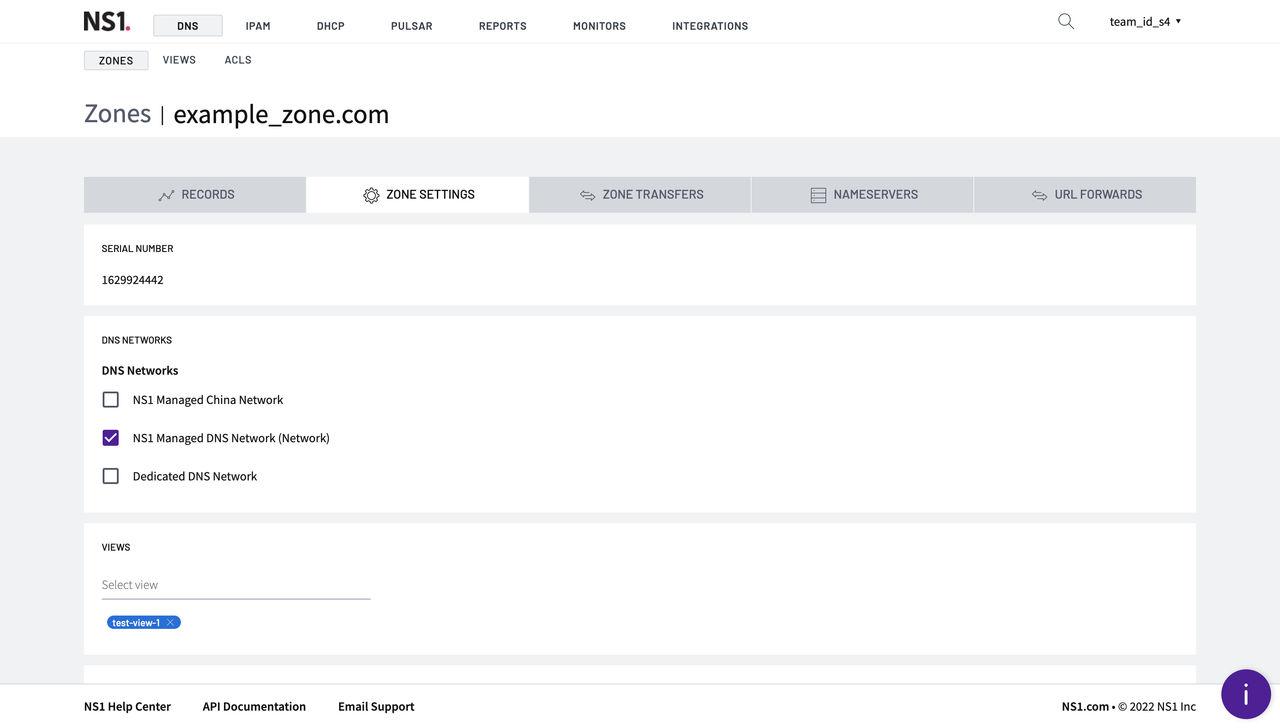
Depending on the type of zone you are viewing, you can view different configuration settings related to the zone (for example, SOA TTL and basic information for primary zones, associated primaries for secondary zones, DNSSEC, and so on). You can modify most of the zone settings directly from this page. Refer to Edit zone settings for details.
Note that you can also delete the zone by scrolling to the bottom of the page and clicking Delete zone and confirming the change.

Zone transfers
The Zone Transfers tab contains any outgoing zone transfers configured for the zone. In other words, it lists the secondary IPs to which this zone is primary. Note that the concept of a "primary" zone can be misleading because you can enable outgoing zone transfers from a secondary zone hosted by IBM® NS1 Connect® to additional "secondaries" (that is, tertiary zones).
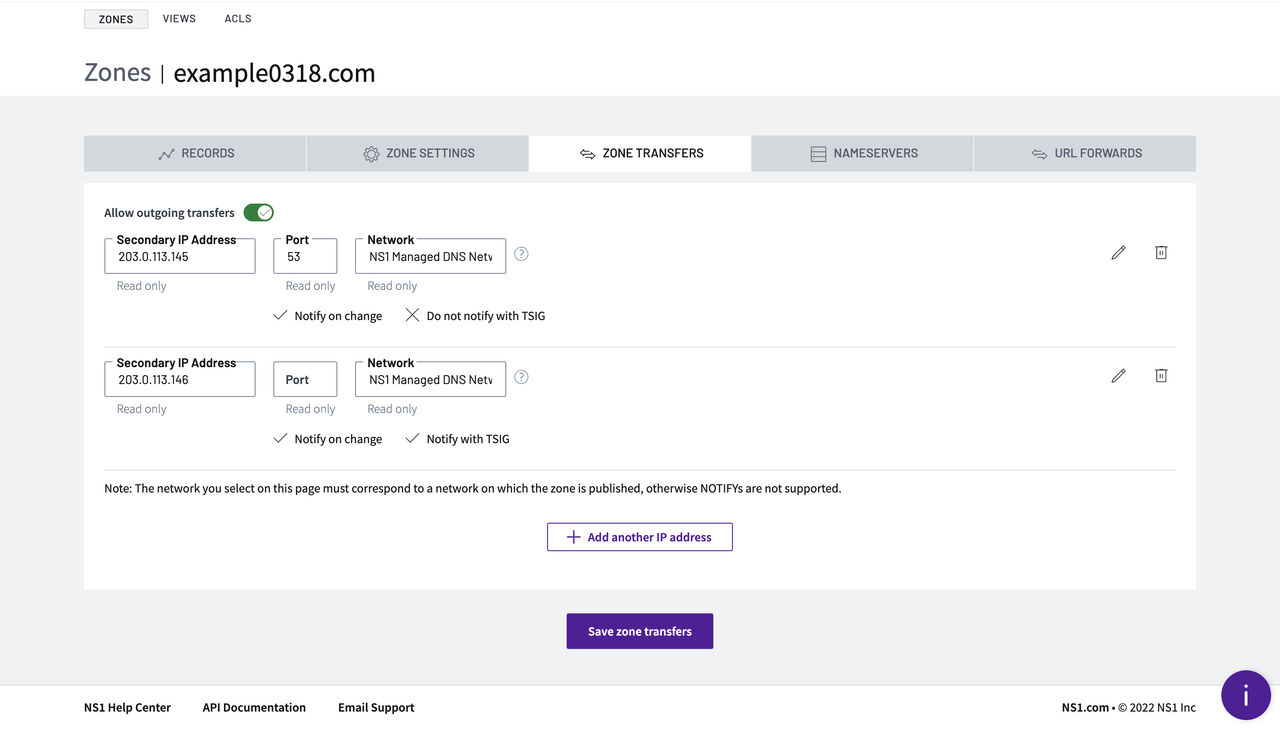
Refer to this topic to learn more about enabling outgoing zone transfers.
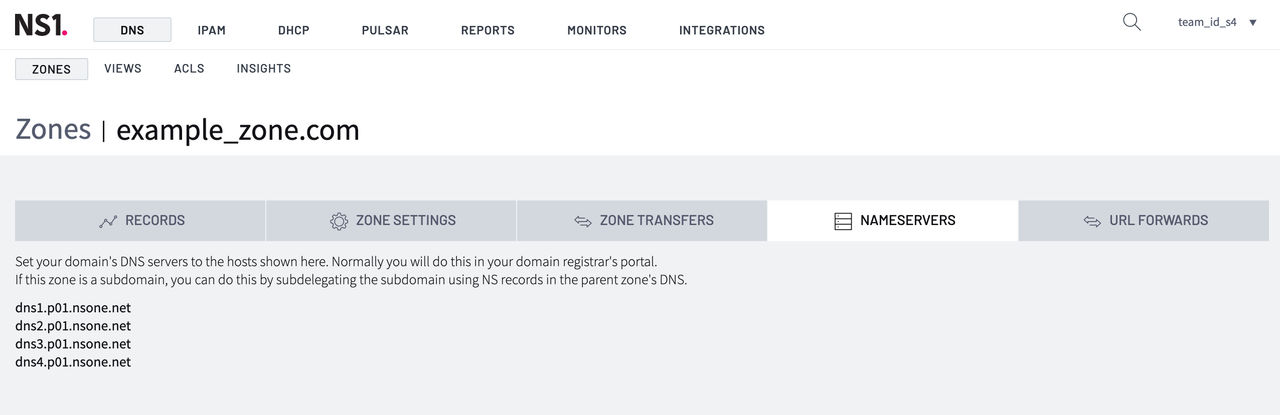
Nameservers
Click the Nameservers tab to view a list of NS1 Connect Managed DNS nameservers that have been assigned to the zone. Note that it does not include custom nameservers or those for dedicated namespaces.