Configuring Catchpoint as a third-party data source
The NS1 Connect platform supports integration with the NS1 API as a monitoring service. When configured, data from Catchpoint is sent to NS1 Connect, where it is used to inform DNS traffic steering decisions.
During the implementation process, you will configure a webhook in Catchpoint to send notifications to NS1 Connect and set up tests that have a trigger/notification condition to trigger the webhook.
Create a data source on the NS1 Connect platform
- Navigate to the Integrations page from the main navigation.
- Under , click the icon corresponding to the data source.
- Enter a name for the data source for internal reference.
- Click Save Data Source. The button text changes, asking if you want to create a data feed. When prompted to create a feed from the new data source, click the X in the top right corner to close the window
Configure a test on the Catchpoint platform
Follow the instructions below to configure a test on the Catchpoint platform. Refer to the Catchpoint documentation for details.
- In Catchpoint, navigate to Control Center .
- Click New to create a new test.
- Select test type and a product folder to store it in. Complete the form fields, for example
Test Domainisibm.com. Click Save.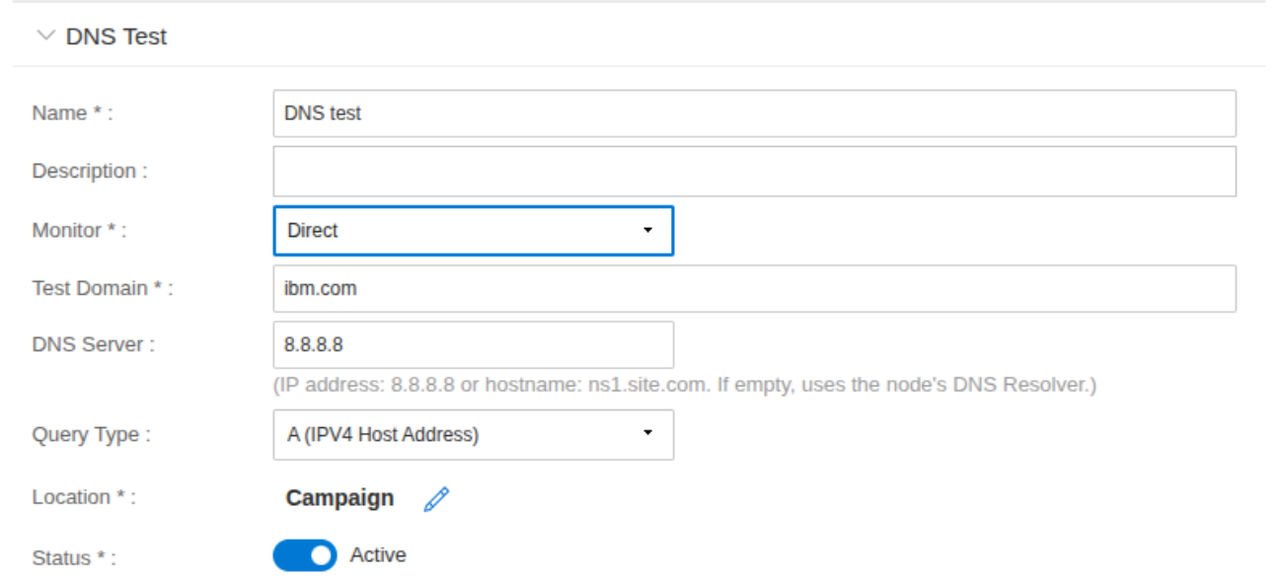
- The new test appears in the list of tests. You can locate the test ID in the ID column in the list. You will need this ID to configure NS1 Connect data feeds.
- Repeat this process for each test you want to connect to the NS1 Connect platform.
Configure NS1 Connect data feeds for each Catchpoint monitor
Follow the instructions below to create a data feed for each Catchpoint test you want to connect to the NS1 Connect platform. In NS1 Connect do the following:
- Navigate to .
- Click the Catchpoint logo under Add a feed to an existing data source.
- In Choose a Data Source dropdown, select the appropriate data source.
- Enter a name for the data feed.
- Copy and paste the unique test ID for the Catchpoint test generated in the Configure a test on the Catchpoint platform section.
- Click Save feed.
- Repeat this process for each Catchpoint test you want to connect.
Create a Catchpoint alert and webhook
- In Catchpoint, click Integrations.
- Click .

- Enter a name for the webhook.
- For status, select
Active. - Next to URL, enter https://api.nsone.net/v1/feed/<sourceID>, where <sourceID> is the unique ID of the Catchpoint data source you generated in the Create a data source on the NS1 Connect platform section.
- Next to Format, select JSON.
- Next to On Failure Alert, enter the email of the users to be notified.
- Save the Alert Webhook.

- Click Control Center.
- Locate and select the test created in the Configure a test on the Catchpoint platform section. This opens a panel on the right.
- Select Alerts.
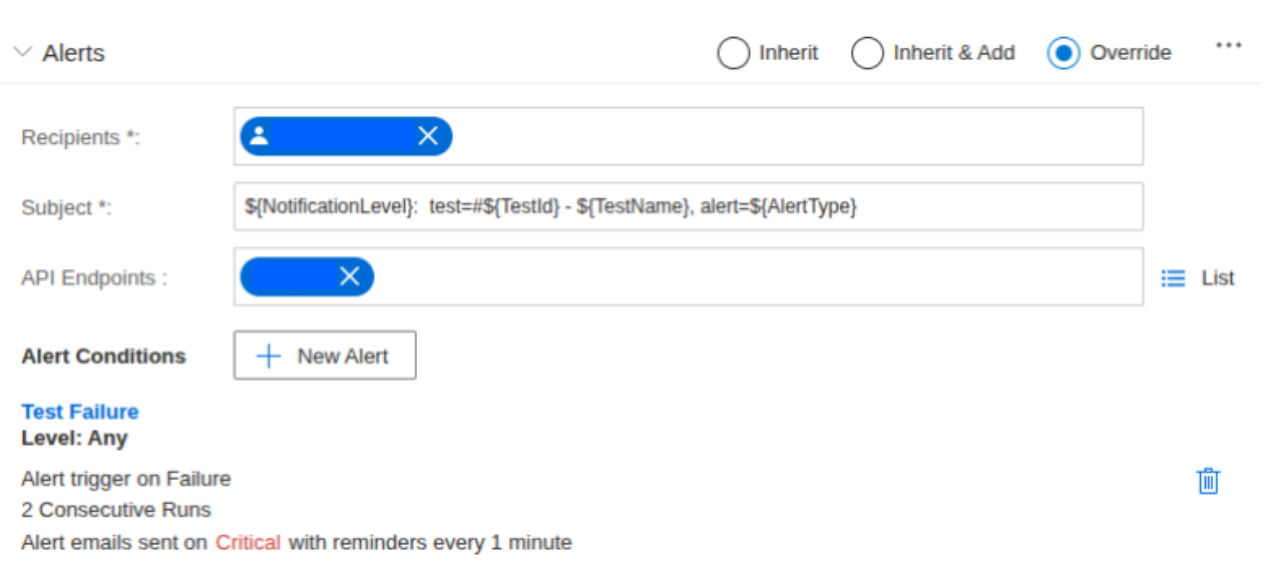
- Enter the name of the webhook as your new API endpoint.
Draft comment:
Note: You only need to create one alert with a webhook notification pointing to the NS1 Connect platform. Use the same alert for all Catchpoint tests.Draft comment:
Step 12- Is this select or inputing the name of the webhook that was created and this is the new API endpoint
Connect each data feed to the NS1 Connect DNS answers
To configure automatic updates from Catchpoint to DNS record answers on the NS1 Connect platform, you must connect the data feeds configured in Create a Catchpoint alert and webhook section to the corresponding DNS answers. You will map each feed to the up/down metadata field for the relevant answer.
For instructions, refer to Connecting a monitor or data source to a DNS answer.
Create a Filter Chain
After configuring automatic updates from the Catchpoint test to their corresponding answers, you can create a Filter Chain for the parent DNS record to activate dynamic traffic steering. Use the Up filter to instruct the NS1 Connect platform to eliminate down or unavailable answers when making routing decisions. As the Catchpoint data feeds update the answer metadata, the platform adjusts traffic steering behavior to accommodate changing network conditions.
After step 4, what happens if user selects Fail on Warning