Configuring SSO with OneLogin
IBM® NS1 Connect® supports SAML 2.0 single sign-on (SSO) with OneLogin for logins initiated by both the identity provider (IdP) or the service provider (SP).
Before you begin
Note: SSO is available only to accounts with a Premium plan.
Step 1 - Locate your SSO ID in NS1 Connect
Refer to the instructions in Locating your SSO ID.
Step 2 - Add your SSO ID to OneLogin
- Log in to OneLogin, and click Applications.
- Under Find Applications, search for NS1.

- Click the application name to view the application details.
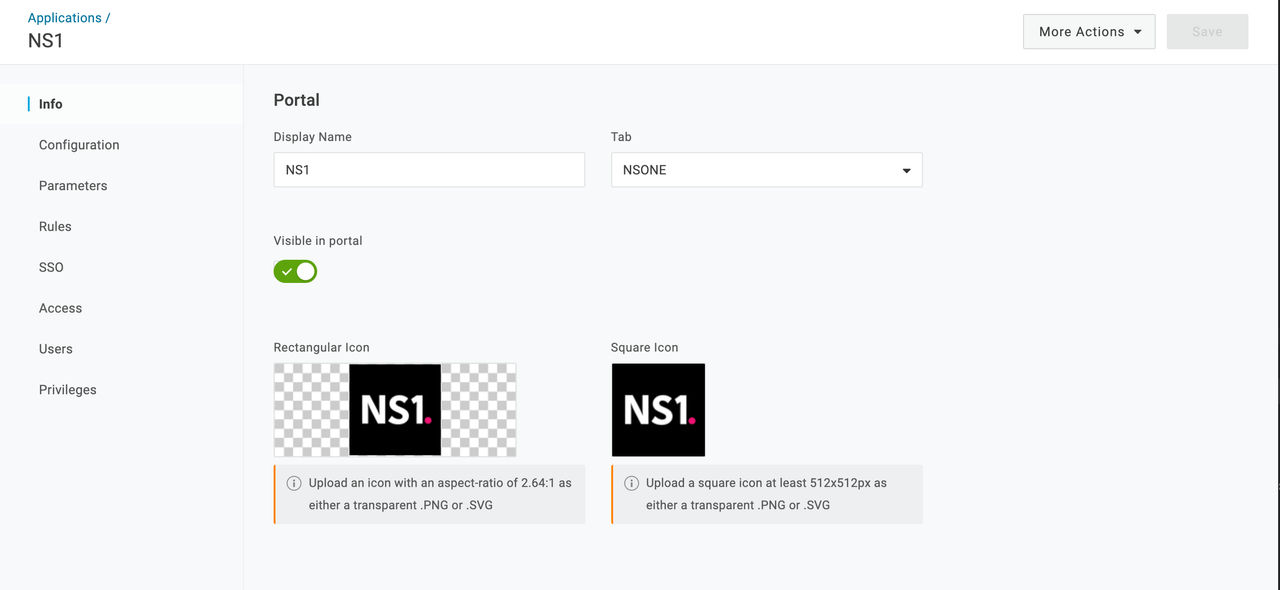
- Select Configuration from the sidebar menu.
- Under Application details, enter the SSO ID provided by IBM support.

- Under SAML Encryption, leave the Public Key field blank.
Step 3 - Configure user mappings
An account administrator must configure user mapping based on usernames or email addresses. First, you will need to identify the format of usernames in your account, either a basic text string (for example, jdoe) or an email address (jdoe@example.com).
- Navigate to NS1 Connect.
- Click the User Settings icon and select Users & teams.
- Click the Users tab.
- In the User column, verify the username format.
- In OneLogin, navigate to , and click Parameters from the sidebar.
- If mapping users based on the username, select Username next to the NameID field.
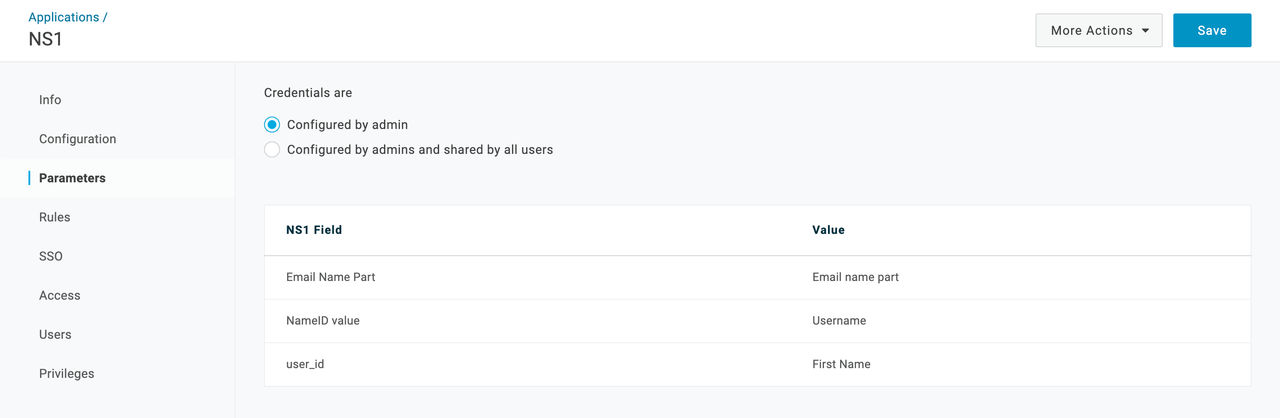
- If mapping users based on the email, select Email next to the NameID field.

Step 4 - Use SHA-256 as the SAML signature algorithm
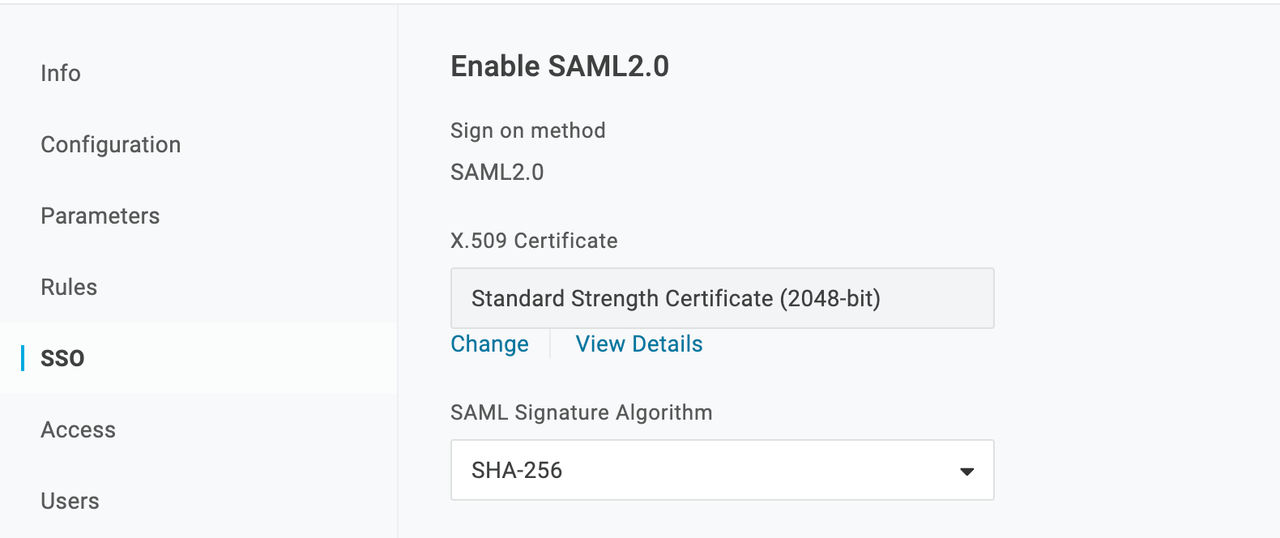
- Within the NS1 Connect application in OneLogin, click SSO in the sidebar menu.
- Under SAML Signature Algorithm, select SHA-256 from the drop-down menu.
Step 5 - Send the metadata URL to IBM support
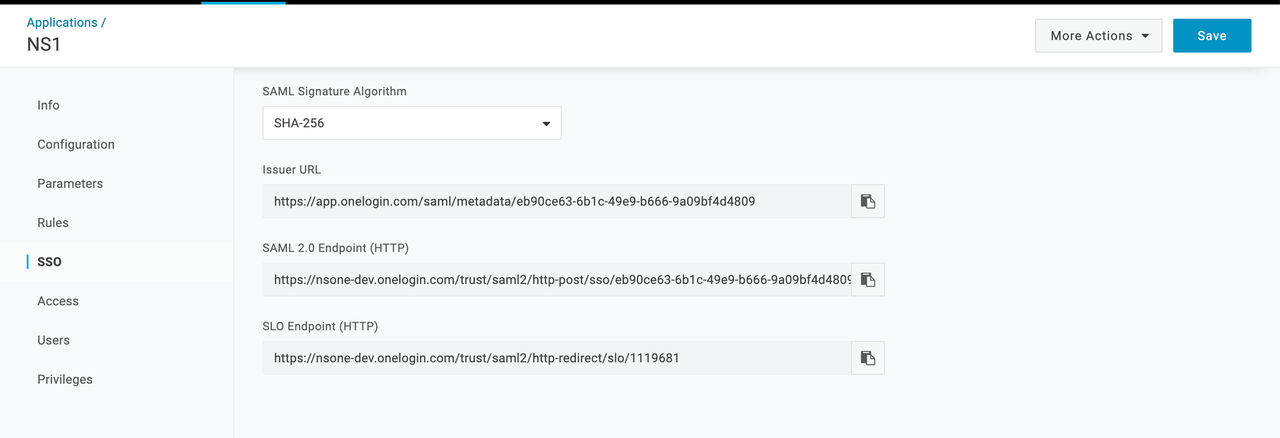
To enable SSO for all NS1 Connect users within your organization, you must provide the metadata URL to IBM support.
- Still, in the SSO tab, scroll down to the issuer URL. Copy the URL and send it to IBM support.
Step 6 - Adding users to the NS1 Connect application
OneLogin gives administrators full control over which users are added to the NS1 Connect application.
- In the OneLogin platform, navigate to the Users section.

- Click a user to view the user information.

- In the Applications tab, click the blue + icon to add the user to a new application.

- Select NS1 from the drop-down menu, and click Continue.

- The fields will auto-populate based on your user mapping configuration settings. Review the default information for accuracy, and click Save.

- Repeat this process for all users you want to add to the NS1 Connect application.