Passing parameters with data tables
From a data table, you can pass a parameter from one Faces
JSP page to another using a data table row action to, for example,
return a detailed page of data for a record that is selected in a
data table. To do this, you can configure a data row action control
to pass a parameter from a data table page to a record details page.
Before you begin
Note: You can also pass parameters by using a Link - Command
or Link - Request component bound to a column of the data table.
About this task
Procedure
- Add a row action control to your data table.
- In the Properties view of the data table, click Row
actions in the list under the data table, h:dataTable. The action settings available display on the right:

- Click Add next to "Add an action
that's performed when a row is clicked." A new column
containing a row action control is added to the data table. The column's
row action control is selected and you can see its attributes in the
Properties view:

- In the Properties view of the data table, click Row
actions in the list under the data table, h:dataTable. The action settings available display on the right:
- You can give the new parameter a value or bind it to a
field in your data object. In this case, bind the parameter to a data
field.
- Click within the Value field
for the new parameter, then click the Select Page Data button,
 . The Select Page Data Object page opens.
 - To bind the parameter, select a relational record in
the same relational record list that your data table is bound to,
then click OK. For example, if there is a customers SDO,
you might select the customerID relational
record.
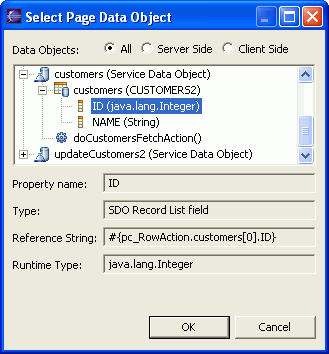
- Click within the Value field
for the new parameter, then click the Select Page Data button,
- Write a custom action for the row action control hx:commandExRowAction or hx:requestRowAction using
the Quick Edit view.
- In the Properties view, click on the row action control.
- Click the Quick Edit view button,
 , next to the row action ID. The Quick Edit
view opens.
, next to the row action ID. The Quick Edit
view opens.
- Click in the right-hand pane of the view to enter the code to define the new action.
- Add the parameter from the row action to the request
scope so that the page that you navigate to can use this parameter.
In the customers SDO, for example, where customerID is
the name of the parameter and req_customerID is the request
scope variable that is being set, enter the following line before return""; :
getRequestScope().put("req_customerID", getRowAction2().getRowParameters().get("customerID"));Note: Using content assist, you can verify that the correct method names are being used. For example, you can type getReq and a box opens with a list of method names where you can then select getRequestScope(). The method names available to you are dependent on the objects on the page. If you have more than one row action on the page, using content assist allows you to see all the row actions without having to recall the exact ID from memory.