Hosts overview page
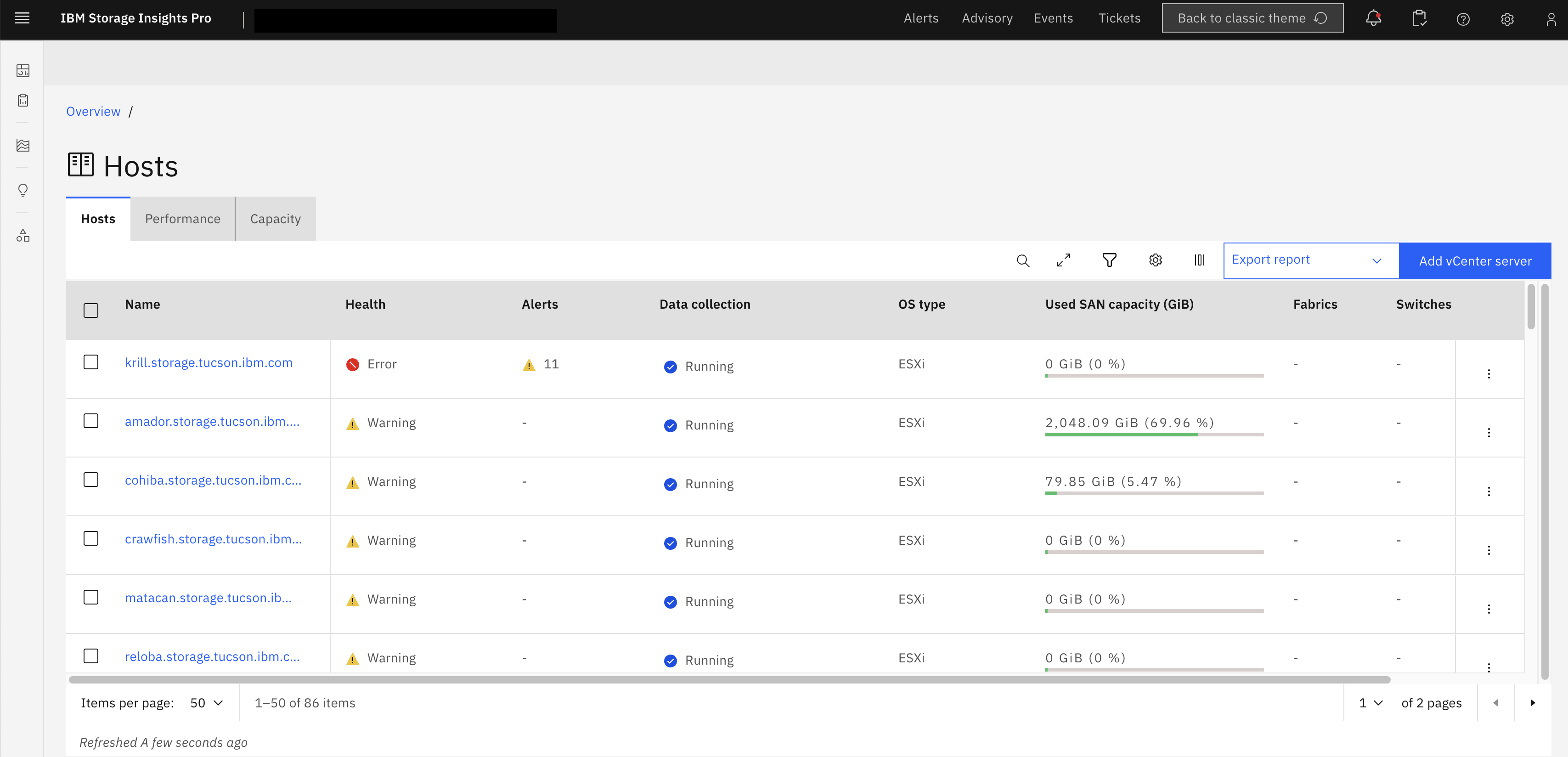
The hosts overview page is introduced in the new modern view of IBM Storage Insights, ensuring a consistent and contemporary look and feel across all IBM Storage Insights pages. This new interface offers a seamless user experience, eliminating the need to revert to the classic UI while providing enhanced visibility and functionality within a unified design framework.
To access the hosts overview page, click the left Main menu, expand the Inventory section, and click Hosts. Use this page to administer and monitor the configuration and status information collected about the hosts in your storage environment.
Key features in the hosts overview page:
- Context menu: Click the three vertical dots menu at the end of each host row to view information about host properties, capacity, connections, and data collection. You can also view performance and acknowledge or unacknowledge the health status of ESXi hosts from the context menu.
- Host properties: Click the three vertical dots menu at the end of each host row and select View properties to see detailed host properties and connectivity information.
- Host detail Page: Clicking on any host name in the Name column will open the host detail page in the classic UI.
- Click Performance to view host performance details and on Capacity to view host capacity details in the classic UI.
- Sorting, filtering, and column reordering are supported for all columns on the host overview page.
- Click the zoom arrow to expand the hosts overview table.
- You can select multiple hosts to perform bulk operations like capacity, add to general groups and application, merge hosts. You can also view performance and acknowledge or unacknowledge the health status, modify credentials and restart, stop, and schedule the data collection for ESXi hosts from the multiple selection.
- Switches and fabrics overview: Clicking the count value under the Switches or Fabrics column opens the respective overview page in the modern view.
- The Virtual Machines tab, previously available in the classic view of the host overview page, has been relocated in the new modern view and is now accessible as a separate virtual machines overview page.
- The Alerts tab in the classic view of the hosts overview page is now presented as an Alerts column in the modern view.
- Add to application: Click the three vertical dots menu at the end of the host row and
select Add to application. It opens a pop-up that provides two options:
- Add to a new application: Select it to add the hosts to a new application and specify the name, description, type, and subtype for the new application.
- Add to existing applications: Select it to add the hosts to one or more existing applications and click the appropriate applications in the list.
For more information about Hosts, see Hosts.