Using Local Filesystem with CNSA
Configure a Pod to use a PersistentVolume (PV) on a Local Filesystem
https://www.ibm.com/docs/en/scalecontainernative/5.2.1?topic=overview-technology-preview describes a technical preview feature to use local disks with the CNSA cluster inside an OpenShift cluster. The purpose of this scenario is to show the necessary steps to configure a simple hello world pod to use a PV on a Local Filesystem.
Prerequisites
- Installed OpenShift cluster
- Installed CNSA
- Free disk to use for the Local Filesystem
- A simple Red Hat OpenShift example application (for example, this one: https://github.com/openshift-examples/simple-http-server)
Overview of the required Steps
In addition to the steps listed here (https://www.ibm.com/docs/en/scalecontainernative/5.2.1?topic=systems-local-file-system) the following steps are required:
- Label nodes that have a connection to the shared disks.
- Specify device names.
- Create a LocalDisk resource for each disk to use for the file system.
- Create a Filesystem resource that references to the LocalDisk resources.
Further steps are:
- Attach the disk to the CNSA worker nodes
To use local filesystem you need to:
- Define a storage class
- Define a PersistentVolumeClaim (PVC)
- Define a pod using the PVC
Detailed steps
- Label worker nodes as storage
nodes:
oc label node worker0 scale.spectrum.ibm.com/role=storage oc label node worker1 scale.spectrum.ibm.com/role=storage - Attach disk to the worker nodes
This step depends on the actual setup. In this example here, the worker nodes (ocp413-worker0 and ocp413-worker1) are KVM virtual machines. The SCSI LUN is accessible to the KVM Hypervisor and the disk is attached using
virsh attach-diskas/dev/vdcto the two worker nodes.virsh attach-disk ocp413-worker0 --source /dev/disk/by-id/dm-uuid-mpath-36005076307ffd0900000000000001018 --target vdc --cache none virsh attach-disk ocp413-worker1 --source /dev/disk/by-id/dm-uuid-mpath-36005076307ffd0900000000000001018 --target vdc --cache none - Local disk
A NSD
disk0is created from/dev/vdcusingoc create -f …(replace…in the following examples with a file containing the YAML)apiVersion: scale.spectrum.ibm.com/v1beta1 kind: LocalDisk metadata: labels: app.kubernetes.io/instance: ibm-spectrum-scale app.kubernetes.io/name: cluster name: disk0 namespace: ibm-spectrum-scale spec: device: /dev/vdc node: worker1 nodeConnectionSelector: matchExpressions: - key: kubernetes.io/hostname operator: In values: - worker0 - worker1Connect to the pod worker0 and verify the creation of the NSD:
# oc rsh -c gpfs -n ibm-spectrum-scale worker0 mmlsnsd -m Disk name NSD volume ID Device Node name or Class Remarks ------------------------------------------------------------------------------------------- disk0 8033C0A866BF57A5 /dev/vdc worker0.admin.ibm-spectrum-scale.stg.ocp.gpfs.boe. disk0 8033C0A866BF57A5 /dev/vdc worker1.admin.ibm-spectrum-scale.stg.ocp.gpfs.boe. server node - Local filesystem
And a filesystem
local-samplefsis created ondisk0:apiVersion: scale.spectrum.ibm.com/v1beta1 kind: Filesystem metadata: labels: app.kubernetes.io/instance: ibm-spectrum-scale app.kubernetes.io/name: cluster name: local-samplefs namespace: ibm-spectrum-scale spec: local: blockSize: 4M pools: - disks: - disk0 name: system replication: 1-way type: shared seLinuxOptions: level: s0 role: object_r type: container_file_t user: system_uVerify the creation of the local filesystem:
# oc rsh -c gpfs -n ibm-spectrum-scale worker0 mmlsfs local-samplefs -d flag value description ------------------- ------------------------ ----------------------------------- -d disk0 Disks in file system - Local Storage Class
To use filesystem
local-samplefsfor a PVC, a storage class is createdibm-spectrum-scale-local:allowVolumeExpansion: true apiVersion: storage.k8s.io/v1 kind: StorageClass metadata: name: ibm-spectrum-scale-local ownerReferences: - apiVersion: scale.spectrum.ibm.com/v1beta1 blockOwnerDeletion: true controller: true kind: Cluster name: ibm-spectrum-scale uid: 5e4191ad-ac3b-4869-b1ad-18645d4674a5 parameters: volBackendFs: local-samplefs provisioner: spectrumscale.csi.ibm.com reclaimPolicy: Delete volumeBindingMode: Immediate - PVC using this storage class
The PVC
hello-pvcuses the storage classibm-spectrum-scale-local:apiVersion: v1 kind: PersistentVolumeClaim metadata: annotations: volume.beta.kubernetes.io/storage-provisioner: spectrumscale.csi.ibm.com volume.kubernetes.io/storage-provisioner: spectrumscale.csi.ibm.com finalizers: - kubernetes.io/pvc-protection name: hello-pvc namespace: hello-world spec: accessModes: - ReadWriteMany resources: requests: storage: 10Gi storageClassName: ibm-spectrum-scale-local volumeMode: FilesystemVerify the creation of the PVC:
# oc get pvc NAME STATUS VOLUME CAPACITY ACCESS MODES STORAGECLASS AGE hello-pvc Bound pvc-22b5cd67-61e6-4de9-94c9-9ebbd995e13f 10Gi RWX ibm-spectrum-scale-local 12d - Create the hello world pod
The following steps are just to demonstrate how to use the PVC in a simple pod. The only requirement for this pod is that it runs long enough to verify the PV and the mount point within the pod.
In the Developer perspective of OpenShift "Create a new project":Figure 1. Create a new project 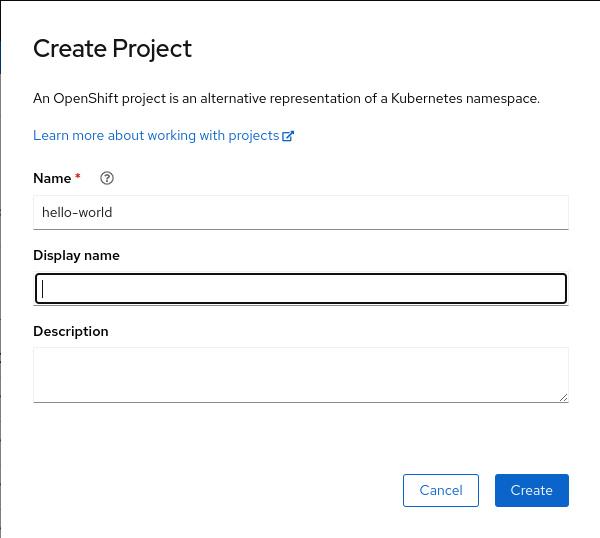
Click on "Import from Git":
Figure 2. Import from Git 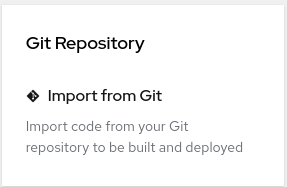
Enter the following URL: https://github.com/openshift-examples/simple-http-server and click the
Createbutton:Figure 3. Enter URL of simple example application 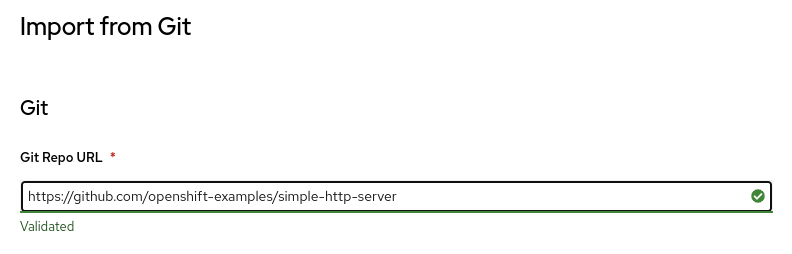
After some time the following pods can be seen (in the
hello-worldnamespace):# oc get pods NAME READY STATUS RESTARTS AGE simple-http-server-1-build 0/1 Completed 0 48s simple-http-server-677757c99b-gt9dj 1/1 Running 0 48s - Pod using PVC on local disk
Finally, the hello-world pod can access the PVC hello-pvc using the
mountPath: /mnt/hello
apiVersion: v1
kind: Pod
metadata:
  name: hello-world
  namespace: hello-world
spec:
  containers:
  - image: image-registry.openshift-image-registry.svc:5000/hello-world/simple-http-server
    imagePullPolicy: Always
    name: hello-world
    volumeMounts:
    - name: hello-vol
      mountPath: /mnt/hello
  restartPolicy: Always
  serviceAccount: default
  serviceAccountName: default
  volumes:
  - name: hello-vol
    persistentVolumeClaim:
      claimName: hello-pvc
# oc get pods
NAME READY STATUS RESTARTS AGE
hello-world 1/1 Running 0 75s
simple-http-server-1-build 0/1 Completed 0 5m29s
simple-http-server-677757c99b-gt9dj 1/1 Running 0 5m29sResult
Using oc rsh the mount point /mnt/hello and the size
(10G) of the PVC can be verified:
# oc rsh hello-world df -h
Filesystem      Size  Used Avail Use% Mounted on
overlay         100G   28G   72G  28% /
tmpfs            64M     0   64M   0% /dev
shm              64M     0   64M   0% /dev/shm
tmpfs           6.3G   74M  6.3G   2% /etc/passwd
local-samplefs   10G     0   10G   0% /mnt/hello
/dev/vdb4       100G   28G   72G  28% /etc/hosts
tmpfs            31G   20K   31G   1% /run/secrets/kubernetes.io/serviceaccount
tmpfs            16G     0   16G   0% /proc/scsi
tmpfs            16G     0   16G   0% /sys/firmware