IBM Cloud Logs
IBM® Cloud Logs (ICL) is a scalable logging service that persists logs and provides users with capabilities for querying, tailing, and visualizing logs.
Logs are comprised of events that are typically human-readable and have different formats, for example, unstructured text, JSON, delimiter-separated values, key-value pairs, and so on. The IBM Cloud Logs service can manage general purpose application logs, platform logs, or structured audit events. IBM Cloud Logs can be used with logs from both IBM Cloud services and customer applications.
For information about IBM Cloud Logs, see IBM Cloud Logs.
Access to IBM Cloud Logs:
Access to IBM Cloud Logs instances for users in vpc account is controlled by IBM Cloud Identity and Access Management (IAM). Every user that accesses the IBM Cloud Logs in vpc account must be assigned an access policy with an IAM role.
Access policies to be added:
-
Cloud Logs
To add relevant roles for these policies, refer to Managing IAM access for IBM Cloud Logs.
Provisioning an ICL instance
To provision an ICL instance from the Observability dashboard in the IBM Cloud,
complete the following steps:
- Log in to your IBM Cloud account.
- Provision an ICL instance. Choose a plan according to your requirements.
The logging subsection
type: env
logging:
  logRouter:
    hostname: <host name of the service instance> /
    iamApiKey: <iamApiKey of the service instance> / xxxx
    port: <port of the service instance(443)>
Input parameters to be provided in the env section are:
hostname: Hostname of the service instance. Use the endpoint under the ICL instance’s Endpoint Section.- For public network ICL access: Select Public ingress endpoint section as hostname in the contract.
- For private network ICL access: Select Private ingress endpoint section as hostname in
the contract.Note: You must create a virtual private endpoint (VPE) gateway for ICL to access IBM Hyper Protect Confidential Container for Red Hat OpenShift Container Platform privately. For more information, see Using virtual private endpoints for VPC to privately connect to IBM Hyper Protect Confidential Container for Red Hat OpenShift Container Platform.
iamApiKey: The IAM API key for the service id. Generate and retrieve the API key from the service ID in IAM.port: (Optional) The port of the service instance, that is 443.
For more information, see the logging subsection.
To see the logs, open ICL instance.
Applying Filters in an ICL Instance
- Add Columns for Log Messages: Include the following columns to display detailed log
messages:
- Timestamp | _HOSTNAME | Syslog_Identifier | Severity | Message
- Filter by Hostname:
- Use the _HOSTNAME filter and select the desired hostname to view logs from a specific source.
- Filter by Log Level:
- Apply the Severity filter and choose the appropriate log level to filter messages based on severity.
- Filter By Service:
- Add the Syslog_Identifier filter to see logs from a specific service.
- Filter by Image Name, Container Name, and Container ID:
- Add filters for IMAGE_NAME, CONTAINER_NAME, and CONTAINER_ID to refine the logs further.
- View Additional Log Details:
- Select the Text option in the column to see more details about each log entry.
- Explore Other Filters:
- Additional filters are available and can be applied based on specific requirements.
For more information, see Managing IBM Hyper Protect Confidential Container for Red Hat OpenShift Container Platform logging instances.
- Provision an ICL instance.
- Modify the existing contract to replace the current logging system (LogDNA) with ICL.
- Bring down the current Hyper Protect Confidential Container gracefully, ensuring that data volumes remain intact and are not deleted during the process.
- Create a new Hyper Protect Confidential Container, attaching the existing data volumes and apply the updated contract with the new logging system (ICL) integrated.
Viewing ICL logs
- Verify if the pod is running by running the following
command:
$ oc get podsExample output:
NAME READY STATUS RESTARTS AGE busybox2 1/1 Running 0 39s - If the pod is running, continue with the procedure below. If the pod fails, see Enable debug logs and identify Kata/QEMU processes for Bare Metal to investigate the issue.
- Obtain the MAC address of the pod by running the following
command:
$ oc describe pod busybox2Example output:
Name: busybox2 Namespace: default Priority: 0 Runtime Class Name: kata Service Account: default Node: cp-comp-bm.eg.test.coco/172.23.236.61 Start Time: Thu, 20 Nov 2025 02:04:50 -0500 Labels: run=busybox2 Annotations: io.katacontainers.config.hypervisor.cc_init_data: H4sIAAAAAAAAA22cx64bW5pm5/cpLnKSg0BleMMCchDeex+NHoT33jEC/fBNAd0FFFAHkiCdQ4nk3v/+vrWow0iHet7aoxn//vff/9ibFKWwf/x1ldveztOfT0H/gv8F/eOv/1WkR/... io.katacontainers.config.hypervisor.default_memory: 9216 io.katacontainers.config.hypervisor.default_vcpus: 3 io.katacontainers.config.runtime.create_container_timeout: 900 k8s.ovn.org/pod-networks: {"default":{"ip_addresses":["10.128.1.150/23"],"mac_address":"0a:58:0a:80:01:96","gateway_ips":["10.128.0.1"],"routes":[{"dest":"10.128.0.... k8s.v1.cni.cncf.io/network-status: [{ "name": "ovn-kubernetes", "interface": "eth0", "ips": [ "10.128.1.150" ], "mac": "0a:58:0a:80:01:96", - Locate the MAC address in the output under the network interface details. For
example:
"mac": "0a:58:0a:80:01:96" - Add a filter for
kataas the hostname because bare-metal logs are pushed usingkataas the hostname.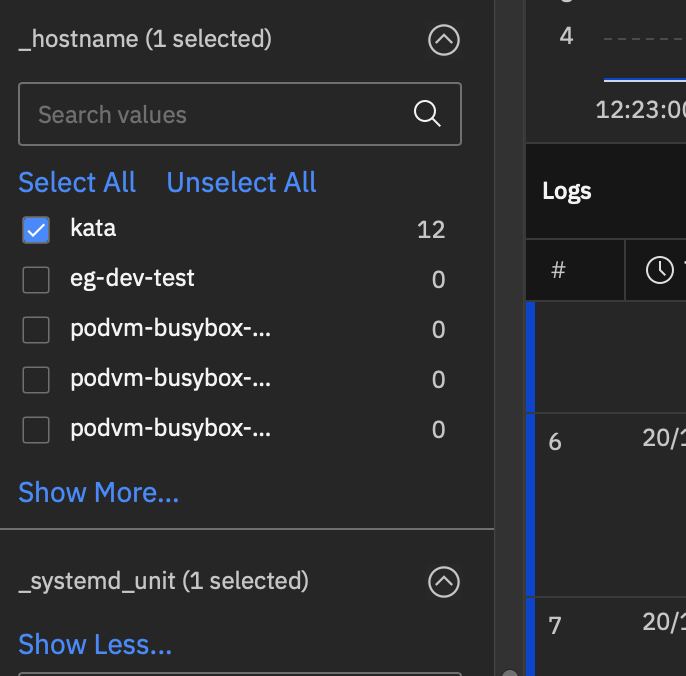
- Search the MAC address on ICL to map it with the deployed workload.
- Using the MAC address, identify the
boot_idof the dependent pod.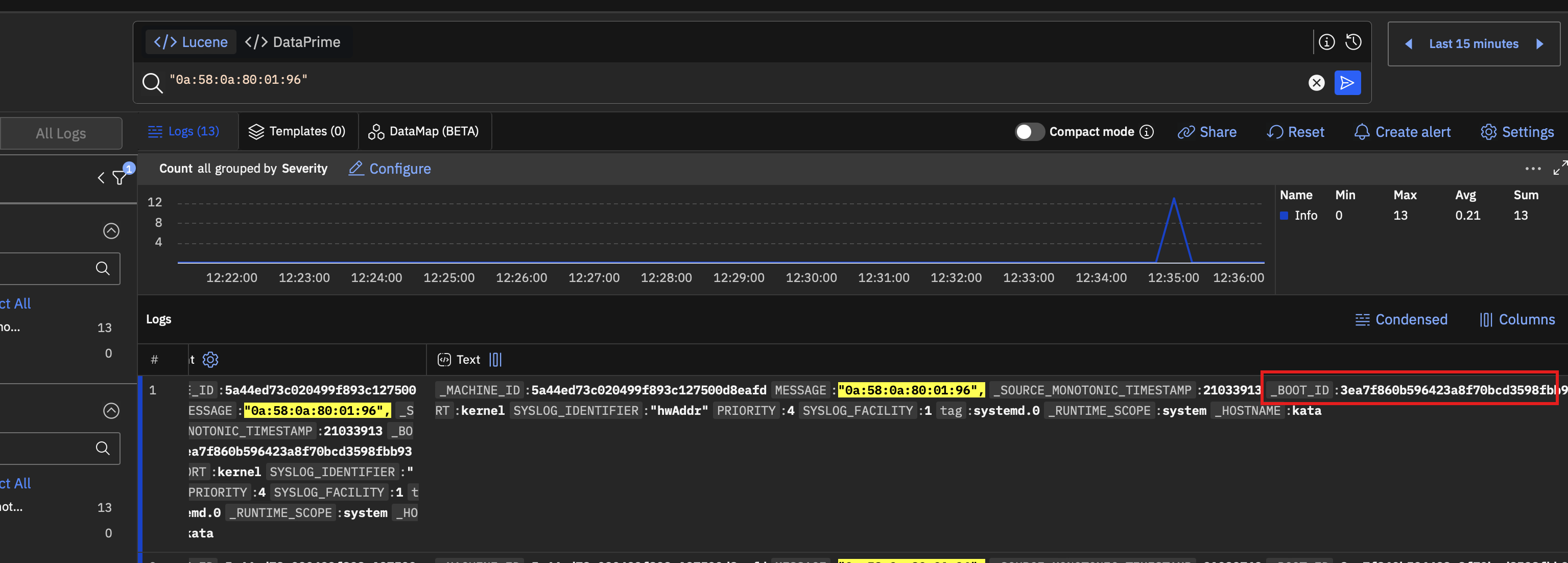
- Select the
boot_idyou obtained from the previous step as a filter to isolate logs for that specific workload.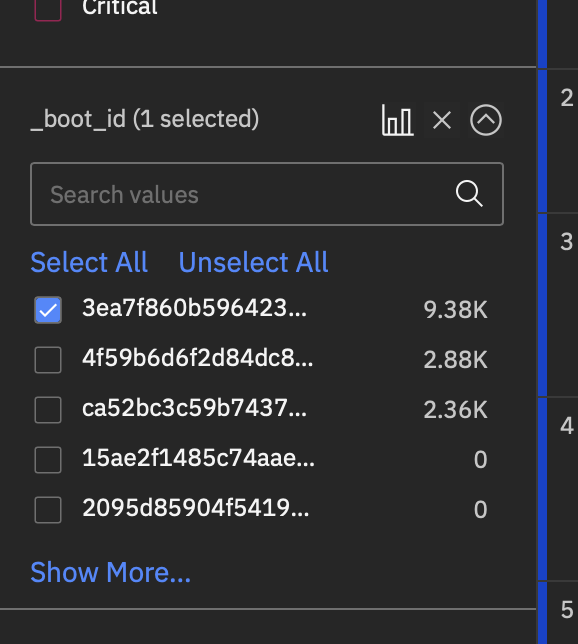
- Add
systemd_unitsfilter to narrow down logs to specific services.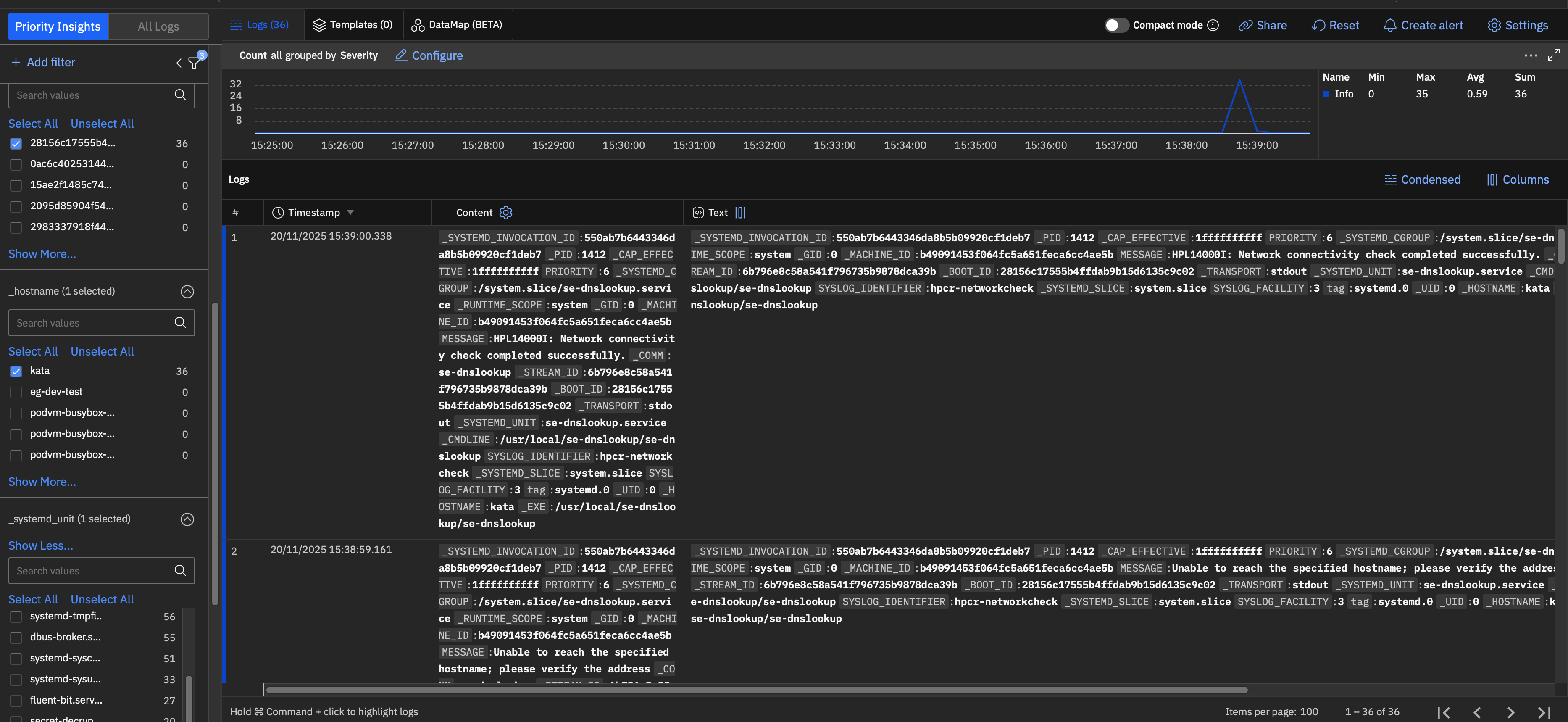
- Select the filters based on your requirements to view the relevant service logs.