Storage
Choosing storage devices for the Local Storage Operator
IBM Fusion Data Foundation can consume physical storage, which is locally attached and accessed by using the Red Hat OpenShift Local Storage Operator (which therefore is a prerequisite for installing IBM Fusion Data Foundation).
Considerations to keep in mind before you deploy IBM Fusion Data Foundation include:
- For IBM Z and IBM® LinuxONE, both FCP/SCSI and DASD/FICON devices are supported.
- For IBM z/OS Container Extension (zCX), only VSAM LDS (DASD) and NFS are supported. FCP and iSCSI are not supported since they are not available on z/OS.
- For each storage node, at least one physical disk needs to be assigned. Multiple disks can be assigned when larger storage capacity is wanted. But each storage node must have an identical disk configuration and a growing number of disks increases the demand for the processing power assigned to IBM Fusion Data Foundation.
- The local disks need to be made available to the Hypervisor. Disks and partitions are then
automatically discovered during installation of IBM Fusion Data Foundation.Note: For DASD, the disk must be formatted and partitioned.
- The storage devices must be empty before they can be attached to IBM Fusion Data Foundation.
The following images show the access to physical storage in a z/VM and KVM environment. These details are transparent to IBM Fusion Data Foundation because the Local Storage Operator takes care of platform-specific aspects. For instance, disks are automatically discovered during storage node setup.

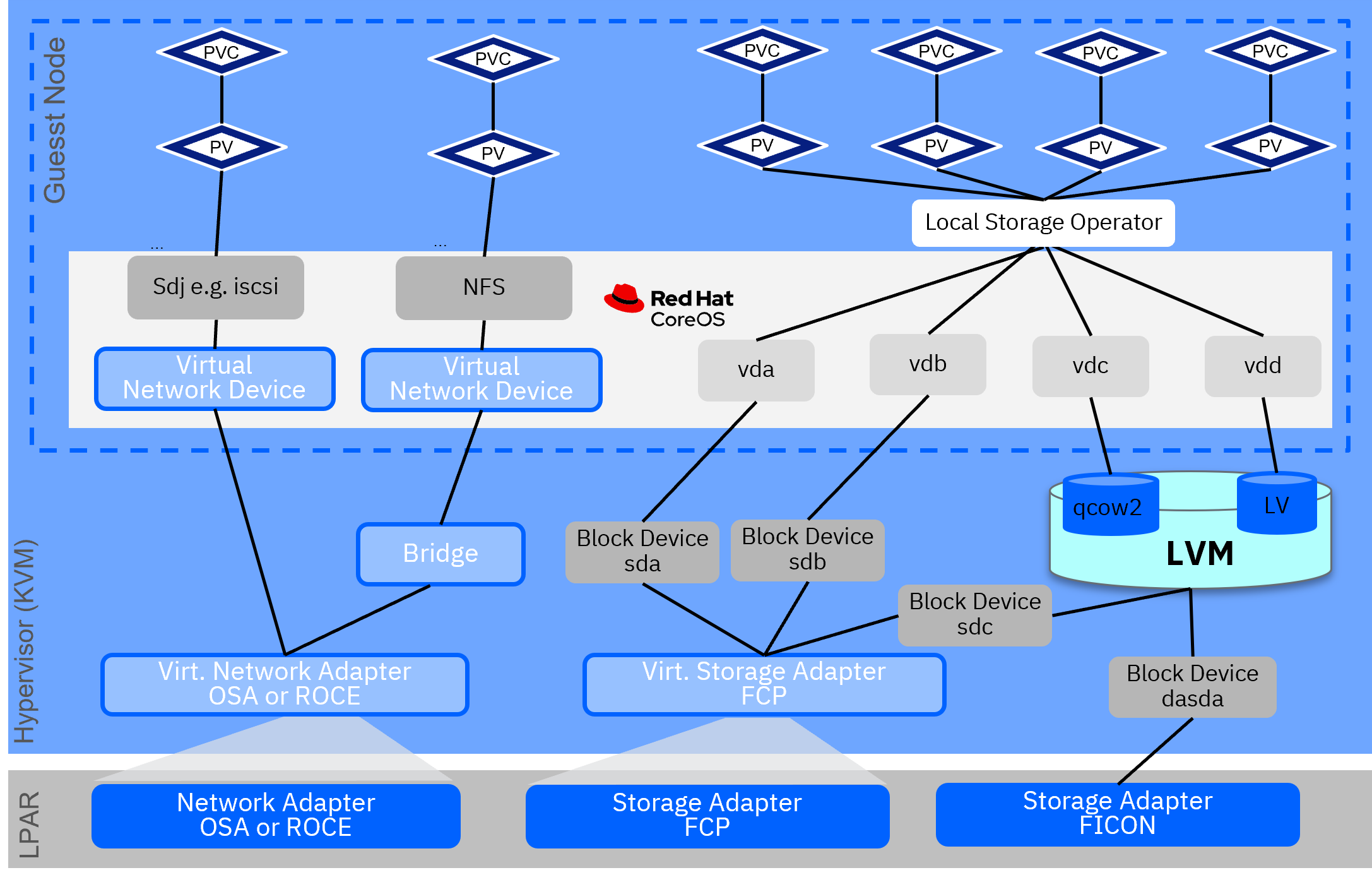
During the planning phase, it is worth to compare the specific details of the FCP and DASD devices as described in Comparing FCP and ECKD disk devices.
Steps specific for DASD devices
When the DASD devices are available to z/VM guests, complete the following steps from the compute or infrastructure node on which an Red Hat OpenShift Data Foundation storage node is being installed.
- Enable Device
To enable the device, run the following command from the compute node:
sudo chzdev -e <DASD ID>Now, the device is listed and can be checked by using the
lsdasdandlsblkcommands. - Low-level format the Device
Format DASD and specify the disk name, for example,
dasdb.sudo dasdfmt /dev/dasdb -b 4096 -p -y -FWhere,
dasdbis the assigned device letter when it is enabled. - Partition the Device
Create full partition by running the following command:
sudo
fdasd -a /dev/dasdb
Once these steps are done, the device is available during IBM Fusion Data Foundation deployment
with device name /dev/dasdb1.
Make sure to select part exclusively from the Device Type
during localvolumeset creation.
Deployment using IBM Block CSI driver instead of Local Storage Operator
Instead of attaching disks to each compute node and then deploying the Local Storage Operator,
the IBM Block CSI driver can be deployed from the operator hub. The CSI driver can provision the
necessary storage devices from the configured storage system. This driver allows the admin to easily
scale up the cluster size using the add capacity option from the administration
user interface of IBM Fusion Data Foundation.
add capacity can be found in the administration user interface menu using
Operators → Installed Operators → Openshift Data Foundation → Storage System
                  → ocs-storagecluster-storagesystem → Actions → Add
            Capacity
To discover and mount dynamically provisioned volumes automatically, enable N-Port ID Virtualization (NPIV) for the compute (or infra) nodes on which the IBM Fusion Data Foundation storage nodes are installed on this cluster.
- Follow these instructions to deploy "IBM Block CSI driver" and to configure it with the storage system after creating the storage class.
- Deploy IBM Fusion Data Foundation using the storage class that you created previously.