Simple build and deployment procedures
This section describes four different approaches on how to turn your code into a running workload.
:
- Create a running application by selecting a prepared container workload from the catalog in RHOCP.
- Fetch your own container image from an external image repository, which you maintain for your organization.
- Create your application from a Podman container definition, for example described by a Dockerfile.
- Create the container images and workload directly from source code.
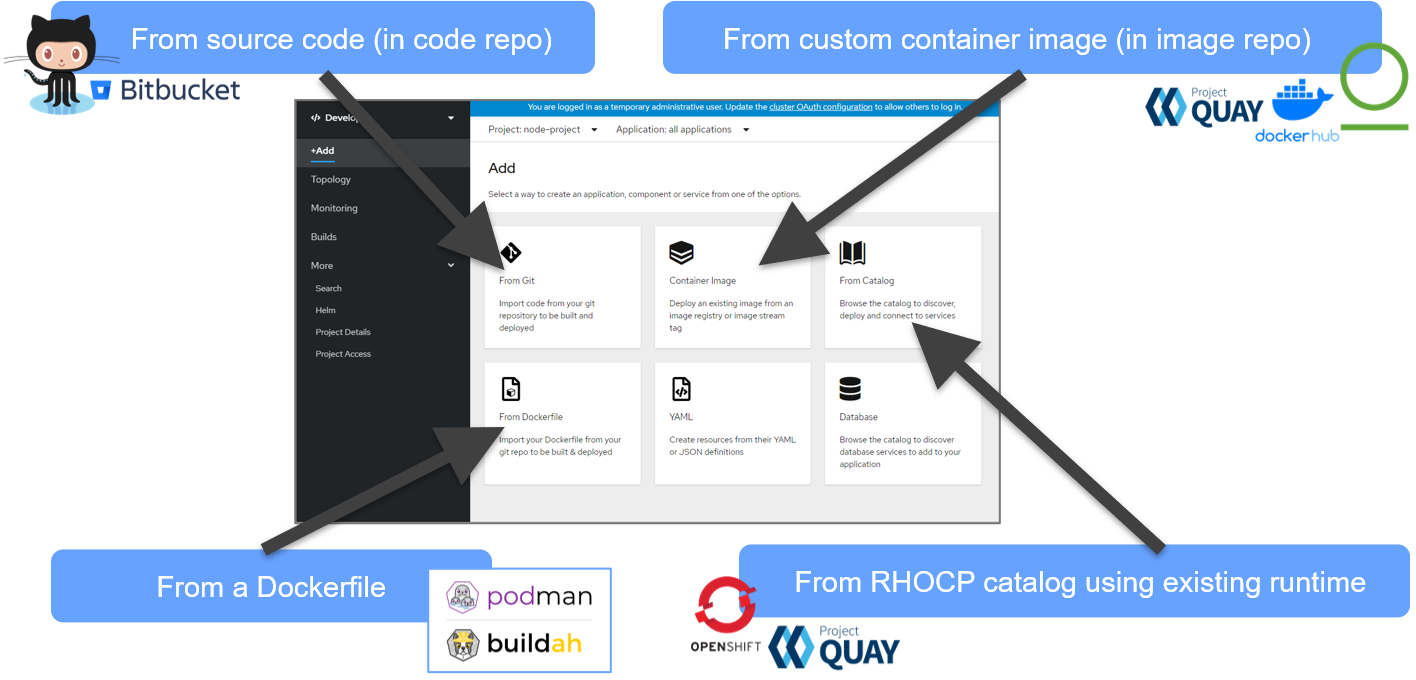
The following sections each of these options in more detail.
Create an application from the catalog with RHOCP runtimes (base images)
When selecting a prepared base runtime, you simply select the starting point of your choice. RHOCP deploys a corresponding app and runs it as a workload in the cluster. Various such RHOCP runtimes exist. For example, nginx, NodeJS, JBoss, and Springboot. To make these runtimes available, they must first be provisioned by the RHOCP administrator before they are available in the catalog.
To provision runtimes to the catalog of your RHOCP cluster, you need to:
- Provide a secret to authenticate to the repository from which you pull the images to your
cluster by running the following
command:
$ oc create secret docker-registry redhat-connect-sso --docker-server=registry.redhat.io --docker-username=<username> --docker-password=<token> --docker-email=unused $ oc secrets link default redhat-connect-sso --for=pull - Create the image in your cluster by running the following command:
$ oc create -f <reference to the imagestrean json description> -n openshift - Use the set of base runtimes, which the RHOCP platform provides for IBM Z. See Red Hat Ecosystem Catalog.
Discuss with Willi...4.5 article Refer to this article describing RHOCP Container Catalog Access for s390x: https://www.linkedin.com/pulse/red-hat-container-catalog-access-270-images-s390x-from-filipe-miranda/
Create an application from custom container images
A common setup is to establish a container image repository in your organization. In this repository, the output of a build process stores produced container images. RHOCP can pull the images from there and deploy them as a workload in the cluster. RHOCP includes an internal image registry. Jfrog Artifactory, DockerHub, Quay are examples of external container image registries, which can be used with RHOCP. To establish authentication between RHOCP and an external image registry you need to create a secret, which is stored in the details of the project description.
Create an application from a Dockerfile using Podman
Another option is to use the description of a container, represented as a Dockerfile, and stored on GitHub. From the provided Dockerfile, RHOCP triggers the building of a container image, stores the image in RHOCP internal image registry and deploys that application workload in the cluster.
Create an application directly from source code
The RHOCP platform also allows to link the source code directly with its execution as a workload in the cluster. During app creation, you can specify a corresponding GitHub repository. If the repo is private, you need to specify a secret to give RHOCP access to the code. During deployment, RHOCP builds the code and creates container images, which are stored in the internal image registry of RHOCP. RHOCP then deploys the containers into the cluster. After code updates, you can trigger new builds directly from the web console. The running containers will be replaced by new containers reflecting the updated code one after the other. With the help of web hooks, you can also configure a notification mechanism by GitHub to trigger a fresh build in RHOCP automatically.