Testing an API with z/OS Connect Designer
Test your API project with IBM z/OS Connect Designer by using the Open Liberty REST Client.
zosConnect-3.0 Applies to zosConnect-3.0.
Containers Applies to z/OS Connect container deployments.
The z/OS Connect Designer contains a z/OS Connect development server for iteratively developing and testing your API.
Alongside this, the Open Liberty REST Client is enabled as part of the z/OS Connect Designer container. During development, z/OS Connect Designer auto-deploys the updated API at approximately 10-second intervals to the z/OS Connect development server. Testing of the development changes can be completed in real-time with the Open Liberty REST Client.
- The z/OS Connect Designer is started and a valid OpenAPI 3 document imported.
- Connections are configured to the System of Record.
- A z/OS Asset is added to the operation that you want to call.
- The necessary API request fields are mapped to the required z/OS Asset request fields for the operation.
- The response conditions for the response cases are set for the operation you are calling.
- The required z/OS Asset response fields are mapped to the required API response fields for the operation.
At any point while developing your API, click the Test API button  as shown in Figure 1 to open the OpenLiberty REST Client.
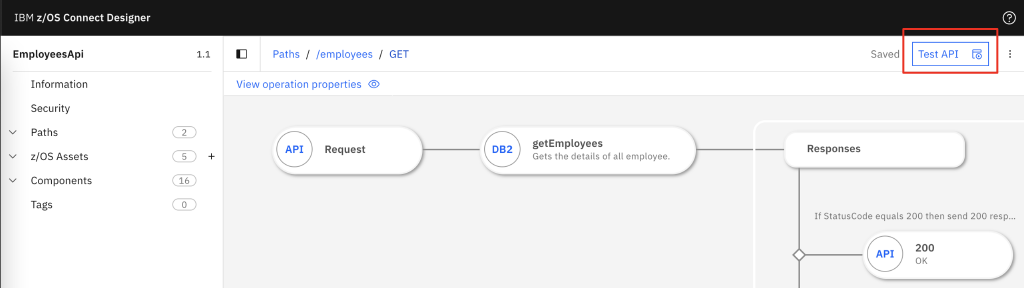
| Indication | Status |
|---|---|
|
Enabled. Click the button to test your API. |
 |
Button is unavailable with a loading indicator. The project build is running. |
 |
Button is unavailable with an error indicator. The project build failed. Hover
over the button to see error information. For example,  |
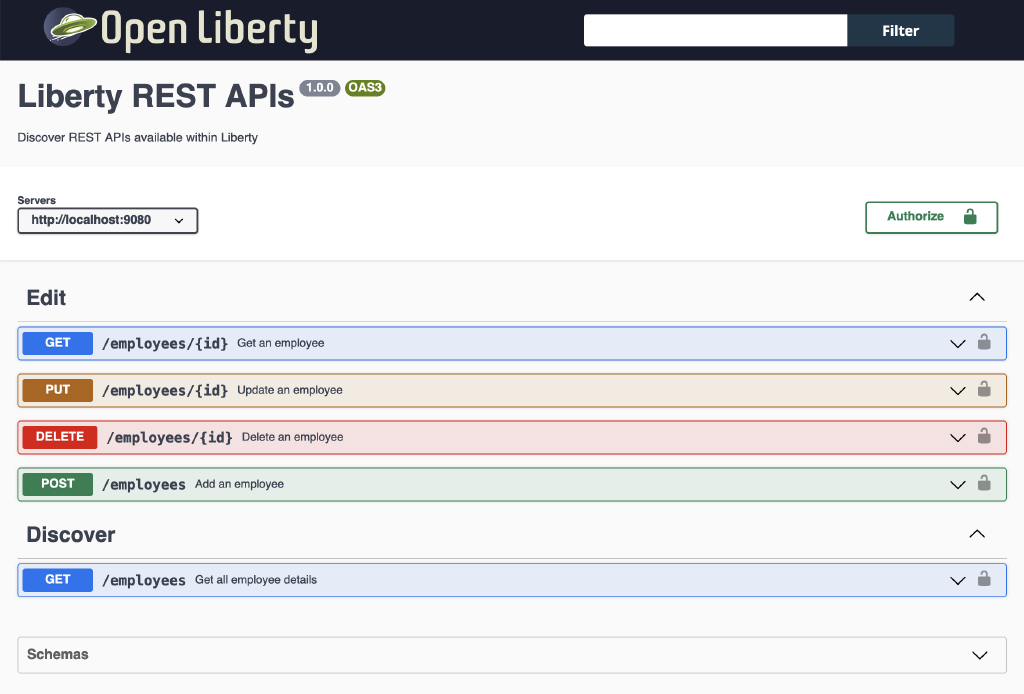
Expanding any operation reveals request and response parameters for that operation.

Click Try it out
 to send a request to your API operations providing values for the API request
parameters.
to send a request to your API operations providing values for the API request
parameters.
https://localhost:9443/
then ensure the path level override matches.