Accessing a 60-day trial
A trial of WebSphere Automation is available that can be used for 60 days, either on-premises or in a hosted cloud environment, at no cost.
Before you begin
You must have an available Red Hat®
OpenShift® cluster and network
visibility between the trial instance and the servers to be managed. If necessary, you can obtain an
Red Hat OpenShift evaluation subscription from https://www.redhat.com/en/technologies/cloud-computing/openshift/try-it  .
.
Procedure
-
Access your entitlement keys.
To validate that the WebSphere Automation trial license is granted, log in to MyIBM Container Software Library with the IBMid that you used to register for the trial. When you log in, you can access the entitlement keys for the IBMid and see the licensed software. The entitlement keys are needed as part of the installation process.
Figure 1. MyIBM Container Software Library 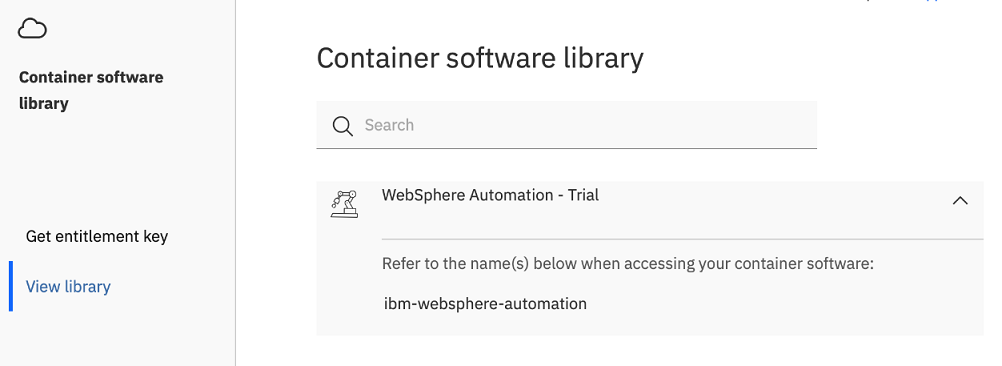
What to do next
- Purchase WebSphere Automation.
- Once you have received your entitlement key from IBM Passport Advantage, update the entitlement key secret or the global pull secret. For more information, see Creating the entitlement key secret or updating the global pull secret.