
Configuring order capture
To configure order capture, enable appropriate resource permissions, bar code types, rules, and properties. This topic also includes the configurations required to find, track, and cancel orders and to capture payments as part of order capture.
Applications Manager
- Resource permissions - Enable the following resource permissions by using Applications Manager:
- Override price - ISF000045
- Order capture - ISF000048
- Edit order line quantity - ISF000049
- Add or modify order line charges - ISF000050
- Add or modify order header charges - ISF000051
- Apply coupon to order - ISF000052
- Add comments to order - ISF000057
- Order search - ISF000039
- Track order - ISF000054
- Cancel order - ISF000040
For more information, see Administering user group permissions.
- Bar code types - Configure the following bar code type for your store by using Applications Manager:
Serial Scan. Used to scan the serial number of a product. The bar code validation source isSIM serial.Item. Used by no-inventory stores. To use theItembar code type, source should beItem.Store Order. Used to scan sales order numbers to find or track orders. To use theStore orderbar code type, the source should beOrder.
You must also create a bar code type and implement the appropriate service for coupon translation. For the default organization, the bar code type
Store CouponandYCD_Translate_Bar_Code_StoreCouponservice is provided. You must create similar configuration for your store. - Order modification permissions - Enable the appropriate order modification
permissions to support different features in order capture.
Configure
Add/Remove
Charge
order modification rule for adding a new charge or modifying an existing charge for different statuses of the order.Allow the
Removemodification type at the appropriate status and level so that the store associate can remove order lines from a cart. For more information about modification rules, see Defining modification rules. - Charge names and charge categories for the enterprise - Define charge names and charge categories for the enterprise via . For more information, see Creating a charge category.
- An order entry type called
Storemust be created, if not already created. To allow carry order lines while capturing an order, the Allow Cash And Carry Lines option must be selected in the order entry type ().The Validate Address On Cross Channel Draft Lines should always be unchecked, which ensures that the store associate can create draft orders without address.
For more information on defining order entry types, see Defining Order Entry Type.
- Ensure that the following order modification levels have allowed the modification at
Draft Order Createdstatus for the enterprise:- Change Other Attributes > Order
- LEVEL_OF_SERVICE
- CHANGE_SELLER_ORG
()
This is required if the order is created through other channels such as Sterling Call Center. For more information, see Order Modification Groups.
- Define the unit of measure display rules to display the order line UOM in the View cart page. You must restart the server after setting the rule to display the UOM. For more information, see https://www.ibm.com/docs/SS4QMC_10.0.0/configuration/t_SSFS_DefineUnitOfMeasureDisplayRules.html .
customer_overrides.properties file
- Set the following property to
Yto suppress the inventory availability check of Carry order lines because Sterling Intelligent Promising Inventory Visibility does not support CARRY delivery method currently:isf.ycd.suppressCarryAvailabilityCheckToIV=Y - Set the following property to
Yif you want to support fractional quantities for attributes which belong to QUANTITY datatype:yfs.install.displaydoublequantity=Y
Pipeline configuration
An order created by a store associate can contain order lines with delivery methods Carry, Ship, and Pick up. The order passes through the statuses defined in the pipeline.
The order data is passed to the createOrder API and processed by using the Create Draft Order transaction, which moves the order into either of the two intermediate statuses, Draft Order Created or Draft Order Reserved, where most of the attributes of the order can still be modified.
Once a partial payment is made for a draft order, it is confirmed through the Confirm Draft Order transaction. At this stage, the order status and all the order lines status move to the Created status. This is applicable even for order lines with the Carry delivery method. However, order capture process is not complete until the full order amount is paid.
When the total amount due on the order is paid, the changeOrderStatus API is
invoked to change the status of carry order lines from CREATED to CARRIED through a new transaction
INCLUDE_FOR_CARRY.0001. The changeOrderStatus API is invoked only
if the order contains any carry lines.
INCLUDE_FOR_CARRY.0001 transaction is used to:- Adjust inventory for carry lines only when order is fully paid and the order line status moves
to Carried status. The
changeOrderStatusAPI looks up the Status Inventory types configuration and adjusts inventory supply accordingly for carry order lines.Additionally, the
changeOrderStatusAPI publishes inventory updates to Store Inventory Management for SIM-enabled stores. - Provide flexibility to cancel partially-paid sales orders and process refunds.
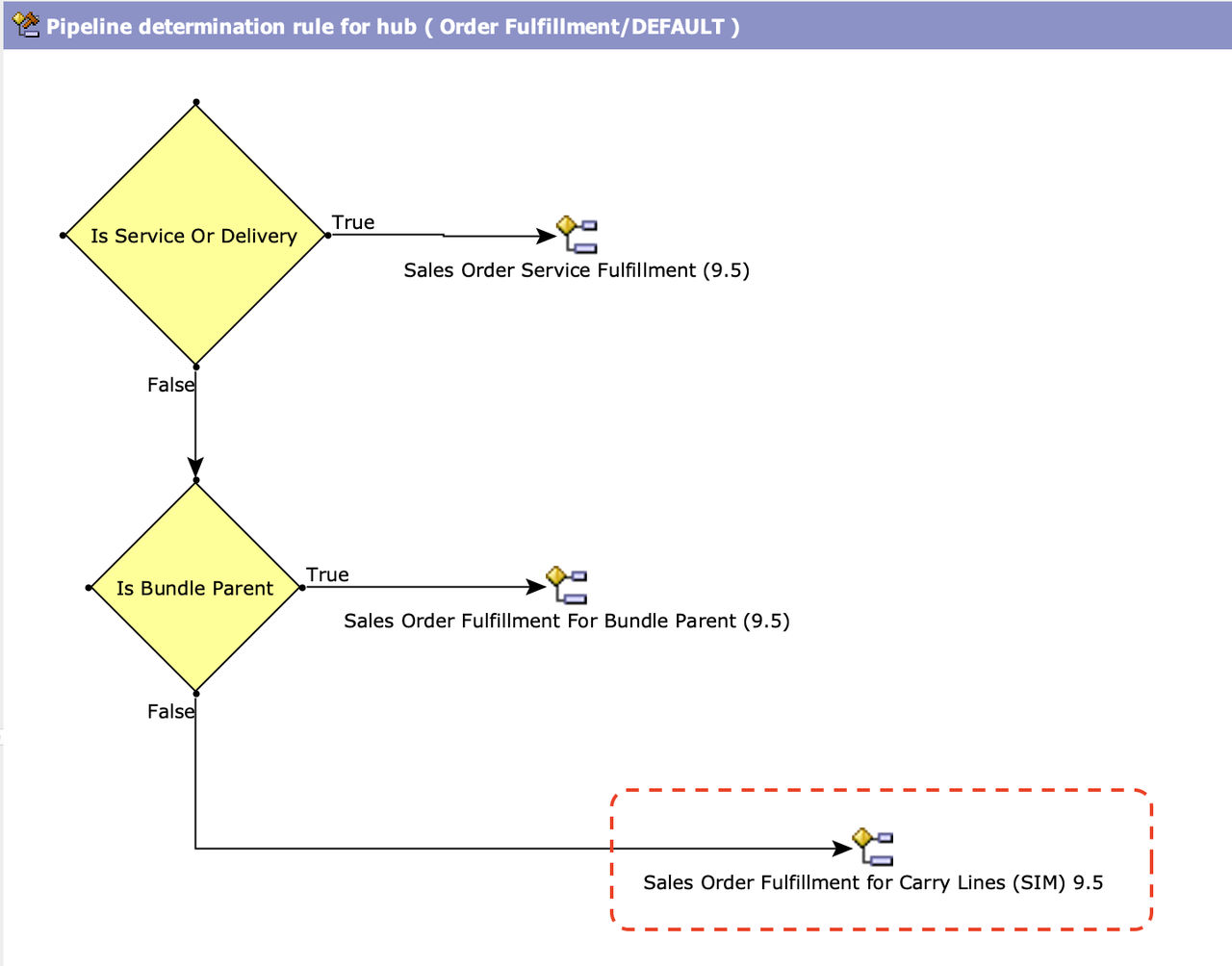
The Sales Order Fulfillment for Carry Lines (SIM) pipeline with
INCLUDE_FOR_CARRY.0001 transaction is provided for reference.

Sterling Business Center
- Unit of measure display configuration
-
Configure the display of order line UOM on the user interface.
- From the Organization menu, select the organization for which you want to apply the rules.
- Click .
- Choose the applicable Unit of Measure display rules.
Select any of the following options in the Unit of Measure Display Rules window
and click Save:
- Unit of measure in which order is placed. Choose this option to display the order line UOM as it is specified on the order.
- Unit of measure in which inventory is stored. Choose this option to display the order line UOM as it is maintained for the product in inventory.
- Do not show unit of measure. Choose this option to not display the UOM of an order line.
- Product image display configuration
-
To display the product image, you must set the Show Product Image in Web Store User Interface rule. For more information, see Setting up product display options.
- Stores search rules configuration
-
The following Sterling Business Center rules must be set for searching the stores within a specified distance radius for pickup at other stores:
- Distance Radius To Consider When Searching for Stores -
WSC_STORE_DISTANCE_TO_CONSIDER - Maximum distance radius to consider when searching for stores -
WSC_MAX_STORE_DISTANCE_TO_CONSIDER - Distance UOM To Consider When Searching for Stores -
WSC_STORE_DISTANCE_UOM_TO_CONSIDER
- Distance Radius To Consider When Searching for Stores -
- Override price configuration
-
Define the appropriate price override reasons. For more information, see Managing price override reasons.
- Gift options configuration
-
Configure the
Allow Gift Wraprule as required under store Fulfillment Rules. The following modification types must be allowed at the appropriate level and status:- Gift Wrap Modification
- Add Instruction
- Coupon configuration
-
Configure coupons appropriately to apply coupons to orders.
- Create a charge category to apply coupons to an order. For more information, see Creating a charge category.
- Update the coupon adjustments with valid charge categories. For more information, see Configure pricing organization rules.
- Update the Discount Charge Name of the coupon with the name of the Charge Category for a coupon to be applied in the order capture flow. For more information, see Assigning a pricing rule or coupon.
- The following modification types must be allowed at the required status and level to use coupons
appropriately:
- Change Promotion
- Remove Promotion
- Reservation rules and large order rules
-
Configure the reservation rules by selecting Reserve Product During Order Entry and Order Modification under to determine whether reservation of products is required as soon as it is added to the order. For more information, see Setting up reservation rules.
Configure the Check availability on cart details if number of order lines is less than rule under to set the threshold number of order lines to identify an order as a large order and skip the availability check and reservation. If the number of products in an order exceeds this value, the order is considered a large order.
- Order cancellation reasons
-
Set up the cancellation reasons to be used during order cancellation process by using Sterling Business Center via . For more information, see Managing cancellation reason codes.
Store Inventory Management APIs
- Sales location configuration API
Create a sales location configuration by setting
locationType(REQUIRED) anddefaultInventoryStatus(OPTIONAL) for the Store Inventory Management (SIM)-enabled stores, which supports capturing sales order by using the Sterling Store Engagement UI.The Remove inventory without location API uses this configuration to determine the location from which the inventory must be adjusted for non-serialised products marked with delivery method as Carry in the sales order.
If sales location is not configured in Store Inventory Management, order capture by using Sterling Store Engagement will fail. Hence, this configuration is mandatory for Store Inventory Management (SIM)-enabled stores that support the order capture capability.
Payment capture during order creation
A new ISF_STORE_ALLOW_CREATE_ORDER_PAYMENT_CAPTURErule is introduced to specify whether payment needs to be captured at the time of order creation. By default, the rule value is set to Y. Use the manageRule API to change the value to N, thereby disabling payment capture during order creation.
Payment capture configuration in Applications Manager
- Configure the payment types such as credit card, debit card, and gift card. For more information about configuring payment types, see Configuring payment types.
- Configure the system payment processing rules
Select the
Use Enterprise of an
Order to Determine Payment Processing Rules
rule if you want the payments to be processed by using the rules defined at the enterprise level. For more information, see System payment processing rules. - Set up the payment information for the organization
In the Organization details window for the seller organization, enable payment processing as required and set up the payment information. For more information, see Defining an organization's payment information.
Payment capture configuration in Sterling Business Center
Configure payments
Configure the payment type, payment card type, payment rules, and financial rules appropriately. For more information, see Payments configuration in Sterling Business Center.By default, the application supports CASH, CREDIT CARD, and GIFT CARD payment types for which a sample implementation is provided by the application. During order capture, if you want to use any of the default payment types, ensure that you configure the payment types in Sterling Business Center. For more information about order capture implementation, see Implementing order capture.
Note: The payment types are case-sensitive and must be added as is. Otherwise, you cannot view these payment types in the application when capturing an order.The default payment types are configured as follows:Payment type Payment type group CASH Other GIFT_CARD Other CREDIT_CARD Credit Card If you want to use any other payment type, for example mobile payments, ensure that you customize and configure the corresponding payment type in Sterling Business Center. For more information about creating payment types, see Creating payment types.
Note: For Sterling Store Engagement on the next-generation platform, you do not have to configure the Store Payment Rules in Sterling Business Center.-
Enable refunds for different payment types
Select the Valid For Return checkbox in the Payment Type Details page and select the options to suit your business requirements. To open the Payment Type Details, in Sterling Business Center, click , select the payment type and open the Refunds tab. For more information, see Refund-related configurations of a payment type.