Application states
CICS Explorer shows the state information for an application. The status information for an application version shows whether the CICS® bundles for the application are present, enabled, and available in the CICS regions associated with the region type in the platform. The status information for a version of an application is derived from the status of the individual management parts for that version of the application. A management part is a MGMTPART record that is created automatically during the application install process. Management parts record the relationship between the application and each installed CICS bundle, and the region type where each CICS bundle is installed in the platform.
Follow the CICS Explorer instructions in Checking the status of an application in the CICS Explorer product documentation. The following diagrams show the possible values for the status of the application and the associated management parts.
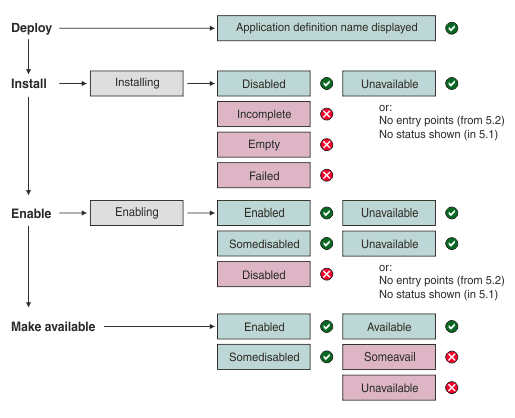
- You deploy a CICS Application project by exporting it to the home directory for the platform on zFS, and creating an APPLDEF resource definition for the application version in the data repository of the CMAS. When you have completed this process, the Cloud Explorer view displays the name of the application definition for the application version.
- When you install an application, the status INSTALLING is displayed in the Cloud Explorer view while installation is in progress. When installation is complete, the expected status for the application is DISABLED, UNAVAILABLE. If the application has no application entry points, the Cloud Explorer view displays this as the availability status. If the application is installed in a CICS TS 5.1 region, no availability status is displayed.
- When you enable an application, the status ENABLING is displayed in the Cloud Explorer view while enabling is in progress. When enabling is complete, the expected status for the application is ENABLED, UNAVAILABLE.
- An application in the SOMEDISABLED state can be made available if necessary, however, application entry points of bundles not already enabled will not become available during this action.
- You can make an application available with an enabled status of SOMEDISABLED. There are two factors you must be aware of however. When the enabled status is SOMEDISABLED, the availability status of your application is not restored if you start or restart a region. Also, you cannot automate the deployment of an application to a target state of AVAILABLE using the DFHDPLOY utility. For more information, see Automate the deployment and undeployment of CICS applications with the DFHDPLOY utility
- When you make an application available, the status for the application is expected to change to ENABLED, AVAILABLE. If the status for the application shows that it has no application entry points or is installed in a CICS TS 5.1 region, the Make Available action is not required.
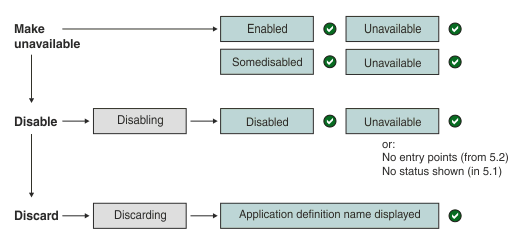
- When you make an application unavailable, the status for the application changes to ENABLED, UNAVAILABLE. If the status for the application shows that it has no application entry points, or that it is installed in a CICS TS 5.1 region, the Make Unavailable action is not required.
- When you disable an application, the status DISABLING is displayed in the Cloud Explorer view while disabling is in progress. When disabling is complete, the expected status for the application is DISABLED, UNAVAILABLE. Alternatively, the status can show that the application has no application entry points, or that it is installed in a CICS TS 5.1 region.
- When you discard an application, the status DISCARDING is displayed in the Cloud Explorer view while the discard is in progress. When discarding is complete, the application name is no longer shown in the Cloud Explorer view. Instead, the name of the application definition for the application version is displayed.
| Status value | Meaning |
|---|---|
| AVAILABLE | The application version has been made available to callers through its application entry points. |
| DISABLED | All the management parts for the application version are disabled. |
| DISABLING | All the management parts for the application version are in the process of being disabled. |
| DISCARDING | The application version is being discarded, and it cannot be enabled or disabled at this time. |
| EMPTY | None of the management parts for the application version are installed. |
| ENABLED | All the management parts for the application version are enabled. |
| ENABLING | All the management parts for the application version are in the process of being enabled. |
| FAILED | A problem occurred during install or discard of the application version. |
| INCOMPLETE | Some of the management parts for the application version are empty or have an invalid scope. |
| INSTALLING | The application version is being installed, and it cannot be enabled or disabled at this time. |
| NONE (No entry points) | The application version does not have any application entry points. |
| SOMEAVAIL | The Make Available or Make Unavailable action has been performed for the application version, but some application entry points are available and some are unavailable. |
| SOMEDISABLED | Some of the management parts for the application version are disabled. |
| UNAVAILABLE | The application version is set as unavailable to callers. |
| Status value | Meaning |
|---|---|
| AVAILABLE | The application entry points declared in the CICS bundle have been made available to callers. |
| DISABLED | The CICS bundle is disabled in all of the CICS regions. |
| DISABLING | The CICS bundle is in the process of being disabled. |
| EMPTY | The CICS bundle is not installed in any of the CICS regions. |
| ENABLED | The CICS bundle is installed and enabled in all of the CICS regions. |
| ENABLING | The CICS bundle is in the process of being enabled. |
| IMPORTONLY | The CICS bundle is installed and enabled in all of the CICS regions, but it only contains import statements, so does not affect the status of the application. |
| INCOMPLETE | The CICS bundle is installed in some, but not all, of the CICS regions. |
| INVALIDSCOPE | The CICS system group specified for installing the CICS bundles does not exist, so no CICS bundles are installed. |
| NONE (No entry points) | The CICS bundle does not contain any statements of application entry points. |
| SOMEAVAIL | The Make Available or Make Unavailable action has been performed for the CICS bundle, but some application entry points are available and some are unavailable. |
| SOMEDISABLED | The CICS bundle is disabled in some of the CICS regions. This status can also occur when the CICS bundle is disabled in all of the CICS regions, if the ENABLEDCOUNT value for any of the installed BUNDLE resources is greater than 0, indicating that one or more resources, application entry points, or policy scopes that were created by the CICS bundle are currently enabled in the CICS region. |
| UNAVAILABLE | The application entry points declared in the CICS bundle are set as unavailable to callers. |