Setting Turbonomic policies
To use IBMTurbonomic Actions with your ServiceNow Change Management application, you must have an instance of the Turbonomic product that is deployed to manage the entities in your environment. In addition, Turbonomic must be configured with your ServiceNow account as a target, and it must have automation policies that are defined for the entities that you configured ServiceNow to manage.
The following information describes the Turbonomic policies that identify the scope of entities to manage by using Turbonomic Actions, and how their actions interact with ServiceNow and Turbonomic Actions. Your Turbonomic administrator sets up the necessary policies. However, an understanding of these policies can help you as you work with Turbonomic Actions and the CRs that it generates.
Turbonomic policies
As Turbonomic gathers metrics, it compares the metric values against the specified constraint and capacity settings. Turbonomic uses this comparison to determine whether a metric exhibits a problem, and what actions to recommend or run to avoid a problem. Turbonomic uses automation policies to guide its analysis and resulting actions. These policies can specify the following conditions:
-
Action Automation
Whether to run automatically or manually, or whether to recommend the action.
-
Action Orchestration
Whether to have Turbonomic run the action, have Turbonomic direct an orchestrator to run the action, or run the action with Action Scripts.
-
Analysis Settings
Settings that affect the Turbonomic analysis of the state of your environment. These settings include the following options:
-
Operational constraints such as enabling or disabling discovery of HA policies set for hosts
-
Utilization constraints such as memory or CPU utilization
-
Resize increments
-
Application priority
-
In addition, Turbonomic can include scoped action policies, which override the default settings for certain entities. With these policies, you specify one or more groups of entities as the policy scope. You can also set a schedule to the policy to specify maintenance windows, or to support orchestration workflows that require approval before they run the action.
The settings that directly affect Turbonomic Actions are the Action Orchestration settings. Your Turbonomic administrator creates scoped policies that affect the entities you want (the ServiceNow CIs). In addition, these policies indicate whether to generate a CR for an action, or whether to log the action in the Turbonomic Actions Records view.
Creation, edits, and deletes of Turbonomic policies that include ServiceNow Orchestration can see a lag of time before they take effect. This delay is because Turbonomic must propagate the policy settings throughout your environment. For a large environment, this lag can be significant.
This lag can impact behavior when you delete a ServiceNow Orchestration policy for a scope of your environment. If an action is approved in ServiceNow before the policy deletion fully propagates, then Turbonomic can still run that action. After propagation is complete, Turbonomic respects the new policy settings.
Before you create, edit, or delete ServiceNow Orchestration policies in Turbonomic, plan for the possibility of this time lag.
Turbonomic policies that the ServiceNow integration does not support
The Turbonomic user interface allows you to set orchestration for actions that the ServiceNow integration does not support. If you configure orchestration for these actions, then either the action never generates a ServiceNow CR, or the action can fail when the CR is approved.
You can configure the following actions that do not generate a CR:
-
VSan Storage Resize
To resize storage for a VSan, provision or suspend the Host. Do not configure ServiceNow orchestration for VSan Storage Resize.
-
File Delete
Do not configure storage automation policies that are configured for ServiceNow orchestration with File Delete actions where the Action Generation clause of the policy is set to
Generate Action then Request Approval from Orchestrator. If policies are configured this way, Delete File actions fail unconditionally when they are approved. The associated ServiceNow CR state never updates, with no indication in the Turbonomic UI that the action failed.Set the Action Generation clause of a storage automation policy for File Delete to
Generate Action then Send Record to Orchestrator. This setting enables ServiceNow user notification of the pending File Delete action and avoids the failed action execution with no user feedback.
The actions that you can configure but that can fail include the following actions that you must also configure for execution on the affected targets:
-
Host Suspend
For this action to succeed, it must be enabled in the hypervisor, and no VMs can be currently running on that host.
-
Storage Provision
Currently, Turbonomic can run a CR for this action only on Pure and Dell Compellent storage.
Specifying an automation workflow
As your Turbonomic administrator creates a policy, they specify the entity type and the scope of entities the policy affects. Then, the administrator adds given action types to the AUTOMATION WORKFLOW section of the policy, and specifies how to run the action, in the following steps:
-
Set the scope of the policy.
The policy scope is usually a group of entities. For example, you can create a group of all the Hyper-V VMs that you manage in ServiceNow. If you set the policy scope to that group, then the policy affects those VMs. In this way, you can manage different sets of entities in different ways.
-
Direct Turbonomic to generate the actions.
Select ACTION GENERATION > Generate Actions.
-
Alternatively, to audit actions in ServiceNow, select ACTION GENERATION > Manual.
-
To audit actions in ServiceNow when they are generated by Turbonomic, select On Generation > NON CRITICAL WORKFLOW. Then, select the discovered ServiceNow target.
-
Similarly, to audit actions in ServiceNow after they are executed by Turbonomic, select After Execution > NON-CRITICAL WORKFLOW. Then, select the discovered ServiceNow target.
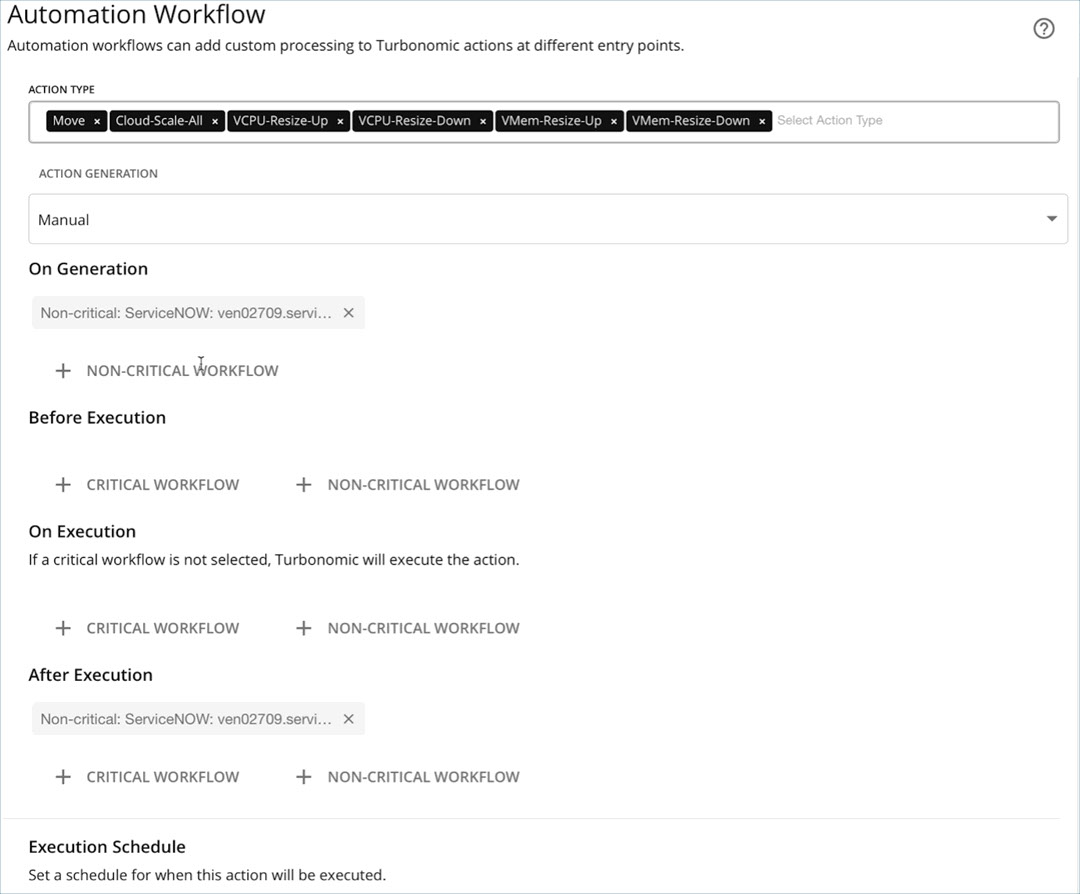
-
- To approve actions in ServiceNow after they are recommended by Turbonomic, for select ACTION GENERATION > Automated when approved and the critical workflow for the discovered ServiceNow target is automatically selected.
-
-
Optionally, specify an Action Execution Schedule.
You can specify a schedule for when Turbonomic can execute the action. This schedule mirrors your maintenance windows that you decided on for your change request management.
For an approved CR that is tied to an Execution Schedule, Turbonomic waits until the scheduled time to execute the action. If the action execution has no schedule, then Turbonomic executes it when the CR is approved.
Turbonomic recommends an action at the time that the conditions warrant it. If you schedule action execution for a later time, then conditions might change enough that the action is no longer valid. If this case happens, and the action remains invalid for 24 hours, Turbonomic removes it from the list of pending actions. This action is not executed. If the action generated a CR, the corresponding Action Approval appears with a state of
MISSED.Note:For an action approval that is marked as
MISSED, Turbonomic Actions does not change the CR from that state. It is up to your organization to move such a CR into a different state. For example, you can implement a business rule to find allMISSEDaction approvals and mark them correctly.Turbonomic policies include Scaling Constraints that work to stabilize action decisions for VMs. The resulting actions are more likely to remain valid up until their scheduled window for execution.
Policy selection logic for actions
An Turbonomic action can have multiple associated policies. Turbonomic selects a single policy to display in the Policy Name field in ServiceNow.
When multiple policies are associated with an action, Turbonomic selects the policy using the following priority order:
- If one associated policy is active, that policy is selected.
- If multiple associated policies are active, the policy with the longest active duration is selected.
- If all associated policies are inactive, the policy with the nearest upcoming occurrence is selected.
- If none of the above criteria apply, any associated policy will be selected.
This selection logic ensures that the most relevant policy is displayed for each action, providing clearer context for why the action was generated.
Policy schedules
You can set a schedule for an automation policy, which sets a window of time when the policy takes effect. For example, you can specify that any actions Turbonomic generates from Monday through Friday is sent to ServiceNow. Then, you can create another policy for Saturday and Sunday that directs Turbonomic to immediately execute any actions it generates on the weekend, without posting them to the ServiceNow change management system.
A policy schedule sets the window when the policy takes effect. Do not confuse it with the Action Execution Schedule, which sets when Turbonomic can execute an approved action.