Detecting Changes
IBM® Security Directory Integrator provides a number of features for detecting changes in input data. In addition to offering a set of Change Detection Connectors, you also have the option of enabling the Delta Engine for your Input source.
The Delta Engine takes snapshots of data as it's read and then compares these with snapshots taken during the previous run to determine what has changed. Those entries that are unchanged are skipped, and only modified entries are retrieved for processing in your EasyETL AssemblyLine.
Press the Configure button for your Input source and then select the Delta tab.

You must first enable the Delta Engine by selecting the check box at the top of the con-figuration panel. Then use the drop-down to select ‘First' as the Unique Attribute Name1.
There are several other parameters available here, some of which make more sense when working in the standard IBM Security Directory Integrator Workbench and not in EasyETL. For example, al-though an EasyETL AL can detect and transfer new and modified entries, it will not handle deleting a row from a database or entry in a directory. However, it will write this infor-mation to an Output target like a File Connector with the LDIF Parser. LDIF files can contain change operation tags, and some systems support LDIF import.
You can learn more about the full Delta Handling features of IBM Security Directory Integrator here:
http://www.tdi-users.org/twiki/pub/Integrator/HowTo/HowTo_SyncData_6.1.1070523.pdf
One change that you may want to make is to the Commit parameter. This controls when new and changed snapshots are committed to the IBM Security Directory Integrator System Store database. By default this is set to ‘After every database operation' and so occurs during the read phase.
However, if you want to ensure that a change has been successfully transferred before committing the snapshot, set this drop-down to ‘On end of AL cycle' instead so that it happens after the Output target has been updated.
In order for the Delta Engine to do its work it needs a baseline snapshot set. You create this by running your ETL job the first time after Delta has been enabled. Once it has completed you will notice that the message reports twice as many writes occurring. This is because IBM Security Directory Integrator also counts the snapshots being written to the System Store, so you get two writes for every entry processed.
Try running your EasyETL AssemblyLine again and you will see that no entries were written this time. The Delta Engine detected that input records were all unchanged and skipped them.

As a final test, open the input CSV file and change any of the field values – except for ‘Last'2. Save the change and then re-run your ETL job and you will see that only modified entries are processed.
Configuring the output target for Updates
The current setup works fine for output to a file. However, if you were driving these changes to a directory, RDBMS or similar data store then you will want to add new data as well as updating existing records. In order for your EasyETL job to do this you must first select which Output Attribute to use as the criteria for locating the record to modify.This is done by right-clicking on the Output Attribute you want and selecting the Use as link criteria option.

It's as simple as that: your ETL job has now been configured to provide ongoing synchronization between your input source and output target.
Command line assets for running and scheduling your ETL job
Once your ETL AssemblyLine is ready for deployment you can right-click on the Project in the Navigator and choose the Create files needed… option.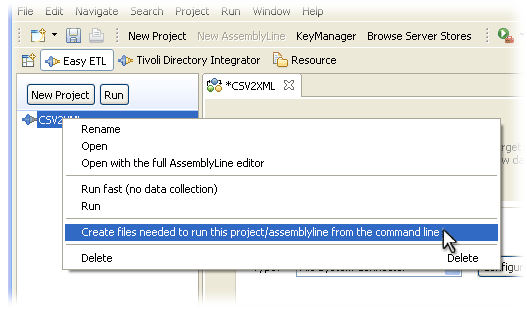
You will also get an XML file created in the same location. This is called an IBM Security Directory Integrator Config file and contains the details of your EasyETL AssemblyLine that the IBM Security Directory Integrator Server needs to run it. If you open the generated script in a text editor you will see the one-liner needed to start an IBM Security Directory Integrator Server, point it at a Config and then specify the AssemblyLine to run. All you need to do now is set up a scheduled task or cronjob to periodically invoke this script and your synchronization/migration service will be in place.
Additional options
- High Speed ETL
Although the Data Collector is a powerful tool, your ETL AssemblyLine runs slower due to data collection and presentation on screen. If instead you want your EasyETL AL to process as quickly as possible then you can either select the Project and press the Run button at the top of the Navigator, or right-click the Project and select the Run fast… option.
Figure 5. Running your ETL job at full speedEither option will open a console display where log messages from your AssemblyLine will appear as your AL executes at top speed.
Note that the Run option in the Project context menu runs the ETL job with data collection.
- Filtering the input data set
Another powerful feature is the ability to control the contents of your Input data set. This is available whenever your Input source is a database or directory.
For example, select the ‘LDAP Connector' for input and take a look at the configuration dialog for this component. Next to the Search Filter parameter is a button labeled with three dots (…). This opens up the Link Criteria editor where you can define search rules that will be applied to build the result set for this Connector to read.
Figure 6. Defining Link Criteria for an Input ConnectorThis same feature is available for the Database and JDBC Connectors, where you'll find the (...) button next to the Select parameter.
Although you can enter the LDAP search syntax yourself directly in the search parameter, this requires you to know the syntax for LDAP search filters or JDBC Select statements. It is often simpler to express the selection you want by using Link Criteria and letting the Connector deal with the underlying syntax.
- Taking your EasyETL AssemblyLine to the next level
Opening your ETL Project in the full-featured IBM Security Directory Integrator AssemblyLine editor lets you to add custom logging and auditing, error handling, failover logic, auto-reconnect, data augmentation (joins) and much more to your migration or synchronization solution. You do this by right-clicking a Project and choosing the Open with full AssemblyLine editor option. You'll still be working in the EasyETL Workbench, but you will be able to reach additional functionality available to your AssemblyLine.
If you find this to your liking and are ready to take the plunge then switch to the Security Directory Integrator perspective () and starting working in the full IBM Security Directory Integrator Workbench. Better yet - now that you've mastered EasyETL, go back to section 1 and start digging into the full power of IBM Security Directory Integrator.