Single queue manager topology for Managed File Transfer
This tutorial uses a single IBM® MQ as a Service queue manager and configures it to be the coordination queue manager, commands queue manager, and agents queue manager.
Configuration details
You use one IBM MQ as a Service queue manager named QM_COORD. On all the system you use profiles with administrative privileges.
- QM_COORD queue manager: acts as the Coordination queue manager, Command queue manager, source agent queue manager, and destination agent queue manager.
- SRC_AGENT: source agent that is connected to the QM_COORD queue manager.
- DEST_AGENT: destination agent that is connected to the QM_COORD queue manager.
Prerequisites
You should have one IBM MQ as a Service queue manager running:
- Create a new IBM MQ as a Service queue manager and name it
QM_COORD. Then, download Connection Details (save this file as
coordinationQMgrConnectionDetails.json) and store the secret API key.

- Follow the steps documented below to configure the QM_COORD as the coordination queue manager, command queue manager, and agents queue manager.
- Create File transfer
Setting up a coordination queue manager
In this section, you set up a coordination queue manager that is running in IBM MQ as a Service. As part of the configuration for the coordination queue manager, several IBM MQ resources like queues, channels, topics are created in the queue manager. This queue manager broadcasts audit and file transfer information.
-
Switch to the admin terminal you set up previously.
Run the following command:
fteSetupCoordination -coordinationQMgr <queueManagerName> -coordinationQMgrHost <queueManagerHostname> -coordinationQMgrPort <queueManagerPort> -coordinationQMgrChannel <queueManagerChannel> -credentialsFile <filePath> -default -f<queueManagerName>- this is 'queueManagerName' in the file coordinationQMgrConnectionDetails.json.<queueManagerHostname>- this is the 'hostname' in the file coordinationQMgrConnectionDetails.json.<queueManagerPort>- this is the 'listenerPort' in the file coordinationQMgrConnectionDetails.json.<queueManagerChannel>- this is the 'adminChannelName' in the file coordinationQMgrConnectionDetails.json.<filePath>- this is the 'filePath' where credentials file is present, for example:- Windows:
C:\Users\Administrator\MQMFTCredentials.xml - Linux®:
/home/usr/MQMFTCredentials.xml
- Windows:
-default- Optional. Updates the default configuration options to those associated with the coordination queue manager specified in this command-f- Optional. forces the command to overwrite existing configuration- For example:
- On Windows:
fteSetupCoordination -coordinationQMgr QM_COORD -coordinationQMgrHost qm-coord-d8a2.qm.us-preprod.appdomain.cloud -coordinationQMgrPort 32246 -coordinationQMgrChannel CLOUD.ADMIN.SVRCONN -credentialsFile "C:\Users\Administrator\MQMFTCredentials.xml" -default -f - On Linux:
fteSetupCoordination -coordinationQMgr QM_COORD -coordinationQMgrHost qm-coord-d8a2.qm.us-preprod.appdomain.cloud -coordinationQMgrPort 32246 -coordinationQMgrChannel CLOUD.ADMIN.SVRCONN -credentialsFile "/home/document/MQMFTCredentials.xml" -default -f

- On Windows:
- Run runmqsc to connect to the remote queue manager:
runmqsc -c -u <ADMIN_MQ_USER> -w60 <QUEUE_MANAGER_NAME><ADMIN_MQ_USER>- this is 'mqUsername' in the file coordinationQMgrConnectionDetails.json.<QUEUE_MANAGER_NAME>- this is 'queueManagerName' in the file coordinationQMgrConnectionDetails.json.-cinforms runmqsc it should connect to a remote queue manager using the MQSERVER variable.
runmqsc -c -u mamgainp -w60 QM_COORD - The terminal prompts you for a Password
- This is your <ADMIN_API_KEY> = 'apiKey' in the file platformApiKey.json.
- The terminal is now waiting for input. Do not close this terminal as you will use this terminal to create IBM MQ objects.
- Create the IBM MQ objects required by the queue manager
to work as a coordination queue manager that targets your IBM MQ as a Service queue manager
- When you ran fteSetupCoordination in step 2, an mqsc file was created at
location
MQ_DATA_PATH\mqft\config\coordination_qmgr_name\<coordination_qmgr_name>.mqsc. Copy and paste the content of this file into your terminal.
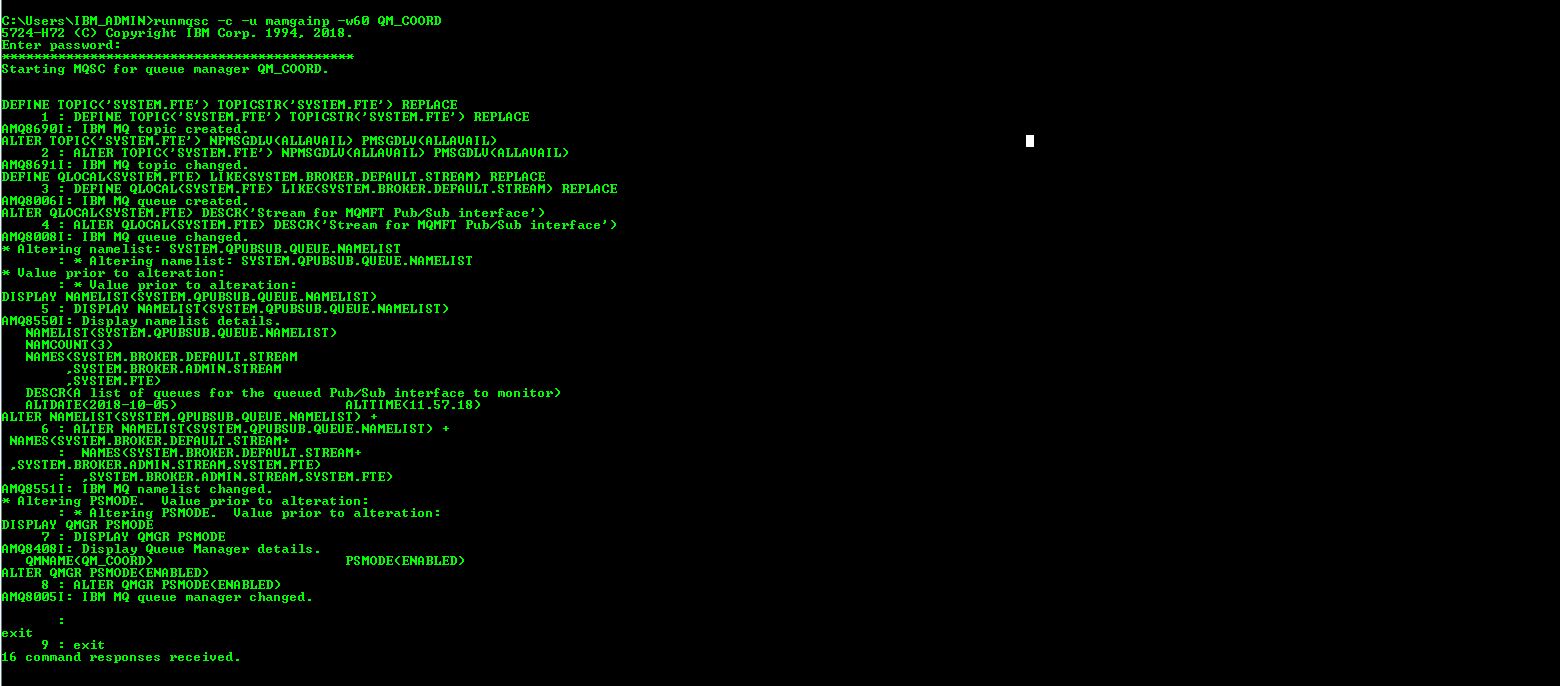
- When you ran fteSetupCoordination in step 2, an mqsc file was created at
location
Setting up a command queue manager
In this section, you will setup a command queue manager that is targeted at the IBM MQ as a Service queue manager. As part of the configuration for the Command queue manager, the following commands are run:
- Switch to the admin terminal that you setup previously.
- Run the following command:
fteSetupCommands -connectionQMgr <queueManagerName> -connectionQMgrHost <queueManagerHostname> -connectionQMgrPort <queueManagerPort> -connectionQMgrChannel <queueManagerChannel> -credentialsFile <filePath> -p <configurationOptions> -f<queueManagerName>- this is 'queueManagerName' in the file coordinationQMgrConnectionDetails.json.<queueManagerHostname>- this is the 'hostname' in the file coordinationQMgrConnectionDetails.json.<queueManagerPort>- this is the 'listenerPort' in the file coordinationQMgrConnectionDetails.json.<queueManagerChannel>- this is the 'adminChannelName' in the file coordinationQMgrConnectionDetails.json.<filePath>- this is the 'filePath' where credentials file is present, for example,C:\Users\Administrator\MQMFTCredentials.xmlrefer appendix 4 for more detailsconfigurationOptions- by convention this is the name of a coordination queue manager.-f- Optional. forces the command to overwrite existing configuration.
fteSetupCommands -connectionQMgr QM_COORD -connectionQMgrHost
qm-coord-d8a2.qm.us-preprod.appdomain.cloud -connectionQMgrPort 32246 -connectionQMgrChannel
CLOUD.ADMIN.SVRCONN -p QM_COORD -f
For a full list of command arguments of fteSetupCommands, see fteSetupCommands in the main IBM MQ documentation.
Setting up an agent queue manager and agents
In this section, you set up an agent queue manager that is targeted at the IBM MQ as a Service queue manager. As part of the configuration for the agent queue manager, the following commands should be executed.
- Open two admin_terminals and name them as terminal 1 and terminal 2.
- Go to terminal 1 and create a SRC_AGENT by running the following command:
fteCreateAgent -agentName <agentName> -agentQMgr <agentQueueManager> -agentQMgrHost <agentQueueManagerHost> -agentQMgrPort <agentQueueManagerPort> -agentQMgrChannel <agentQueueManagerChannel> -p <configurationOptions> -f -credentialsFile <filePath>agentName- Required. Name of the agent to create.agentQueueManager- Required. Name of the agents's queue manager. This is ’queueManagerName’ in the filecoordinationQMgrConnectionDetails.json.agentQueueManagerHost- Required. this is the ‘hostname’ in the file coordinationQMgrConnectionDetails.json.agentQueueManagerPort- Required. this is the ‘listenerPort’ in the file coordinationQMgrConnectionDetails.json.agentQueueManagerChannel- Required. this is the ‘adminChannelName’ in the file coordinationQMgrConnectionDetails.json.configurationOptions- by convention this is the name of a coordination queue manager.<filePath>- this is the 'filePath' where credentials file is present, for example:- On Windows:
C:\Users\Administrator\MQMFTCredentials.xml - On Linux:
/home/document/MQMFTCredentials.xml
- On Windows:
-f- Optional. Forces the command to overwrite the existing configuration.
- On Windows:
fteCreateAgent -agentName src_agent -agentQMgr QM_COORD -agentQMgrHost qm-coord-d8a2.qm.us-preprod.appdomain.cloud -agentQMgrPort 32246 -agentQMgrChannel CLOUD.ADMIN.SVRCONN -p QM_COORD -credentialsFile "C:\Users\Administrator\MQMFTCredentials.xml" -f - On Linux:
fteCreateAgent -agentName src_agent
-agentQMgr QM_COORD -agentQMgrHost qm-coord-d8a2.qm.us-preprod.appdomain.cloud -agentQMgrPort 32246
-agentQMgrChannel CLOUD.ADMIN.SVRCONN -p QM_COORD -credentialsFile
"/home/document/MQMFTCredentials.xml" -f
- Run runmqsc to connect to your remote queue manager:
runmqsc -c -u <ADMIN_MQ_USER> -w60 <QUEUE_MANAGER_NAME><ADMIN_MQ_USER>- this is 'mqUsername' in the file coordinationQMgrConnectionDetails.json.<QUEUE_MANAGER_NAME>- this is 'queueManagerName' in the file coordinationQMgrConnectionDetails.json.-cinforms runmqsc it should connect to a remote queue manager using the MQSERVER variable.
runmqsc -c -u mamgainp -w60 QM_COORD- The terminal prompts you for a Password. This is your <ADMIN_API_KEY> - 'apiKey' in the file platformApiKey.json. The terminal then waits for input.
- Create the IBM MQ objects required by the queue manager
to work as an agent queue manager that targets your IBM MQ as a Service queue manager. An mqsc file is created at location
MQ_DATA_PATH\mqft\config\coordination_qmgr_name\agents\agent_name\agent_name_create.mqsc. You should copy and paste the content of this file into your terminal 1.
- Start the agent that you previously created by using the following command:
fteStartAgent -p <configurationOptions> <agentName>configurationOptions- by convention this is the name of a coordination queue manageragentName- Required. name of the IBM MQ Managed File Transfer agent to start.
fteStartAgent -p QM_COORD SRC_AGENT - Go to terminal 2 to create a destination secret by running following commands:
fteCreateAgent -agentName <agentName> -agentQMgr <agentQueueManager> -agentQMgrHost <agentQueueManagerHost> -agentQMgrPort <agentQueueManagerPort> -agentQMgrChannel <agentQueueManagerChannel> -p <configurationOptions> -f -credentialsFile <filePath>agentName- Required. Name of the agent to create.agentQueueManager- Required. Name of the agent's queue manager. This is ’queueManagerName’ in the file coordinationQMgrConnectionDetails.json.agentQueueManagerHost- Required. this is the ‘hostname’ in the file coordinationQMgrConnectionDetails.json.agentQueueManagerPort- Required. this is the ‘listenerPort’ in the file coordinationQMgrConnectionDetails.json.agentQueueManagerChannel- Required. this is the ‘adminChannelName’ in the file coordinationQMgrConnectionDetails.json.configurationOptions- by convention this is the name of a coordination queue manager.<filePath>- this is the 'filePath' where credentials file is present, for example:- Windows:
C:\Users\Administrator\MQMFTCredentials.xml - Linux:
/home/usr/MQMFTCredentials.xml
- Windows:
-f- Optional. Forces the command to overwrite the existing configuration.- For example:
- On Windows
fteCreateAgent -agentName dest_agent -agentQMgr QM_COORD -agentQMgrHost qm-coord-d8a2.qm.us-preprod.appdomain.cloud -agentQMgrPort 32246 -agentQMgrChannel CLOUD.ADMIN.SVRCONN -p QM_COORD -credentialsFile "C:\Users\Administrator\MQMFTCredentials.xml" -f - On Linux:
fteCreateAgent -agentName dest_agent -agentQMgr QM_COORD -agentQMgrHost qm-coord-d8a2.qm.us-preprod.appdomain.cloud -agentQMgrPort 32246 -agentQMgrChannel CLOUD.ADMIN.SVRCONN -p QM_COORD -credentialsFile "/home/document/MQMFTCredentials.xml" -f
- On Windows
- Run runmqsc to connect to your remote queue manager:
runmqsc -c -u <ADMIN_MQ_USER> -w60 <QUEUE_MANAGER_NAME><ADMIN_MQ_USER>- this is 'mqUsername' in the file coordinationQMgrConnectionDetails.json.<QUEUE_MANAGER_NAME>- this is 'queueManagerName' in the file coordinationQMgrConnectionDetails.json.-cinforms runmqsc it should connect to a remote queue manager using the MQSERVER variable.
runmqsc -c -u mamgainp -w60 QM_COORD- The terminal prompts you for a Password. This is your <ADMIN_API_KEY> - 'apiKey' in the file platformApiKey.json. The terminal then waits for input.
- Create the IBM MQ objects required by the queue manager
to work as an agent queue manager that targets your IBM MQ as a Service queue manager. An mqsc file is created at location
MQ_DATA_PATH\mqft\config\coordination_qmgr_name\agents\agent_name\agent_name_create.mqsc. You should copy and paste the content of this file into your terminal 2.
- Start the agent that you previously created by using the following command:
fteStartAgent -p <configurationOptions> <agentName>configurationOptions- by convention this is the name of a coordination queue manageragentName- Required. name of the IBM MQ Managed File Transfer agent to start.
fteStartAgent -p QM_COORD DEST_AGENT - Now both of your newly created agents should be in Active/Ready state. To check their status run:
fteListAgents -p <configurationOptions>configurationOptions- by convention this is the name of a coordination queue manager
fteListAgents -p QM_COORD