Frequently asked questions
This topic contains information about common questions or problems encountered by users of the IBM® MQ as a Service service. It aims to answer questions or provide instruction on how to resolve issues without the need to raise a support ticket.
When attempting to diagnose a problem with your queue manager the first place you should look is your queue manager logs. You can find information on how to download your queue manager logs on the Downloading queue manager logs and diagnostics.
Client application receives a "not authorized" response when attempting to connect to a queue manager even though a valid userid and password is supplied
- In IBM MQ Explorer,
Access not permitted. You are not authorised to perform this operation (AMQ4036) - In a JMS or Java application
MQRC_NOT_AUTHORIZED(2035) AMQ9791E: The client application did not supply a user ID and password.
First explanation
The default configuration of a IBM MQ as a Service queue manager specifies that any application connecting to the queue manager must supply valid user credentials.
IBM MQ client applications have two different methods of supplying
credentials to a queue manager that is controlled by a switch called compatibility
mode. You must ensure that when the application is connecting it is has compatibility
mode disabled, otherwise only the first 8 characters of the password (long API key) is
transmitted to the queue manager, and so the authentication check fails.
First solution
When connecting using IBM MQ Explorer you must uncheck the option for User identification compatibility mode that is found in the User Identification details page of the connection wizard.
Java or JMS applications can disable the compatibility mode flag as follows:
- Ensure that the IBM MQ client libraries being used are version 8.0.0.0 or above
- Ensure that the client application is supplying valid user credentials in the
MQCSPstructure. For more information on theMQCSPstructure see MQCSP - Security parameters in the main documentation. - Disable compatibility mode as described in MQCSP - Security parameters - for example by setting
JmsConstants.USER_AUTHENTICATION_MQCSP = trueor via the equivalent ConnectionFactory setting.
Other products that connect to IBM MQ typically provide a mechanism for configuring this setting using their own administrative interfaces:
- IBM AppConnect Enterprise disables compatibility mode by default and so there are no problems connecting to queue managers in the IBM MQ as a Service service as described in this blog post
- IBM DataPower provides an option to set the MQCSP User ID and MQCSP Password Alias as described here
- IBM MessageHub does not expose the compatibility mode as a configuration option and so an update should be made by IBM to allow connections from MessageHub to queue managers running in the IBM MQ as a Service service
Second Explanation
Administrator credentials and Application credentials have different levels of authorization and are therefore not interchangeable. The Administrator credentials can be used to:
- Connect to the queue manager using the IBM MQ Web Console.
- Connect to the queue manager using IBM MQ Explorer.
- Connect to the queue manager using runmqsc.
- Connect to the queue manager using the Administrative REST APIs.
- Connect to the queue manger using a client configured to use the
CLOUD.ADMIN.SVRCONNchannel.
The Application credentials can be used to:
- Connect to the queue manager using the messaging REST APIs
- Connect to the queue manger using a client configured to use the
CLOUD.APP.SVRCONNchannel
If performing IBM MQ administrative tasks use Administrator credentials.
If connecting a client application use Application credentials.
Client application or queue manager cannot connect to a newly created channel
While attempting to connect a client application or queue manager to your IBM MQ as a Service queue manager via a channel you have recently created you
receive a return code of MQRC_NOT_AUTHORIZED (2035) and the client cannot connect.
Additionally, an error message is output with title AMQ9777E: Channel was
blocked.
Explanation
The default configuration of an IBM MQ as a Service queue manager
creates a channel authentication rule that blocks all connections except connections to the channels
CLOUD.ADMIN.SVRCONN and CLOUD.APP.SVRCONN. If you create a new
channel, no clients will be able to connect via that channel as they will be blocked by the channel
authentication rule CHLAUTH('*') TYPE(ADDRESSMAP) ADDRESS('*') USERSRC(NOACCESS)
Solution
To resolve this problem create a new channel authentication rule that allows access to your
channel. For example, if you have a channel called QM.ENTRY then create a channel
authentication rule with the following values:
SET CHLAUTH('QM.ENTRY') TYPE(ADDRESSMAP) ADDRESS('*') USERSRC(CHANNEL)Alternatively, you can use the IBM MQ Console to create a channel authentication rule:
- Navigate to the Administration tab for your queue manager.
- Ensure ‘MQ Console’ is selected and then click Launch MQ Console
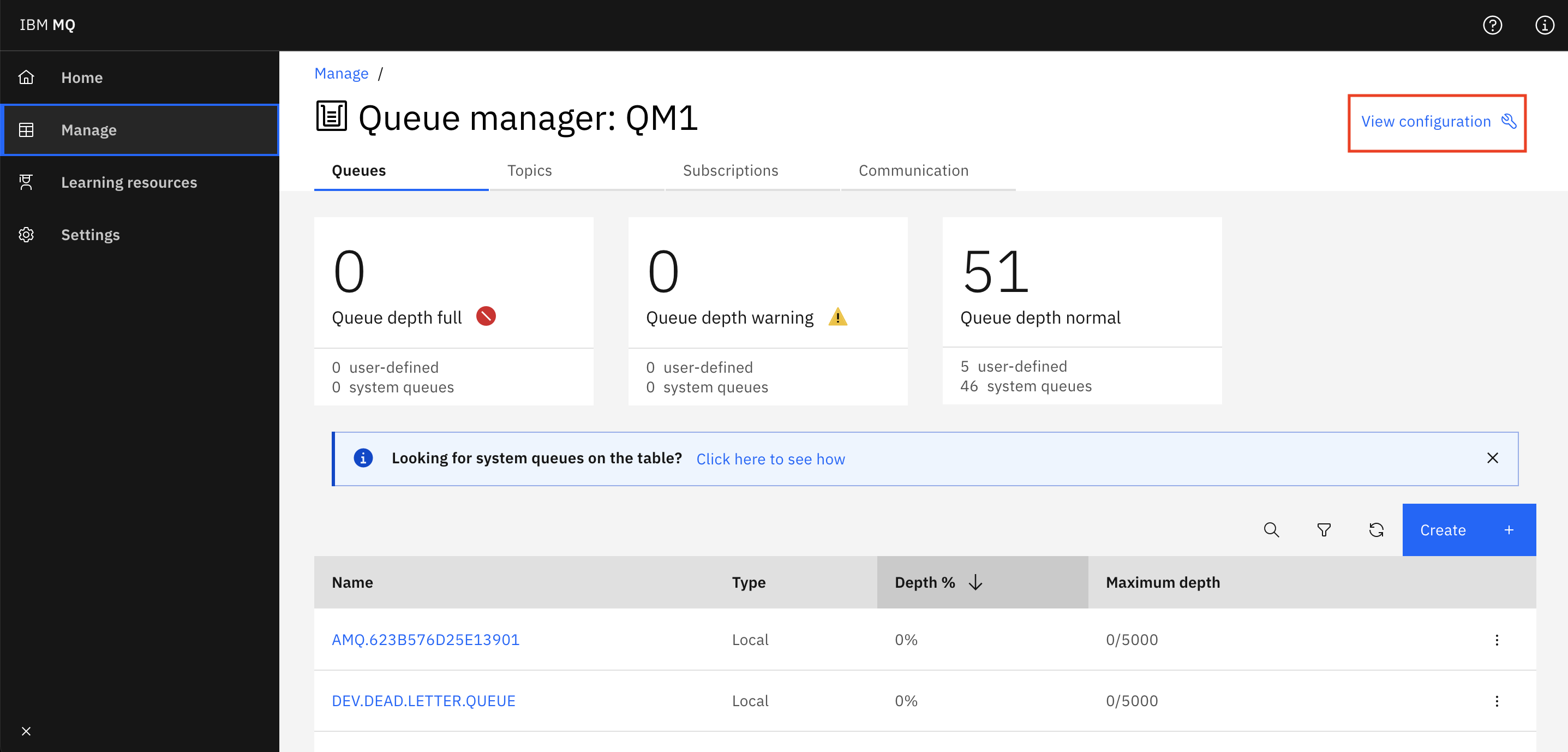
- Click Manage in the side menu to view your IBM MQ objects.
- Click View configuration.
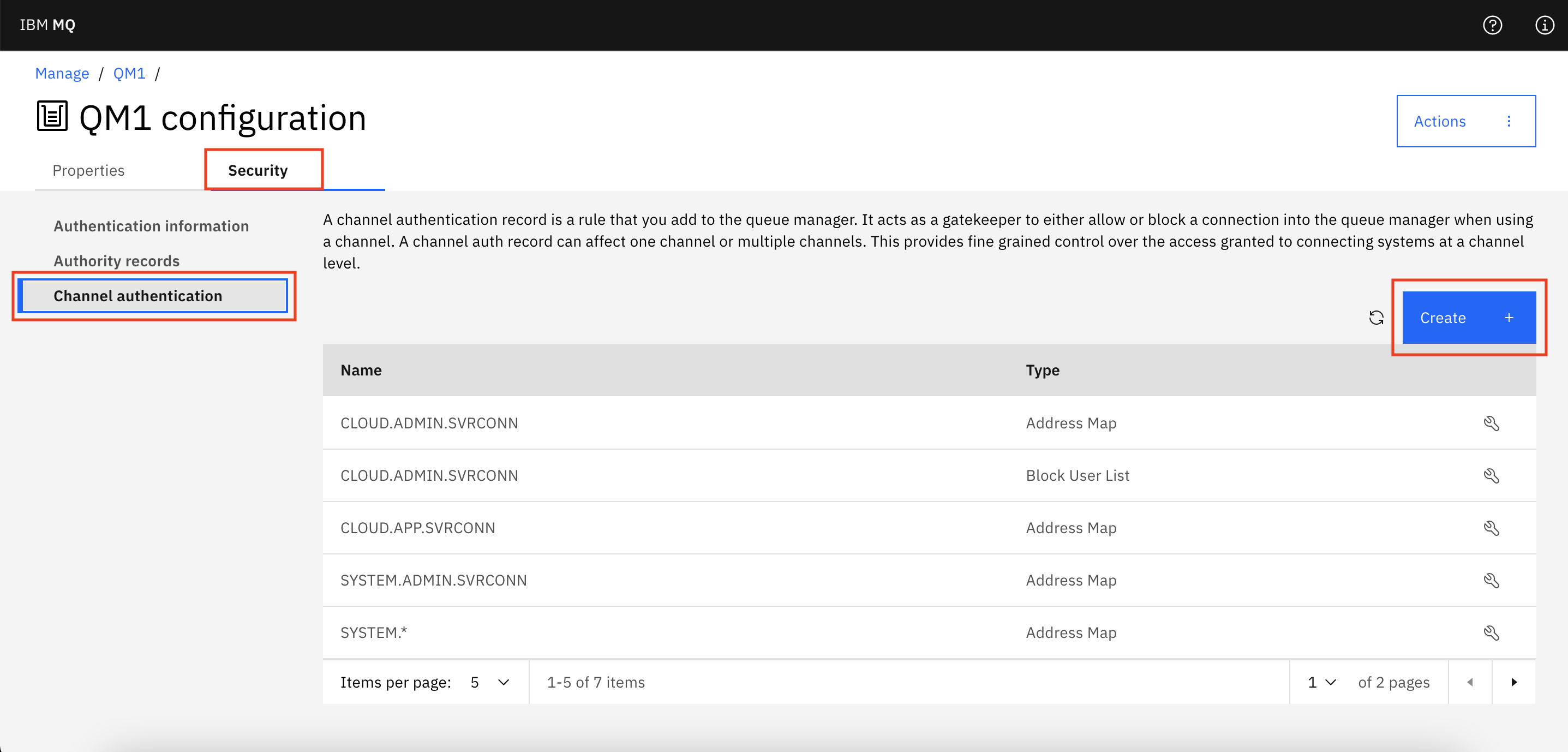
- Click on the Security tab and on Channel
Authentication, then click on Create.
- From the Rule type drop-down menu, select
Allow. After selecting the rule type, you can choose an identifier, select Address.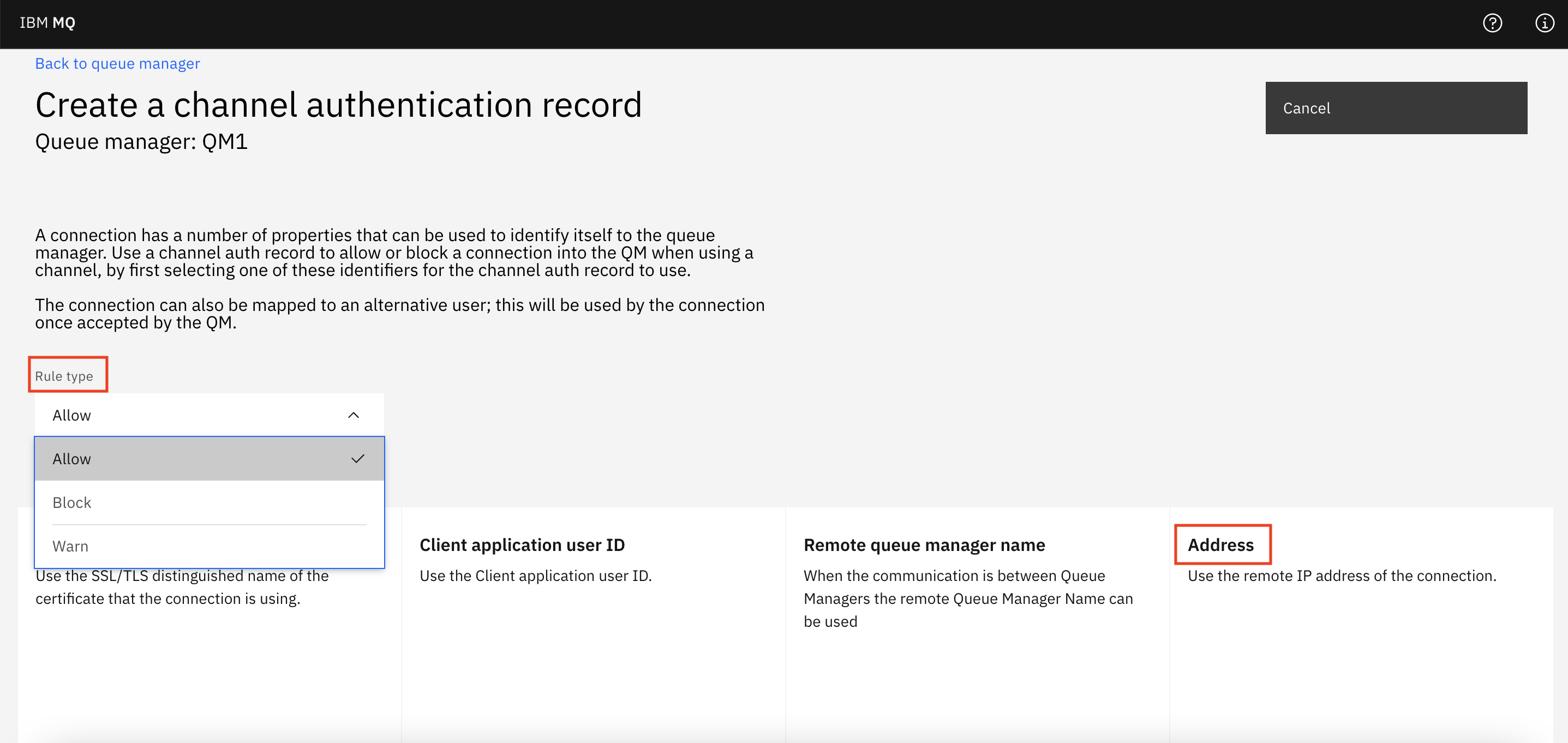
- On the following page, add the channel name, for example
QM.ENTRY. In the Address text box add*. Finish by clicking on the Create button.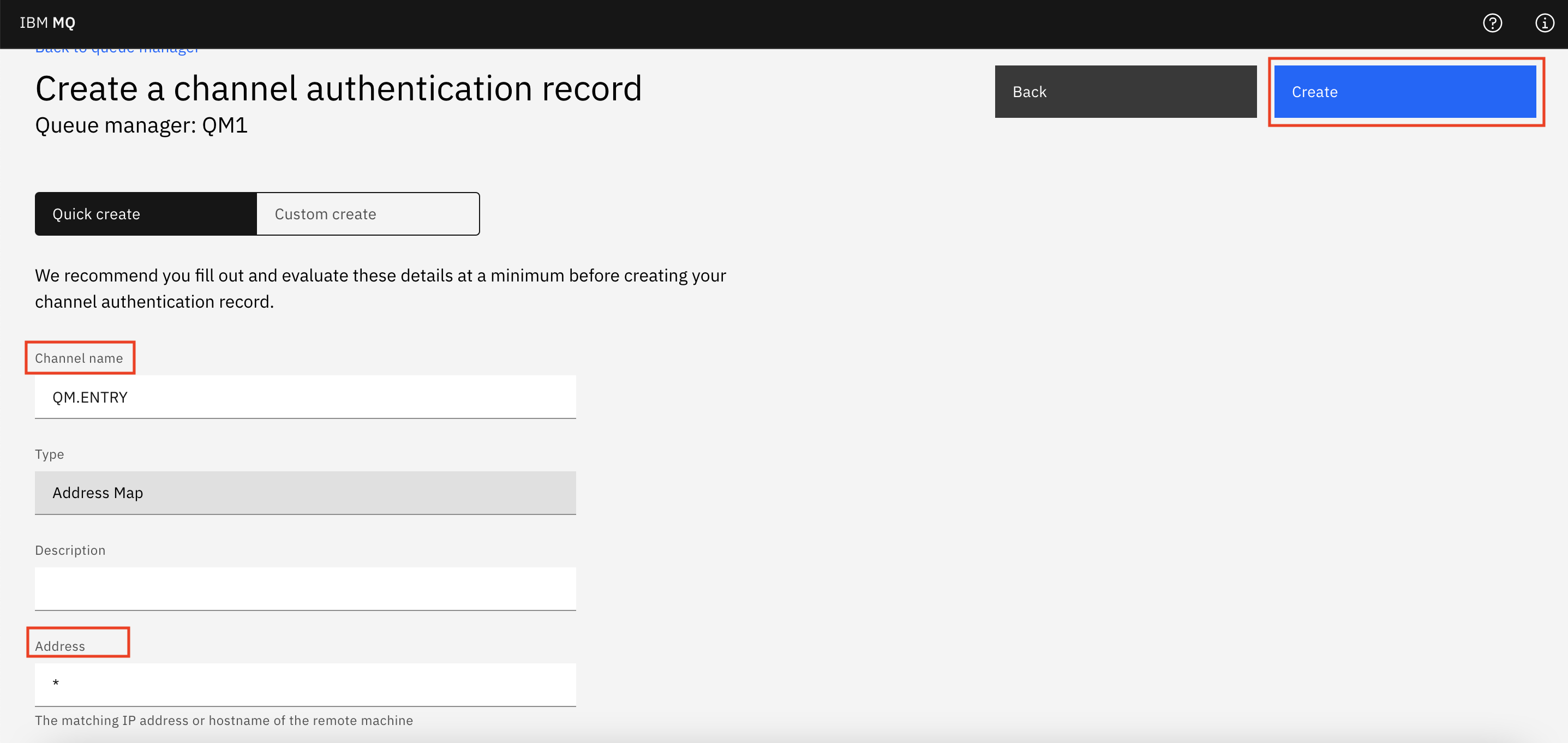
- You should now see a new channel authentication record with your channel name.
MQRCCF_ACCESS_BLOCKED (3382) when attempting to administer queue manager
While attempting to define, delete or alter objects in your IBM® MQ as a Service queue manager
your administration client receives an MQRCCF_ACCESS_BLOCKED (3382) return code.
With clients running versions of IBM MQ v9.0.3 or below you might receive a return code of
MQRC_UNEXPECTED_ERROR (2195)
AMQ7355E: Object <Object name>, object type <Object type>, is locked to remote users.Explanation
Certain features of IBM MQ have been disabled for users of IBM MQ as a Service. These features are disabled either to prevent accidentally disabling the queue manager or potential misuse of the service. You might see that some of the locked attributes have values assigned to them, these are assigned automatically and cannot be changed.
If you try to define, alter or delete an object or attribute that has been disabled, your queue
manager blocks this action with the return code MQRCCF_ACCESS_BLOCKED (3382). This
return code was added at version 9.0.3 of IBM MQ, clients
that are older than version 9.0.3 will not recognize this return code and so are likely to return
MQRC_UNEXPECTED_ERROR (2195) instead.
The following features have been disabled:
- The following queue manager attributes:
CONNAUTH,CHADEXIT,CLWLEXIT,CLWLDATA,SSLCRYP,SSLKEYR - Authentication information objects of type
IDPWOS&IDPWLDAP - The following channel attributes:
MSGEXIT,MSGDATA,SCYEXIT,SCYDATA,SENDEXIT,SENDDATA,RCVEXIT,RCVDATA Listenerobjects.Serviceobjects. Note: You can start or stop an existing service object.Processobjects.- The following queue attributes:
PROCESS COMMINFOobjects.
MQRC_MAX_CONNS_LIMIT_REACHED (2025) when attempting to connect to a queue manager
While attempting to connect a client application or queue manager to your IBM® MQ as a Service
queue manager you receive a return code of MQRC_MAX_CONNS_LIMIT_REACHED (2025) and
the client cannot connect.
AMQ9694E: Program cannot connect because connection limit reached.Explanation
IBM MQ as a Service applies limits to queue managers resources based on size. The values of each limit, and what are limited, are detailed in the information about each queue manager size when you create a new queue manager.
One of the limits applied to the queue manager is the number of concurrent client connections,
this applies to both client applications and client queue managers. If you attempt to exceed the
number of allowed connections your client application is blocked with the return code
MQRC_MAX_CONNS_LIMIT_REACHED (2025) and an AMQ9694E error message
is printed in the queue manager logs.
Solution
To resolve this problem either:
- Disconnect unnecessary client connections to allow newer clients to connect
- Upgrade your queue manager to a larger size to allow more client connections
To let you know when you are getting close to your queue manager client connection limit, the
queue manager outputs an AMQ7358W error message in the queue manager logs when it
is at 80% of allowed client connections.
Messages cannot be put to a queue whose name does not start with 'DEV.'
While attempting to send a message to a new queue whose name does not begin with 'DEV', you receive one of the below error messages:
JMSWMQ2007: Failed to send a message to destination '[YOUR QUEUE NAME]'MQRC_NOT_AUTHORIZED (2035).
Explanation
The default configuration of an IBM MQ as a Service queue manager is for all initial queues to be assigned with authority records, allowing users and applications to send and receive messages. All queues and topics beginning with 'DEV.' are configured to allow messages to be sent and received.
If a new queue or topic has been created whose name does not start with 'DEV.' the predefined authorization records will not apply. Therefore applications will not have the required permissions to send or receive messages to this queue or topic.
Solution
To resolve, the problem, use one of the following methods.
- Using runmqsc, run the following
commands:
SET AUTHREC PROFILE('TEST.QUEUE') OBJTYPE(QUEUE) GROUP('demoapp') AUTHADD(PUT,GET,BROWSE,INQ)SET AUTHREC PROFILE('TEST.QUEUE') OBJTYPE(TOPIC) GROUP('demoapp') AUTHADD(SUB,PUB)Note: Replace 'TEST.QUEUE' with the name of your queue., and 'demoapp' with your application username. If you want, you can grant access to an object to all connected applications by specifying the group 'mqwriter'. - Via the web console:
- Select the new queue then Configuration under the three dots at the top of the screen.
- Select Security and click Add +.
- Select Group and enter the name 'mqwriter' as the Group Name. Tick the MQI checkbox, and ensure only the boxes below MQI are checked.
- Click the Create button.
IBM MQ Channel times out using private connection
Clients or queue managers are periodically disconnected from the IBM MQ as a Service queue manager when connecting using a virtual private endpoint gateway. The IBM MQ logs show the following errors:
Explanation
The default Keepalive setting (KAINT) of a MQ SaaS queue manager channel is set to AUTO. If KAINT is set to AUTO, the Keepalive value is based on the value of the negotiated heartbeat interval (HBINT). By default this defines a KeepAlive interval of HBINT + 60 seconds, which totals 300 seconds.
The timeout period for a virtual private endpoint is 240 seconds. Therefore, the TCP connection can be closed before the IBM MQ KeepAlive interval has been reached.
Solution
DEFINE CHANNEL('CLOUD.APP.SVRCONN') CHLTYPE(SVRCONN) SSLCAUTH(REQUIRED) SSLCIPH(ANY_TLS12_OR_HIGHER) HBINT(60) REPLACE'Extended key usage does not permit use for TLS client authentication' error
If you receive the error Extended key usage does not permit use for TLS client
authentication: Check the full valid CA trust chain is available in the keyring, it means
that you are attempting to use certificate Extended Key Usage (EKU) for client authentication. For
default certificates, EKU client authentication is not enabled. See Certificate Extended Key Usage (EKU) for
details on how to use a certificate that can be used for client authentication.