Changing a workspace and subpanel header
Customize a workspace by changing the workspace and subpanel headers.
Before you begin
Procedure
- To change the workspace header statement, use the ISPF
file editor session.For example, in the
KOBSITECworkspace you can find the workspace header definition statement just after the<WORKSPACE>tag statement:000014 /***************************************** 000015 <WORKSPACE> 000016 HEADER='ITM Situation & Message log'
For example, you might change the header definition as follows:
000014 /***************************************** 000015 <WORKSPACE> 000016 HEADER='Situation Status and History'
- To change subpanel headers, use the ISPF file editor session.
For example, in the
KOBSITECworkspace, further on in the workspace source, you can find the first subpanel header definition statement:000021 000022 /****************************** 000023 /* 000024 /* SUBPANEL 1 000025 /* 000026 /****************************** 000027 000028 <SUBPANEL> 000029 TYPE=SUMMARY 000030 HEADER='Current Situation Event status' 000031 TOFROMHEADER=Y
For example, you might change the first subpanel header definition as follows:
000021 000022 /****************************** 000023 /* 000024 /* SUBPANEL 1 000025 /* 000026 /****************************** 000027 000028 <SUBPANEL> 000029 TYPE=SUMMARY 000030 HEADER='Current Situation Alerts' 000031 TOFROMHEADER=Y
Further on in the example workspace source, you can find the second subpanel header definition statement:
000102 000103 /************************** 000104 /** 000105 /** SUBPANEL 2 - 000106 /** 000107 /************************** 000108 000109 <SUBPANEL> 000110 TYPE=SUMMARY 000111 HEADER='Situation Event Message Log' 000112 TOFROMHEADER=Y
For example, you might change the second subpanel header definition as follows:
000102 000103 /************************** 000104 /** 000105 /** SUBPANEL 2 - 000106 /** 000107 /************************** 000108 000109 <SUBPANEL> 000110 TYPE=SUMMARY 000111 HEADER='Situation Alerts History' 000112 TOFROMHEADER=Y
- Use the ISPF file editor session to save your workspace source changes.
- Press PF3 (End) in your enhanced
3270 user interface session to close the workspace source view.
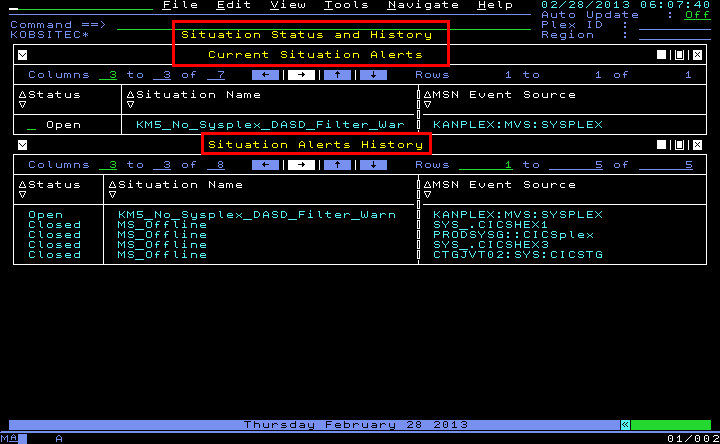
As the PF3 (End) action is processed, a refreshed view of the modified workspace is displayed, that is, the
KOBSITECworkspace in this example:Figure 1. Customized workspace view that shows updated workspace and subpanel headings for the ITM Situation Status & Message Log ( KOBSITEC) workspace
Tip: While theKOBSITECworkspace is refreshed when a PF3 (End) action is processed, a refresh might not occur for a different workspace. If a refresh does not occur, you can exit and reenter the modified workspace to see your changes.