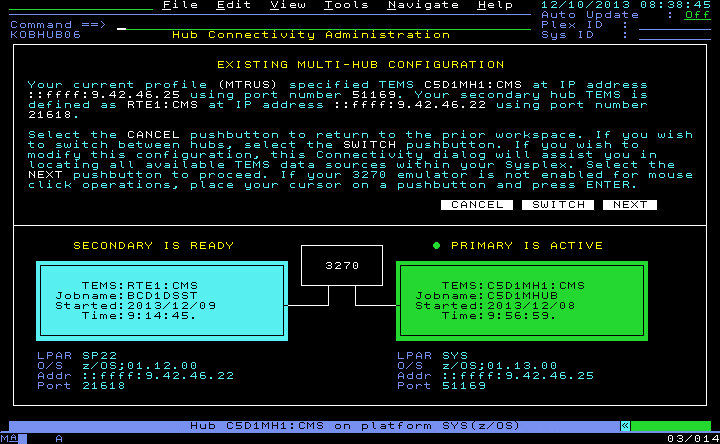
You can manually switch between your primary and secondary
hub connection, which is described in the following procedure.
In the event of one of the connections being unavailable, you
can automatically switch between primary and secondary hub connections.
A hub connectivity check runs when the Hub Check option is enabled in your User Preferences. The Hub Check option is enabled by default. If the hub connectivity check fails,
an attempt is made to auto-switch your hub connection to your chosen
secondary connection. If the switch is successful you see a notification
similar to the one shown in Figure 2. For more information about the Hub Check option, see User Preferences.
Note: Mechanisms
are not provided to make your secondary hub connection a backup or
failover of your primary hub connection. For more information about
multi-hub support, see Multi-hub support.
Procedure
Use one of the following methods to switch hub connections.
Go to the Hub Connectivity Administration workspace and select the SWITCH icon.
Tip: To go to Hub Connectivity Administration workspace, select Tools > Current Hub Information from the menu bar
or move your cursor over HUB in the drawer
and press Enter.
Select Tools > Switch between hubs from the menu bar.
From the action or command line, enter the SWITCH command.
Tip: The Existing Multi-Hub Configuration panel and the Tools > Switch between hubs options are only available
if you previously selected a secondary hub connection.
If the switch is successful, the Hub Connectivity
Alert workspace displays a Multi-Hub Switch Notification to confirm that your hub connections are switched.Figure 2. Hub Connectivity AlertMulti-Hub
Switch Notification workspace
Select OK.
Your
session goes to the first workspace name specified in your logon profile,
by default the Enterprise Summary (KOBSTART) workspace.
Tip:
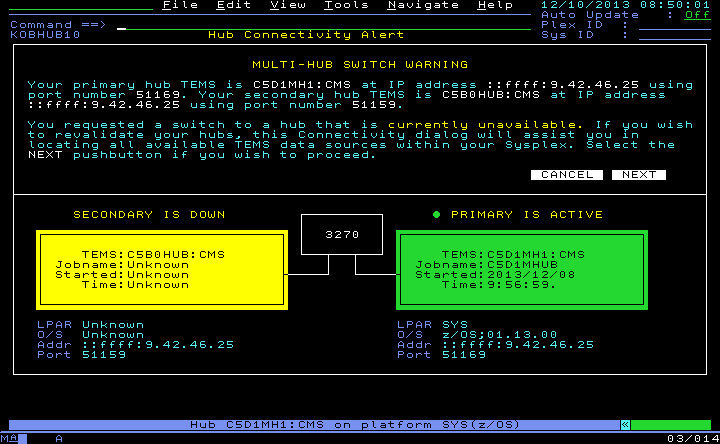
If you attempt to switch to a hub connection that is
not available, you see a Hub Connectivity AlertMulti-Hub Switch Warning and the switch does
not occur. Figure 3. Hub Connectivity
AlertMulti-Hub Switch Warning workspace. If either your primary or secondary hub connections are unavailable,
select NEXT on the Hub Connectivity
Alert workspace to view other possible hub connections
that may be available.