Building basic topologies
Procedure
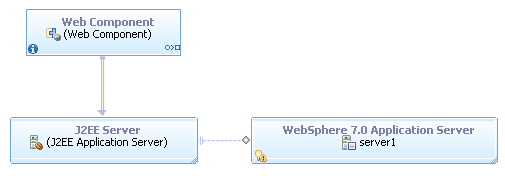
Creating a topology typically involves the following steps:
- Create a unit that represents an application, such as a
web component, from the templates with names enclosed in parentheses
in the Palette. The web component unit is in the Application
Tools drawer of the Palette.
In the topology editor, units like this web component represent not a web application under development but a deployment instance of that application, a single installation of that application in a deployment scenario. By convention, the templates with names enclosed in parentheses each contain one or more conceptual units, units which represent a specification for an application component or piece of infrastructure, rather than a specific application or server. The templates without parentheses represent specific, fully detailed systems. You can filter the Palette to show only the templates of a certain type. To filter, you switch between the Physical Deployment viewpoint (for the templates with conceptual units) and the Infrastructure Deployment viewpoint (for the templates with concrete units).
You can also add units using the Quick Palette by pressing Ctrl+T, typing the first few characters of the unit or template's name, and selecting the unit or template that you want to add. Adding units using the Quick Palette yields the same result as adding units from the Palette, and the list of units and templates in the Quick Palette is the same as the list in the Palette. For more information, see Adding units to topologies.
You can see the requirements by double-clicking the unit and then selecting Requirements from the list at the top of the popup window. The application unit has, at minimum, a requirement for hosting.
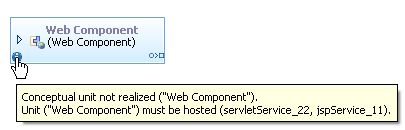
For example, the web component must run on a web server. Because this unit does not yet have a server, the topology editor adds a message to the unit, the icon for which you can see at the bottom left corner of the unit.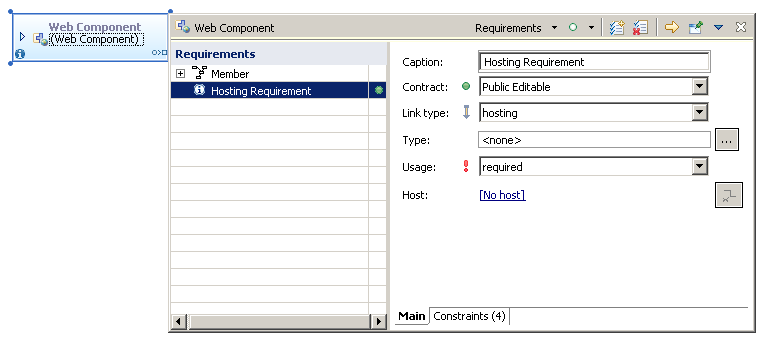
- Create a unit that represents the web server, such as a
J2EE server unit from the Application Tools drawer
of the Palette. This unit will provide hosting for
the web component.The Palette for the topology editor includes units that represent generic types of servers, such as the J2EE server unit, and units that represent specific types of servers. You can start with generic units and move to more specific units as you progress through your deployment planning cycle.
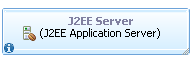
- Create a hosting link from the web application unit to
the server unit in any of the following ways:
- From the Common Tools drawer of the Palette, click Hosting Link and click and drag the link from the web component to the server unit.
- Click the web component and then hover the mouse pointer over
it until the link handles are displayed. Then, drag the hosting link
handle (the handle that extends from the bottom center of the unit)
from the web component to the server unit.
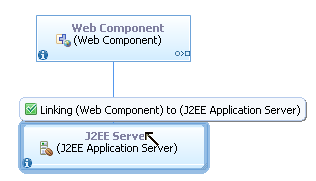
If the link handle does not appear, click the unit to select it and then hover the mouse over the unit again. If the link handle still does not appear, you may have set the link handle not to appear; see Setting preferences for the appearance of units.
- Click the icon at the bottom left of the web component, select
the error, and use the resolution to create a hosting link automatically.See Resolving problems with topologies for more information on how the topology editor can automatically correct problems and resolve dependencies in a topology.

Different types of links indicate different types of relationships between units. See Linking units together and its related topics for more information on links.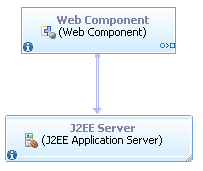
- Add a more specific type of server unit to the topology,
such as a WebSphere® Application
Server 7.0 unit, this time using the concrete templates in the Palette,
which do not have names enclosed in parentheses. The units in the Palette without names in parentheses are concrete units, units that represent a specific application component or piece of infrastructure. In this case, the concrete server will be the specific realization of the conceptual J2EE server.
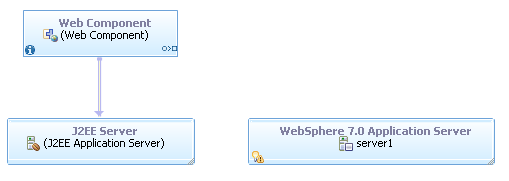
- Create a realization link from the generic server unit
to the new specific server unit, using either the Realization
Link entry in the Palette, the resolution to the error
on the generic server unit, or the realization link handle, which
extends from the bottom of the generic server unit. Realization links indicate that the target unit is a more specific instance of the source unit. In this case, you started with a generic application server unit and then moved to a specific type of server. In this way, you can use the topology editor to begin planning at an abstract level and then add details to the plan.