Creating a base image for the Windows Bulk Provisioning Tool

Create a base image from an ISO file for the Windows Bulk Provisioning Tool.

Before you begin

Notes:
  • Ensure that the Windows device that is used to create the OS image or the SelfExtractingOA.exe executable file with the Windows Bulk Provisioning Tool is not MDM-enrolled.
  • Administrators must avoid enrolling the same device that was used to create the SelfExtractingOA.exe executable file with the Windows Bulk Provisioning Tool.
  • Make sure that you have a copy of the Windows ISO file on a removable drive.

Procedure

  1. Log in to the Windows machine and click the Search icon on the taskbar. Follow the steps.
    1. Type Turn Windows features on or off and then select that item.
    2. Select and enable Hyper-V.
      Note: If you cannot locate Hyper-V on your machine, make sure that hardware virtualization support is turned on in the BIOS settings.
    3. Save the BIOS settings and then start the machine normally.
    Viewing an example to turn Windows features on or off
  2. Restart the machine. The system prompts you to restart the machine.
  3. Create a Windows virtual machine and then follow the steps.
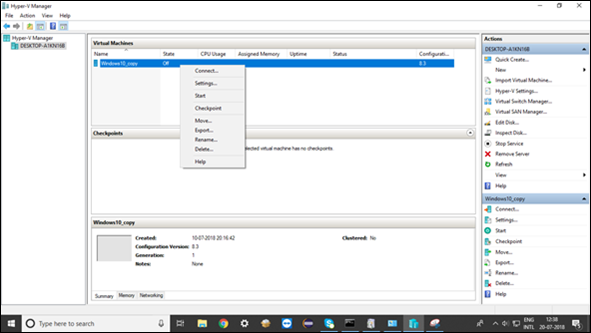
    1. Open the Hyper-V Manager. From the right side of the Actions pane, select New > Create a new virtual machine and then provide a name for the virtual machine such as Windows 10_copy.
    2. Start the wizard from Generation 1 > Startup memory (RAM) 1024 MB.
    3. Choose the adapter that you want to use and then select a default switch.
    4. Select the location for the VHDX file, install the operating system, and click Finish.
    The virtual machine is created and the operating system is installed on the machine. You are prompted to start the virtual machine.
    Viewing an example of new virtual machine wizard
    Viewing an example of specifying generation
    Viewing an example of assigning memory
    Viewing an example of connecting virtual hard disk
    Viewing an example of installation options
    Viewing an example of V manager
  4. Set up the virtual machine to manage Windows devices with the Windows copy.
    Choose a Windows operating system version and then install the software, applications, and configurations for your users and managed desktops.
  5. Install and set up the Windows Bulk Provisioning Tool on the virtual machine.
    For information on installing and configuring the Windows Bulk Provisioning Tool, see Installing the Windows Bulk Provisioning Tool and Configuring the Windows Bulk Provisioning Tool configuration wizard for the imaging process.
  6. Close the virtual machine and then click Shutdown in the Hyper-V Manager.
  7. When the virtual machine is shut down, go to Search > Search for Disk Management > Select Base Drive (C:\) on the machine and select Action > Attach VHD.
  8. Select the location of the VHDX file that you created in step 3 and click OK.
    Reserved disks are created on the machine at F:\ and G:\.
    Viewing an example of new reserved disks crated on the virtual machine
  9. At a command-line (running as administrator), use the disk management commands to create the install.wim file. Enter the following command: dism /capture-image /imagefile:c:\<folder>\install.wim /capturedir:G:\ /name:"<VM name in Step 3>” /compress:maximum /checkintegrity /verify /bootable.
    The system usually takes about 20 to 30 minutes depending on the availability of resources to create the install.wim file.
  10. Move the install.wim file to a location on the C:\ drive. Extract the ISO file from the removable drive and then replace the WIM file in the Sources folder of the ISO file.

Results

Your removable drive contains the new ISO file that you can now deploy to all machines. The ISO file is the base image that is created with the Windows Bulk Provisioning Tool.