About this task
Follow the steps required to enroll standard Android devices. You
can use either a configuration file or a QR code to download enrollment configurations to the
devices.
Procedure
-
Copy the configuration file and the MaaS360 agent to the device storage.
Notes:
- Make sure that you add both the files to the same location on the devices. For example, copy the
files to the root or Downloads folder.
- If you do not want to copy the configuration file, you always can scan the QR code to copy
configuration parameters to the device.
-
Install the IBM®
MaaS360® app from the storage
location.
Important: Installing apps from unknown sources must be allowed on the device.
-
Launch the IBM
MaaS360 app.
-
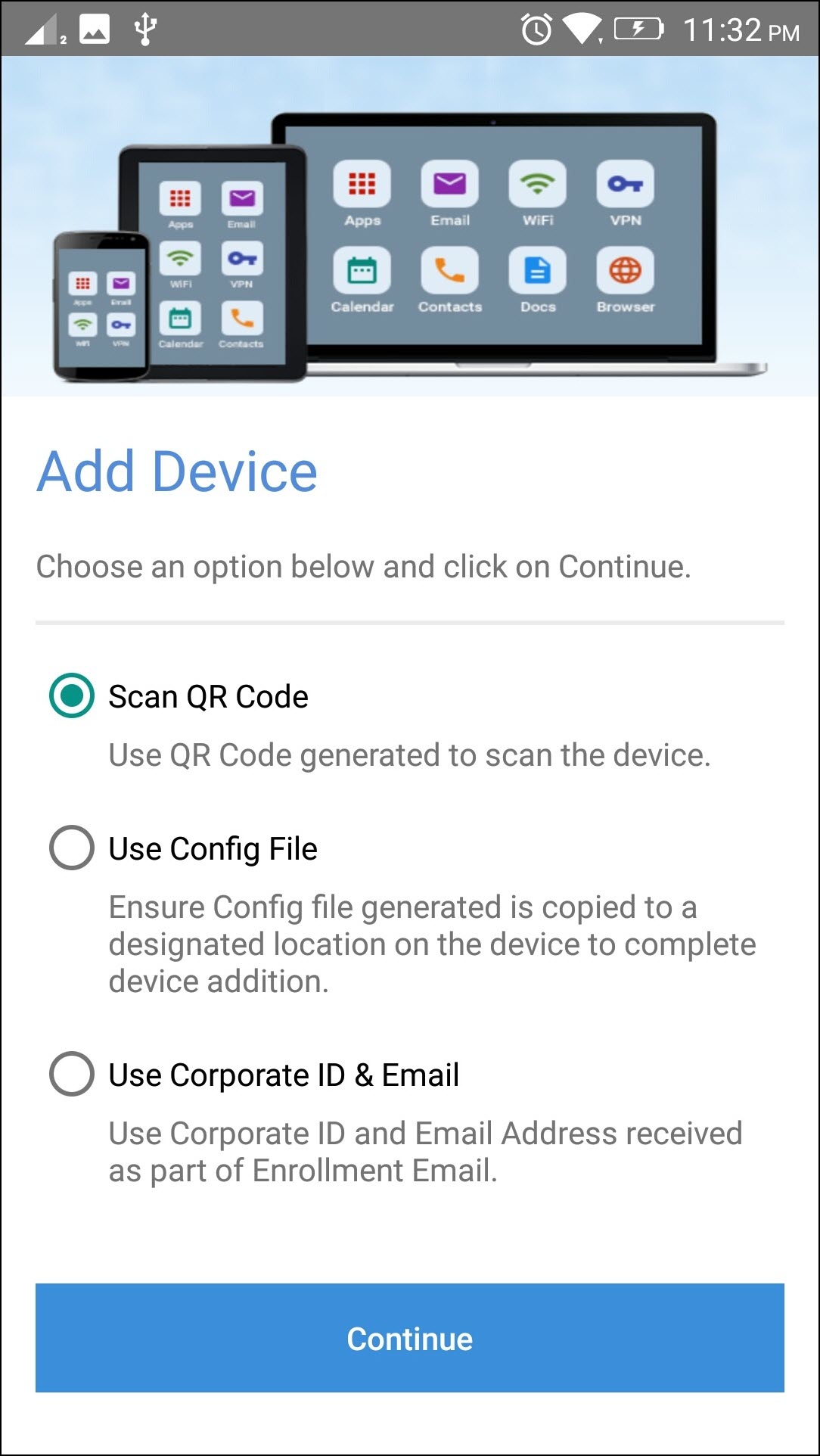
On the Add Device screen, select one of the following options to enroll
the device to IBM
MaaS360.
-
- Scan QR Code
- Scan the QR code provided by your administrator to enroll the device.
-
- Use Config File
- Use the configuration file that you downloaded to your device storage to enroll the device.
-
- Use Corporate ID & Email
- Use this option to skip bulk enrollment and continue with regular enrollment instead.
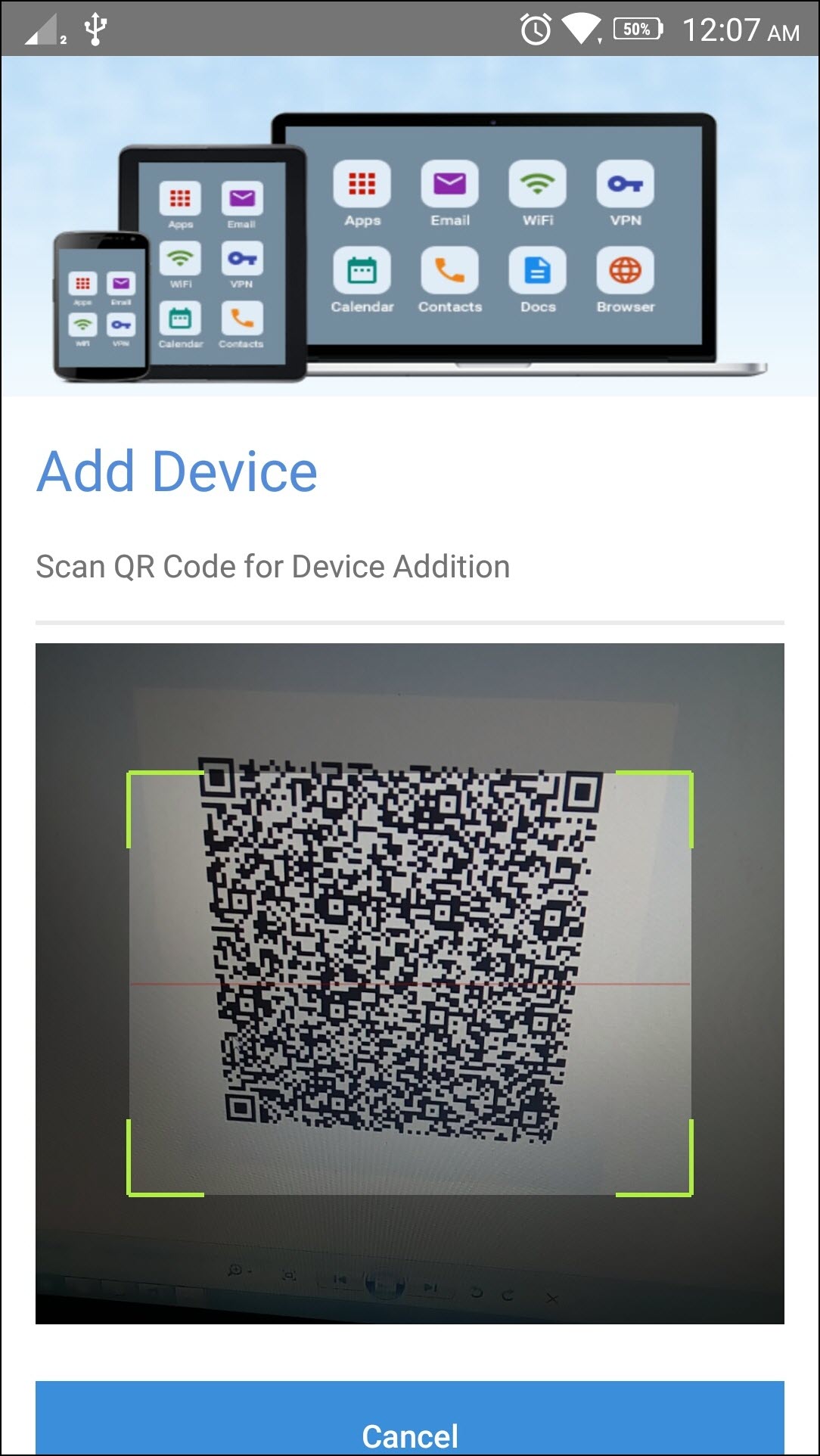
The configuration parameters are successfully downloaded to the device.
- Optional: If the device name prompt is displayed, enter a device name and
click Continue.
Results
The device is successfully enrolled and IBM
MaaS360 pushes the required
policies and apps to the enrolled device (after the user signs in on the device).