MaaS360 Remote Support app
The IBM® MaaS360® Remote Support app enables administrators to remotely view and control managed Android devices running 7.0 or later.
The administrators can use this app to initiate remote control or remote view sessions from the IBM MaaS360 Portal.
Supported devices
- The remote control feature is supported on Samsung devices only and the remote view feature is supported on all Android devices.
- Both remote control and remote view features are not supported on Kiosk devices. Use TeamViewer integration to initiate remote control and view sessions on Kiosk devices.
- Use Firefox or Chrome browsers to initiate remote sessions.
Deploying the MaaS360 Remote Support app
The administrators must deploy the IBM MaaS360 Remote Support app on target devices using the App Catalog.
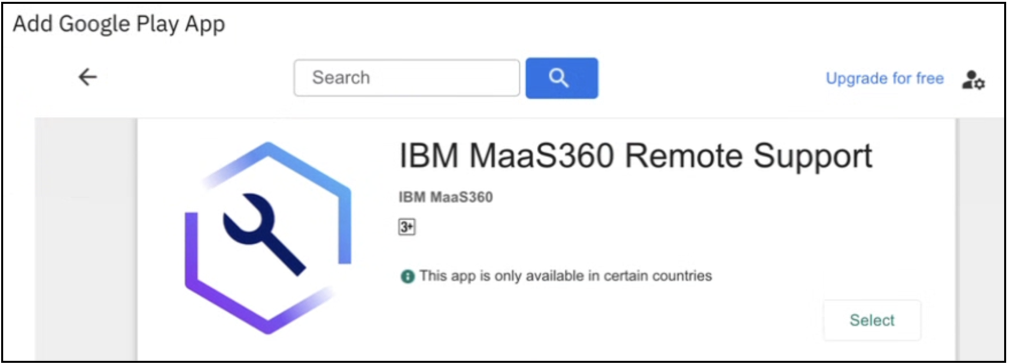
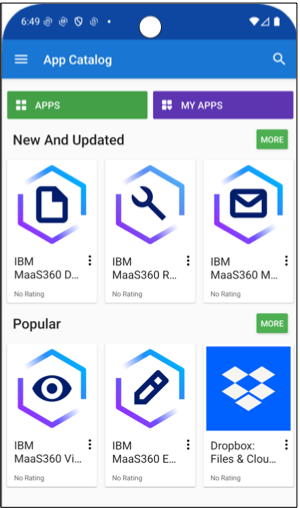
After the app is installed, the app is not displayed on Home screens. End-users can verify that the app was installed from the end-user App Catalog.
Initiating remote support on a device
After the IBM MaaS360 Remote Support app is deployed to target devices, administrators can initiate a remote control and view session from the Device Summary page.
- From the IBM MaaS360 Portal home page, select .
- Select the device that you want to remotely assist and select
.
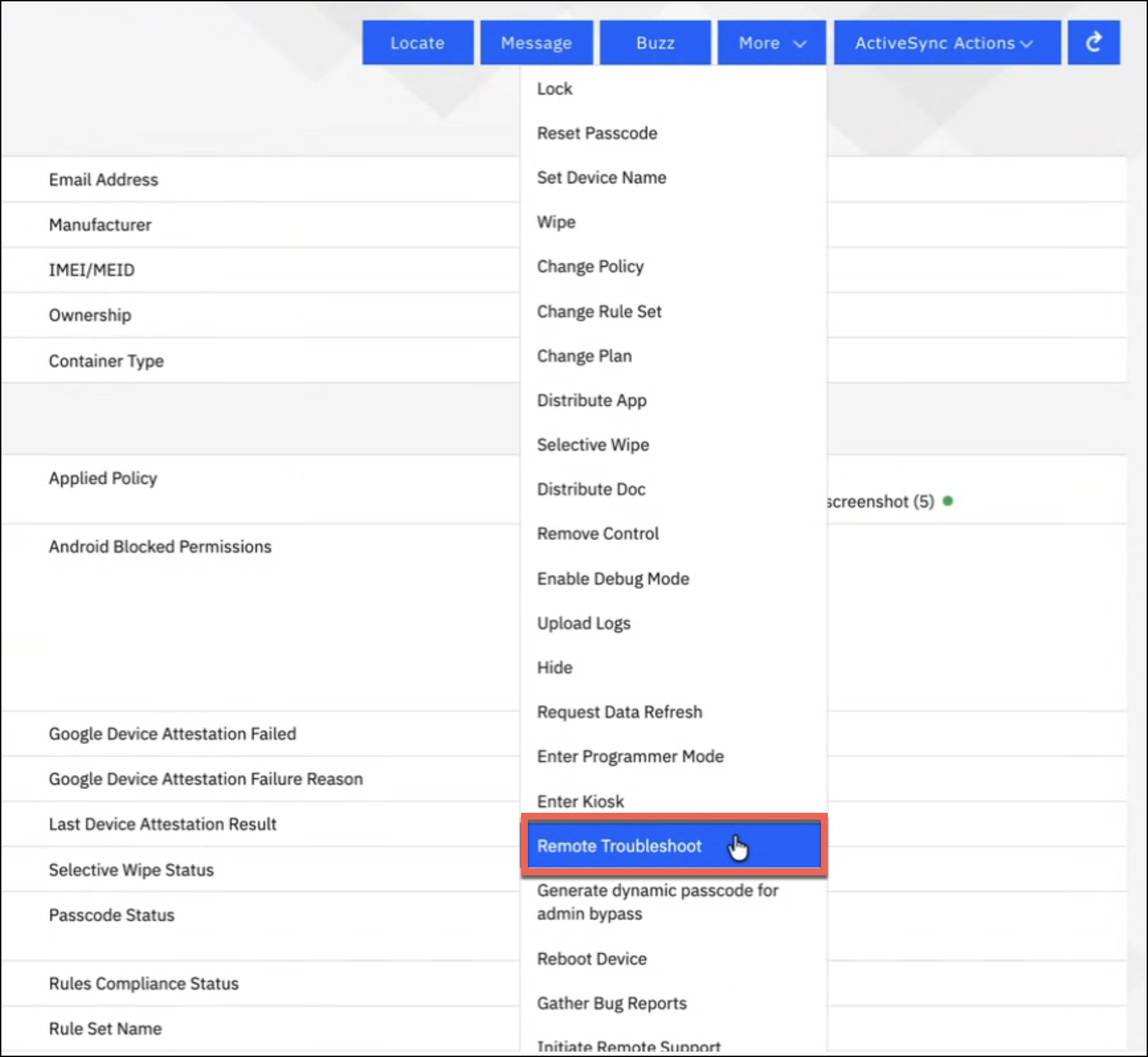
IBM MaaS360 generates a unique code that administrators must share with users. This code ensures that end-users are receiving an authentic request for remote assistance. This code is unique to the specific session and cannot be used on other devices.
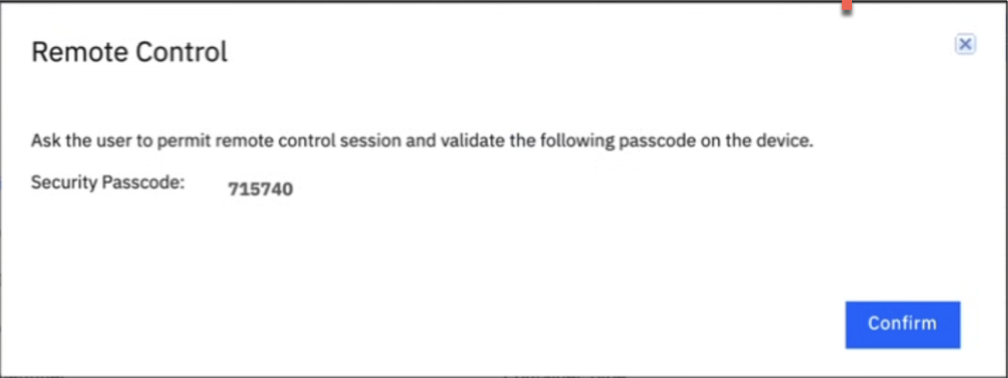
- Click Confirm.
Activating a remote session on a device
 |
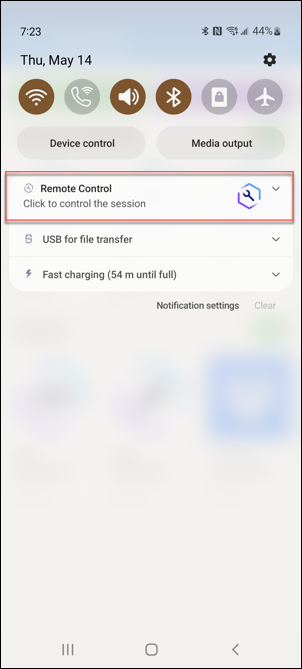 |
When the user taps the notification (swipes down from the top of the screen) on the system tray, a verification code is displayed on the screen to confirm that the session matches the session that is requested by the administrator.
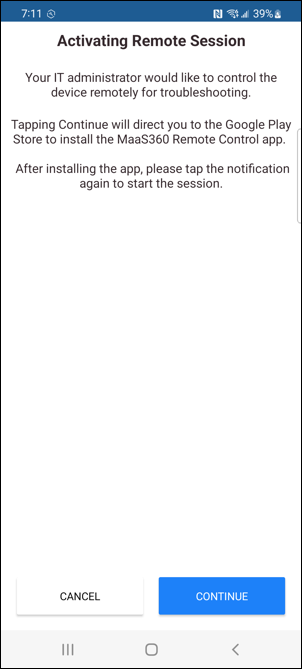
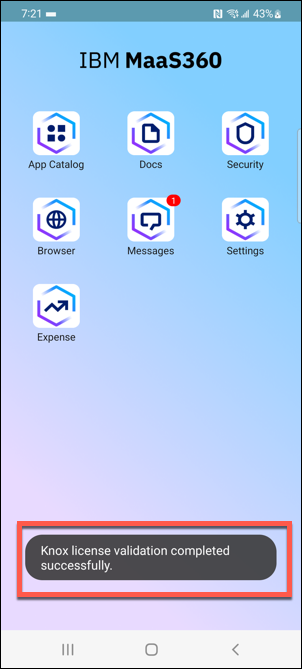
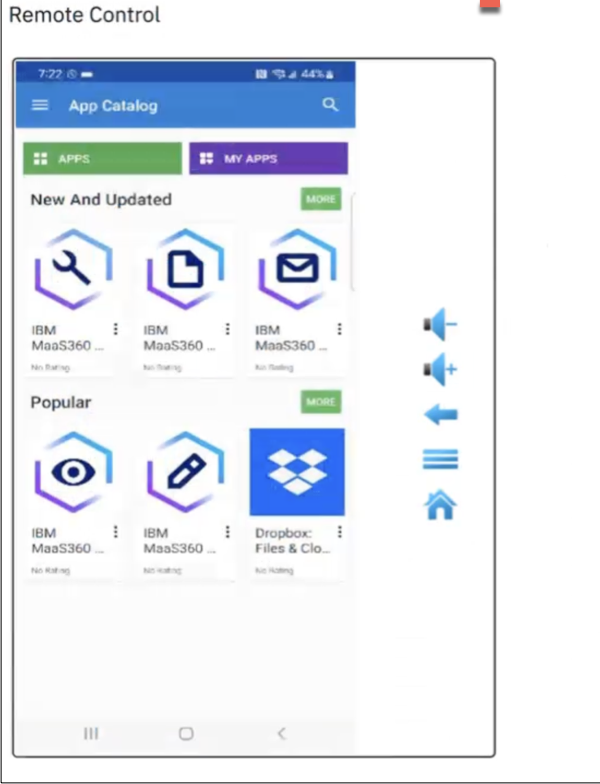
When users confirm the session, the administrator can remotely control and view the device screen. Administrators can use the mouse cursor to select various screen elements to launch an app, type on keyboard, or go to the Home screen.
|
|
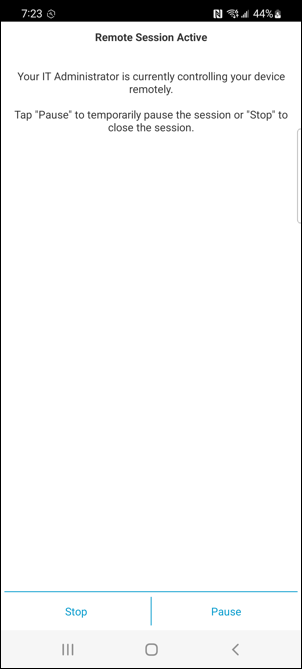 |
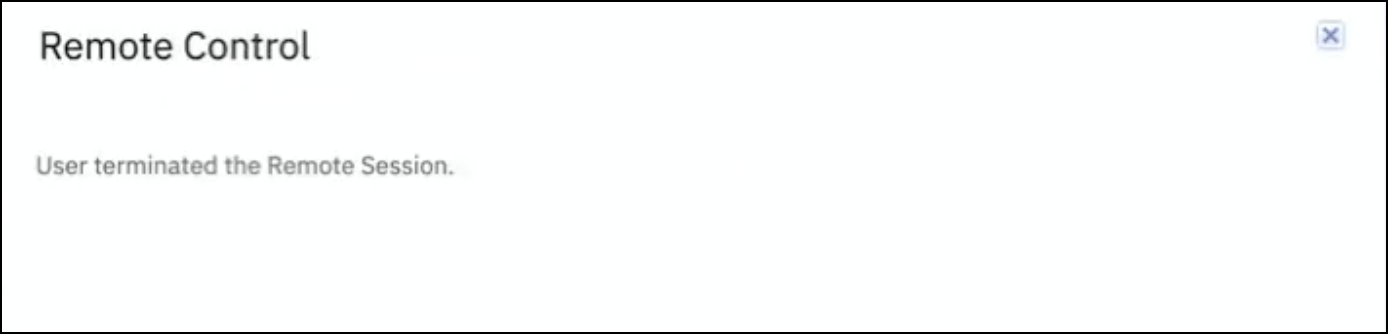
If the user ends the session, the administrator receives the following notification.
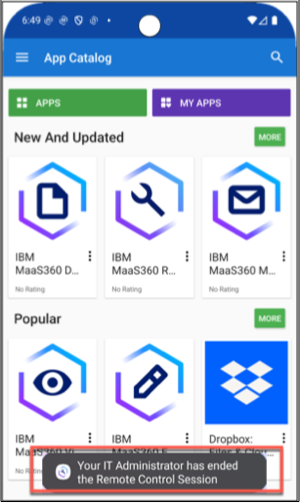
If the administrator ends the session, the user receives the following notification.
When a session has ended (rather than paused), the administrator must generate a new session to remotely view and control the device again.