Deploying OS upgrades to corporate-owned devices
IBM® MaaS360® enables the administrator to remotely deploy over-the-air (OTA) updates to corporate-owned devices.
You can issue the Android OTA upgrade command to install OS updates on corporate-owned devices that are enrolled in Device Owner (DO), Work Profile on Corporate Owned (WPCO), and Non-GMS mode. This command uses OS binary package as an input to run the OS update on devices. As an administrator, you can use device groups to target multiple devices for the OS update.
- Get the OS binary package from the corresponding device manufacturer (OEM). For Nexus and Pixel drives, you can download the OTA packages from this URL - https://developers.google.com/android/ota
Requirements
| Enrollment type | Agent requirement | OS requirement |
|---|---|---|
| Device Owner | IBM MaaS360 app version 8.10+ | Android 10+ |
| Work Profile on Corporate Owned | IBM MaaS360 app version 8.20+ | Android 11+ |
| Non-GMS | IBM MaaS360 app version 8.10+ | Android 10+ |
Deploying OS updates to an individual device
- From the IBM
MaaS360 Portal home page, go to
.Note: This action is available only for corporate-owned devices that are enrolled in DO, WPCO, or Non-GMS mode.
- Open the device summary page.
- Click More in the upper-right and click Android OTA
upgrade.
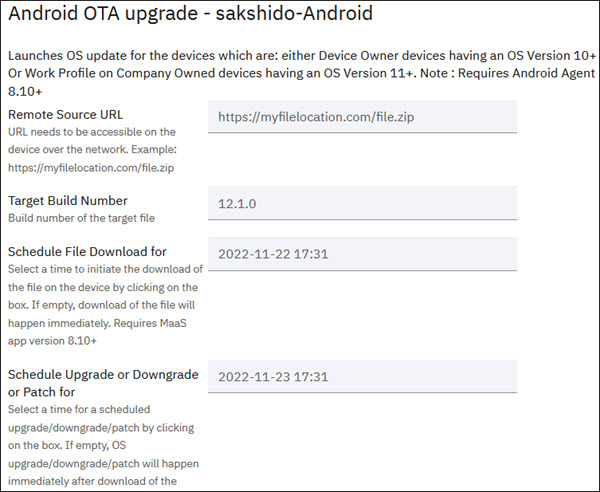
- On the Android OTA upgrade window, enter the following details.
-
- Remote Source URL
- The URL of the remote source location where the OS binary zip file is uploaded. The device must be able to access this URL over the network. For example, https://myfilelocation.com/file.zip.
-
- Target Build Number
- The build number of the OS update.
-
- Schedule File Download For
- The date and time in the future that you want to schedule the download of the OS upgrade, OS downgrade, or OS patch binaries on the device. If this setting is left blank, the binaries are immediately downloaded on the device.
-
- Schedule Upgrade or Downgrade or Patch for
- The date and time in the future when you want to schedule the installation of OS upgrade, OS downgrade, or OS patch on the device. If this setting is left blank, the downloaded OS update, OS downgrade, or OS patch binaries are immediately installed on the device.
-
- Click Continue.
When the Android OTA Upgrade command reaches the device, the OS Revision Download notification is displayed.
Deploying OS updates to multiple devices
Follow the steps to deploy OS updates to multiple Android devices at once.
- From the IBM MaaS360 Portal home page, go to .
- Hover over the More option below the group name and select
Manage Android Devices.
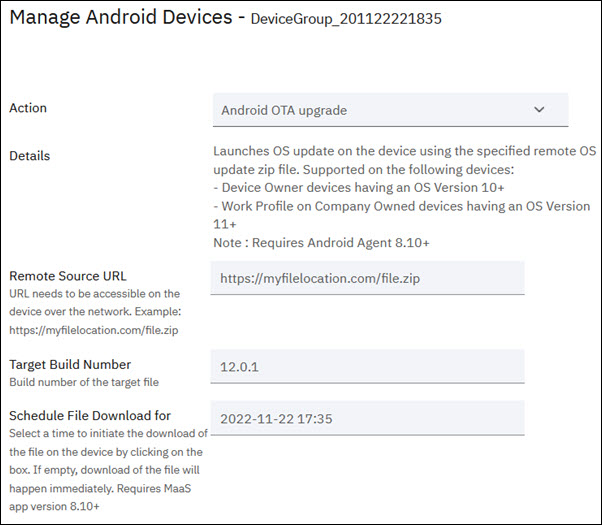
- On the Manage Android Devices window, select Android OTA upgrade action.
- On the Android OTA upgrade window, enter the following details.
-
- Remote Source URL
- The URL of the remote source location where the OS binary zip file is uploaded. The device must be able to access this URL over the network. For example, https://myfilelocation.com/file.zip.
-
- Target Build Number
- The build number of the OS update.
-
- Schedule File Download For
- The date and time in the future that you want to schedule the download of the OS upgrade, OS downgrade, or OS patch binaries on the device. If this setting is left blank, the binaries are immediately downloaded on the device.
-
- Schedule Upgrade or Downgrade or Patch for
- The date and time in the future when you want to schedule the installation of OS upgrade, OS downgrade, or OS patch on the device. If this setting is left blank, the downloaded OS update, OS downgrade, or OS patch binaries are immediately installed on the device.
-
- Click Continue.
When the Android OTA Upgrade command reaches the device, the OS Revision Download notification is displayed.
Tracking the status of the OS update
After issuing the Android OTA Upgrade command, you can track the status of the OS update in the IBM MaaS360 Portal.
- From the IBM MaaS360 Portal home page, go to .
- Open the device summary page.
- Click .
The History page is displayed.
